

Initiate the Model Consistency Check Report from the Encyclopedia Client. After selecting the model, start the Consistency Check Report by selecting Actions, Reports, Consistency Check.
The following dialog displays with the Model Name completed and protected:
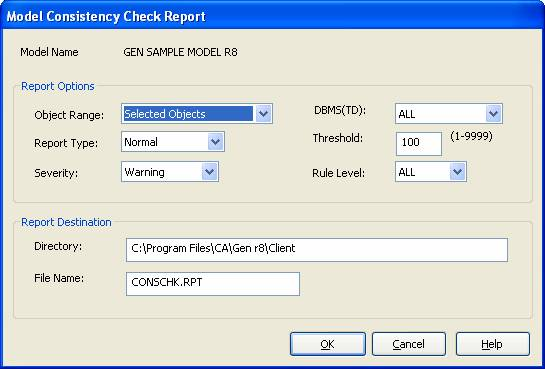
Defines whether to include all objects in the report, or to only include selected objects. Use Selected Objects to choose the objects to include as a starting point for Consistency Check. By selecting objects, you restrict the range of testing to focus on certain areas, instead of the entire model.
Use All to include every object in the model in the Consistency Check report.
Defines the report type as Normal or Summary.
Defines the kinds of messages to include in the report: Warning, Severe Warning, Error, or Fatal.
Defines the database type: ALL, NONE, DB2 UDB, DB2 z/OS, JDBC, MS/SQL, ODBC/ADO.NET, ORACLE, or SQL/MP.
Defines the maximum number of rule exceptions to report. When the number of rule exceptions reported exceeds this number, consistency check stops checking rules and writes the report summary stating the diagnostics reached the threshold.
Default: 100
Limit: A number between 1 to 9999.
Choose ALL, ISP, BAA, BSD, TD, or CG.
Defines a valid directory path.
Default: The directory from which the Encyclopedia Client started.
Defines the file to which to save the report.
Default: conschk.rpt
Closes the window and returns to the Model Selection dialog.
Opens the online Help for the Consistency Check Report dialog.
When you select the OK button, if the Encyclopedia Client fails to find the directory, it prompts to create the directory and checks the file name. When the file exists, it prompts to overwrite it.
While the report is processing, the client displays a progress indicator showing the number of objects checked and the time of the report request.
When processing completes, click the Continue button. The Notepad opens with the contents of the report.
|
Copyright © 2015 CA Technologies.
All rights reserved.
|
|