

Note: This information pertains to Microsoft Win32 only.
You can place a menu item in one of three menu item groups. The menu groups are named with some OLE naming conventions, but the main difference among the three groups is where the menu items will be placed in the merged menu bar.
You also have the option not to merge menu items.
|
Option |
When to Use |
|
Do not merge |
Not to be merged. |
|
Merge as a member of the file group |
There are file manipulation characteristics to be placed to the left of the merged menu bar. |
|
Merge as a member of the container group |
There are items to be placed toward the center of the merged menu bar. |
|
Merge as a member of the window group |
There are window manipulations to be placed toward the right of the merged menu bar. |
Note: When you assign a merge to the top-level menu item, it carries with it all the sub-menu items.
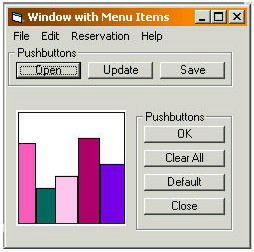
The following illustration shows a CA Gen window at design time. The window has an OLE area with an embedded Excel spreadsheet that is inactive.
The following illustration shows a CA Gen window at design time. The window has an OLE area with an embedded Excel spreadsheet that has been enabled.
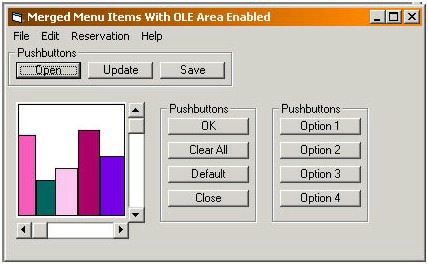
The illustration shows how menu items are merged when the embedded spreadsheet is active.
If you double-click on an embedded desktop application, the default verb for that application is executed. For example, the default verb for Microsoft Word is Edit. In a CA Gen window, when you double-click on an OLE area containing an embedded Word document, the document is presented in edit mode. The CA Gen window tool bar is replaced with Microsoft Word's tool bar, and the menu items are merged as you specified in the design.
|
Copyright © 2013 CA.
All rights reserved.
|
|