

As mentioned earlier, you can use the Test button to execute locally built C applications through the Build Tool. When invoked with a selected load module, the Load Module Test dialog appears. You are provided with a list to select the Trancode and an entry field for Clear Screen Inputs to begin the test. In addition, you can select more options to use the Diagram Trace Utility to trace the application.
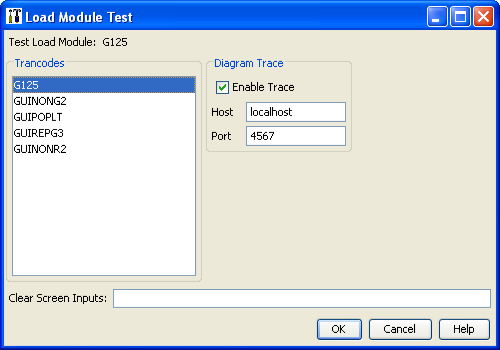
Follow these steps:
If the Host field does not match the host name or IP address on which the Diagram Trace Utility is started, or the Port field does not match the port on which the Diagram Trace Utility is listening, you receive the following error message:

When the application is tested, invocation and completion messages are displayed in the Message Panel.
For more information about the Diagram Trace Utility, see the Diagram Trace Utility User Guide.
|
Copyright © 2015 CA Technologies.
All rights reserved.
|
|