

Profile Manager allows you to create, edit, or delete your own unique profiles. A profile consists of a collection of settings to tailor application builds to your specifications in the form of tokens consisting of a key and a value that is assigned to the key. The build scripts use tokens and the tokens are substituted with the value assigned when the .mak file is generated at build time.
To open the Profile Manager, click the Profile Manager icon on the Toolbar or select Tools, Profile Manager. The Profile Manager dialog appears.
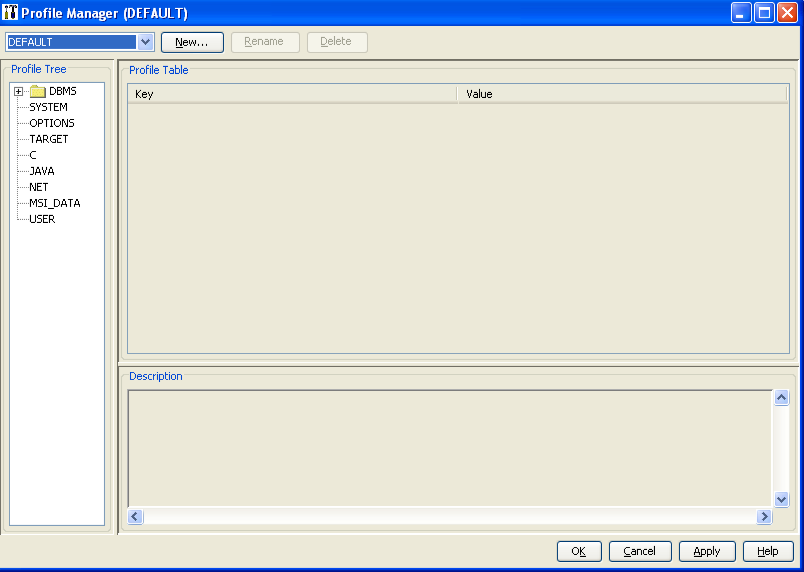
The Profile Manager window opens with the currently active profile selected. A different profile can be selected from the drop-down in the upper left corner.
The Profile Tree allows you to select the profile categories:
USER is reserved for key values that are created for use with a user-modified script. You can expand the tree by clicking the + plus sign next to a category.
To change the database options, click the + sign next to DBMS in the Profile Tree; the tree expands to display supported databases. Any of the key values can be changed and saved in a profile.
There exists a simple hierarchy of profiles. The default profile is the one delivered with the Build Tool, and contains the default setting for all tokens. All users of the Build Tool use the default profile.
Note: The default profile can be modified, but that changes to the default profile affect all users. Once modified, a default profile file resides on the disk representing any changes that are made to the delivered token values.
A user can create many user-specific profiles. Each of these profiles is saved in the personal directory of the user, cannot be used by other user, and supercede the default profile. The superceeding of tokens is on a token by token basis, starting with the delivered token value, then possibly superceded by the modified default profile token value, and then possibly superceeded by the modified user profile token value.
For example, the delivered default value of the token on UNIX is the following:
OPT.CMD_FORM = NO
The modified value of this token in the default profile is the following:
OPT.CMD_FORM = YES
The modified value of this token in the user profile being used for this particular build is the following:
OPT.CMD_FORM = NO
The token OPT.CMD_FORM is initialized to NO as part of the delivered Build Tool token values (on UNIX). Since the default has been modified to YES, this value will supercede the initial value. And since a user-specific profile is being used which has the same token that is modified to NO, this will superceed the token’s value once again. The net result is that the OPT.CMD_FORM token is set to NO for the current build activity.
The selected profile is the basis for any new profiles. A profile that is created with a user ID is not shareable with other users. The default profile must be set up by the installer of CA Gen or the system administrator. Changes to the default profile are saved in the Build Tool directory and shared by all users.
When the USER category is selected, cells in both the Key and the Value columns are editable. When any other node is selected, only cells in the Value column are editable. You can edit the values by placing the cursor in the corresponding cell.
When the User node is selected, the last row of the table is always a new line with the <New Key> text in light grey in the Key cell and a blank value cell. You can add a new custom key by entering a name in the Key cell. After the focus shifts from the cell, the corresponding Value cell becomes editable, and another blank line is added as the last line in the table. This process is repeated every time that a new key is entered. Any custom key can be deleted by deleting its name from the Key cell. After the focus leaves an empty Key cell, the entire row is deleted from the table.
Click OK to save the changes and close the window. If you click Cancel, you are prompted to save or discard any unsaved changes before the window is closed.
To create a new profile, click New. The New Profile dialog appears:
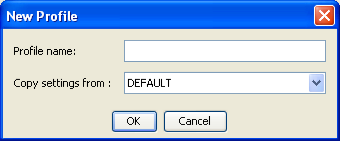
Provide a unique name for the new profile. Only alphanumeric characters, with '-' (hyphen) and '_' (underscore), are acceptable for a profile name. An invalid profile name results in the following error message:
You can base the new profile either on the default profile or on one of the custom profiles. Click Save and a new profile is created.
To delete a profile, select the profile name in the combo box in the Profile Manager window and click Delete.
Note: The default profile cannot be deleted.
|
Copyright © 2015 CA Technologies.
All rights reserved.
|
|