

To run the Build Tool server on Windows as a started task, perform the following steps:
Note: xx refers to the current release of CA Gen. For the current release number, see the Release Notes.
The following panel appears:
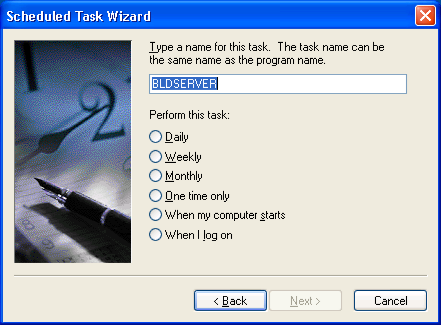
Under Perform this task, select one of the radio buttons and continue until you reach the Finish button. Clicking Finish schedules the server task to start as specified. If a command prompt appears with the server start, close the window and the server continues running.
|
Copyright © 2015 CA Technologies.
All rights reserved.
|
|