

|
|
|
Your pre-r12.5 deployments can be running on operating platforms or use databases that r12.5 does not support. Therefore, migrate from your pre-r12.5 environment to r12.5.
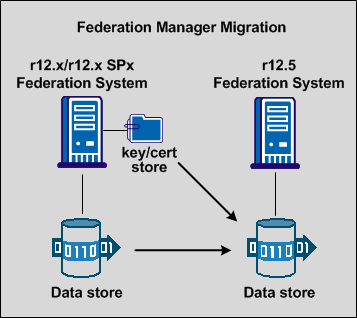
Migrate a Federation Manager configuration to a new system to replicate the configuration. Copying an existing configuration avoids repeating the entire configuration process on the new system.
Complete the following tasks to migrate to a r12.5 system:
Important! Follow the import steps exactly as outlined. Do not access the Certs & Keys tab in the Federation Manager UI until the copying procedure is complete.
After all the data is migrated, reactivate partnerships.
Note: The XPSExport and XPSImport tools are shipped with the product.
Important! We recommend that you perform the migration in a test environment not in a production environment.
The following figure shows the migration path from a single system.
The following figure shows the migration path for a cluster environment.
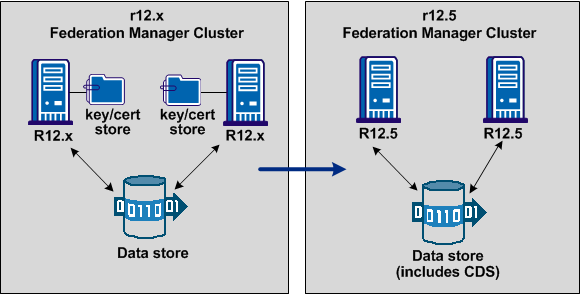
You can set up a Federation Manager cluster to support failover. You can migrate from an existing r12.x cluster to a new cluster, using a procedure similar to a non-cluster migration. To migrate a cluster, you set up a new r12.5 system for each system in your existing cluster. The systems in a cluster share one data store. You migrate all data to the new r12.5 data store.
Follow these steps:
Use the same deployment mode (proxy or standalone) for the new system.
If SiteMinder is enabled on the original system, it must be enabled for the new system.
When running the Configuration wizard, specify the same ports for the new system that the original system used.
If the original system used a virtual host, use the same virtual host name on the new system. Additionally, make the appropriate entries in the host file for the new system.
This process is detailed in the following sections.
| Copyright © 2012 CA. All rights reserved. |
|