

CA Executive Insight supports business indicators that are mapped to IT metrics. You create business indicators that are based on the available metrics from different data sources in your environment such as CA APM.
A metric connector creates a connection between a data source and the CA Executive Insight application. After the connection is established, the application retrieves IT metrics from the data source and publishes the metric data as business indicators in a dashboard.
Many data sources are supported, such as CA Application Performance Management (CA APM), CA Service Operations Insight (CA SOI), CA Capacity Command Center (CA CCC), and comma-separated values files (CSV files). To retrieve data, add a connector and specify the connection information for the instance.
Before you configure metric connectors and build business indicators for your mobile device users, complete the installation of CA Executive Insight.
The following illustration describes how an administrator installs CA Executive Insight on a Linux host.
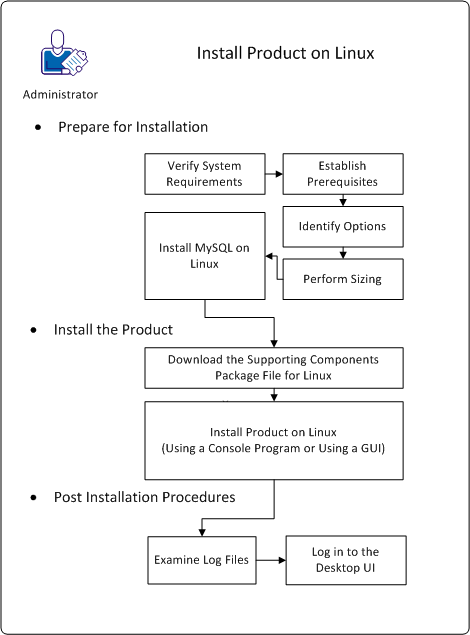
To complete the installation of CA Executive Insight on Linux, follow these steps:
Verify that the following system requirements are filled before you install CA Executive Insight:
The following platforms are supported:
The following CA Technologies product versions are supported:
CA Executive Insight can retrieve Introscope metrics from an Enterprise Manager in a standalone environment or a Manager of Managers (MOM) Enterprise Manager in a clustered environment. If the APM instance is connected to Transaction Impact Monitors (TIMs), Customer Experience metrics also are available.
CA Executive Insight can retrieve Introscope metrics from an Enterprise Manager in a standalone environment or a MOM Enterprise Manager in a clustered environment.
CA Executive Insight can retrieve customer experience metrics from a Customer Experience Manager instance.
CA Executive Insight can retrieve the business service hierarchy and service metrics from CA SOI.
CA Executive Insight can retrieve the group hierarchy from [assign the value for CAVAM in your book] and the corresponding efficiency metrics.
CA Executive Insight is a web application that is designed to run on any mobile platform with a browser that supports WebKit. Supported browsers include Safari, Google Chrome, or Android.
CA Executive Insight is certified on the following mobile devices:
Note: CA Executive Insight 1.3 does not support iPad 1.
Note: CA Executive Insight 1.3 does not support Blackberry Playbook.
CA Executive Insight supports administrators running the mobile user interface on the following desktop browsers:
Note: The preceding platforms have been certified at the time of General Availability (GA). Given rapidly changing technology, for current information regarding platform support, see the CA Executive Insight Support web page at http://ca.com/support.
To administer CA Executive Insight, log in to the Desktop UI using a browser.
The Desktop UI is certified on the following browsers:
Note: The preceding browsers have been certified at the time of General Availability (GA). Given rapidly changing technology, for current information regarding browser support, see the CA Executive Insight Support web page at http://ca.com/support.
CA Executive Insight 1.3 complies with the FIPS 140-2 standard. The Federal Information Security and Management Act of 2002 passed by the United States Federal Government requires products to protect sensitive data and use security functions that are compliant to the FIPS 140-2 standard.
|
Copyright © 2013 CA.
All rights reserved.
|
|