![Previous Topic: Create a metric connector for [assign the value for CAVAM in your book]](574.png)

Select [assign the value for CAVAM in your book] metrics using the Metric form. The form appears automatically after a new [assign the value for CAVAM in your book] connector is created. You can also navigate to it by selecting a [assign the value for CAVAM in your book] connector from the Metrics Connector screen.
Follow these steps:
The metrics already selected for CA Executive Insight business indicators have a check mark in a status box.
Indicates that the metric has data available.
Indicates that the metric has no data available for at least last three days.
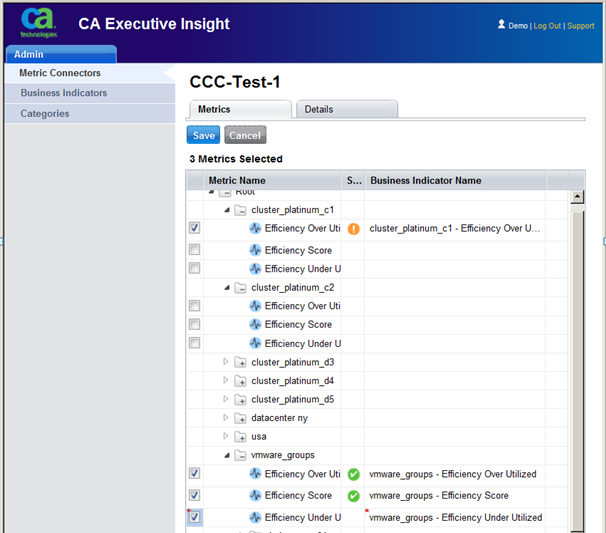
After a metric is saved as a business indicator, its data becomes available for polling and aggregation by CA Executive Insight.
The business indicator inherits all of the functionalities of a CA Executive Insight business indicator, like the ability to have associated image, status thresholds, and unit of measure.
Use the business indicator form to update a business indicator.
|
Copyright © 2013 CA.
All rights reserved.
|
|