

After your lifecycle Environments are defined in the Defaults table (C1DEFLTS) you must define objects to each Environment. These objects are as follows:
If you choose to enable the Package Ship facility, you will need to define the Package Ship objects: Package Shipment Destinations, Package Shipment Map Rules, and Package Shipment Map Rules for USS supported files. However, the Package Ship objects are not defined to a particular Environment.
As an administrator, you can manage the Environment objects and Package Ship objects in batch processing mode using the Batch Environment Administration facility (Batch Admin). Most of the objects can be created, updated, or deleted in batch. Alternatively, you can manage the objects using the foreground panels. However, Batch Admin is more efficient. Batch Admin eliminates the need to navigate multiple screens, lets you build new objects based on existing ones, and supports name-masking on object values which automatically expands a single statement into multiple actions.
In addition to managing Environment objects, you can use Batch Admin to create a new Environment based on an existing Environment, including its inventory structure and associated objects.
Batch Admin enables you to manage Environment objects in batch by executing the following types of SCL statements:
You can execute multiple Define, Build, and Delete statements in the same Batch Admin job or even the same job step. However, if you execute a Build statement, which creates a Define statement, you will need to execute Batch Admin again to execute the Define statement. For example, if you execute a Build statement for a subsystem in order to define a new subsystem, you would: 1) execute the build in one job; 2) edit the Define statement to change the subsystem object name to the new name; and then 3) execute Batch Admin again to execute the modified Define statement.
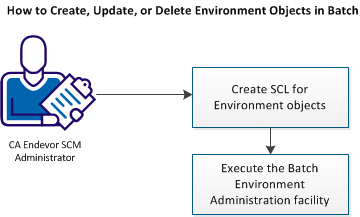
Complete these steps:
Example: Create a New System
Suppose you want to start a new release of a software application. You need a new inventory location for the new code. Since you already have a System defined for the prior release, you can easily create a new System from the old one. The following example shows how to do this:
The following is an example of the Build SCL for System statement. The example builds Define SCL for the System ACCT using Environment DEVEL. The optional clause Include Subordinates is specified. Therefore, Define SCL is built for all inventory definitions associated with System ACCT. The SCL is written to the PDS data set named ENDEVOR.SCLOUT in member SYSACCT. The Replace clause will replace the contents of the member if the member already exists in the PDS. If you do not use this clause and the member already exists in the PDS, you will get an error.
BUILD SCL FOR SYSTEM "ACCT"
    FROM ENVIRONMENT "DEVEL"
    INCLUDE SUBORDINATES
    TO DSNAME "ENDEVOR.SCLOUT"
        MEMBER "SYSACCT"
             	 REPLACE .
Define SCL statements for the ACCT System along with Define statements for all the ACCT subordinates (Subsystems, Types, Processor Groups, and so on) are written to ENDEVOR.SCLOUT(SYSACCT).
The new Environment objects are now defined to CA Endevor SCM. Other considerations such as data set naming conventions and data set allocations must be addressed.
|
Copyright © 2014 CA Technologies.
All rights reserved.
|
|