

How to Enable Web Services › How to Configure and Deploy Web Services
How to Configure and Deploy Web Services
As a web services administrator, you can configure and deploy the Web Services component. This component is a prerequisite for the Eclipse-Based UI. In addition, you can use Web Services to connect your user-written program to the CA Endevor SCM API.
The process of configuring and deploying Web Services on your z/OS system is performed in a UNIX System Services (USS) environment. During this process, you will complete the following objectives:
- Create a dedicated Tomcat instance for Web Services on your Tomcat server.
- Add Runtime libraries (including Axis2 1.6 and Jersey 2.7) to this Tomcat instance.
- Deploy Web Services to the Tomcat instance.
Important: When you want to run Web Services under a new release of Tomcat, we recommend that you create a new Web Services deployment in a new Tomcat directory tree. For more information, see How to Run Web Services Under a New Release of Tomcat.
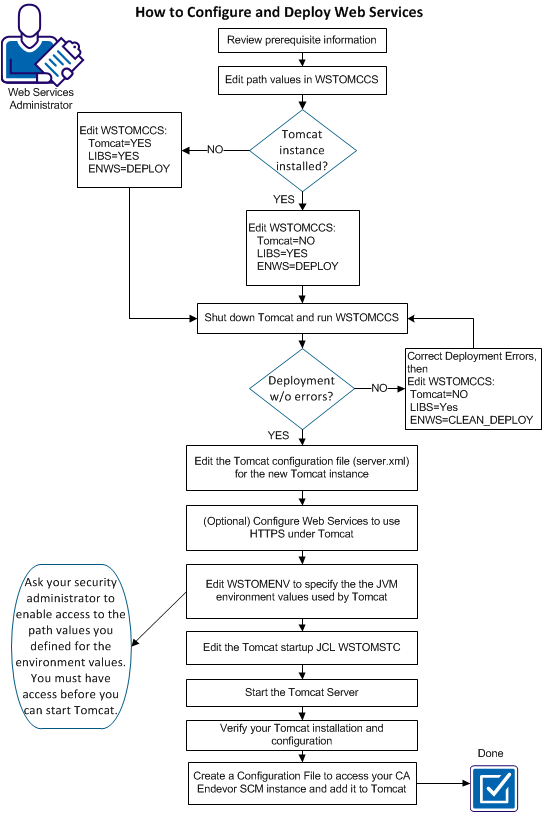
To enable Web Services, complete the following steps:
- Review the prerequisite information.
- Edit the WSTOMCCS member, as described in the member, to add a Tomcat instance for Web Services, add the Web Services files to the new Tomcat instance, and install runtime libraries on your Tomcat server. For more information about WSTOMCCS, see Create or Update a Tomcat directory structure for Web Services.
- Shutdown Tomcat and run the WSTOMCCS job.
- Edit the Apache Tomcat configuration file. The server.xml file is used to create a Tomcat instance for Web Services.
- (Optional) Configure Web Services to use HTTPS.
- Edit the JVM environment values used by the Tomcat server.
Note: You must inform your security administrator of the path values you define for the environment values. Your security administrator must enable access to these paths so that authorized users can use Web Services.
- Edit the Apache Tomcat Server JCL for Web Services. This JCL will enable the started task for Web Services.
- Start the Apache Tomcat server.
- Verify your Tomcat installation and configuration. This procedure verifies the Tomcat instance.
- Create a configuration file, using ENDEVOR.cfg as a template, for the data source (instance of CA Endevor SCM) that Web Services will access. Then deploy the file by saving it to this location: /cai/CADeploy/ESCM/tpv/tomcat/webapps/endevor. For more information, see How Access to a Data Source Works and How to Create a Configuration File.
Note: You can create more than one configuration file, one for each CA Endevor SCM instance at your site.
Note: Completing these steps sets up Web Services to use the Eclipse Plug-in. For more information about client stubs, see User-Written Client Programs.
Copyright © 2013 CA Technologies.
All rights reserved.
|
|