

In the previous versions, CA ERwin DM connected to the Mart database through the database client software. Now, the application connects to the Mart database through a web server. The database client software is no longer required.
The Mart comprises the following components:
Stores the user data for the Workgroup Edition. You can use an Oracle 10g or 11g database for the Mart database. You must use a new database and not an existing database that was created for an older version of the data modeling tool.
Includes a web-based component named CA ERwin Mart Administrator that helps you manage the Mart through a web console.
Hosts CA ERwin Mart Administrator. You can use a web server of your choice. If you have not installed a web server, use the ERwin Mart Server option and install Tomcat.
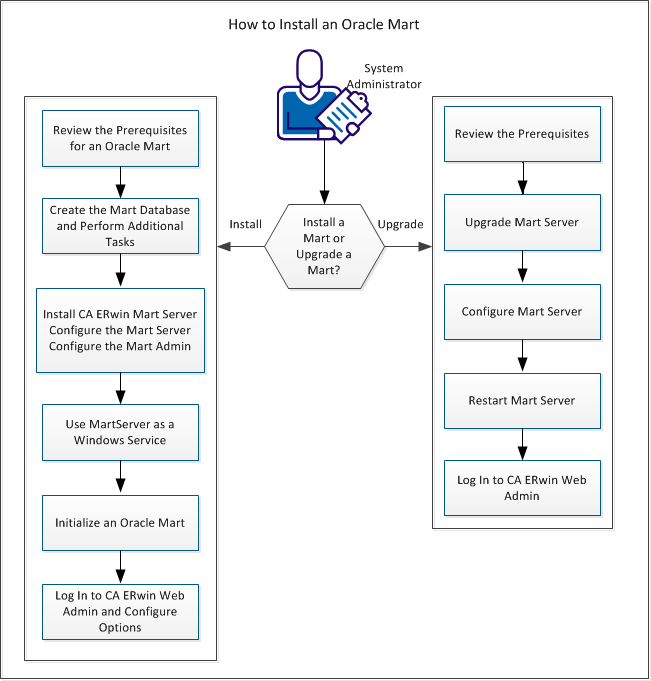
Complete the following steps in the same order to install and configure the Mart:
Complete the following steps to upgrade a Mart from r9.0 to the latest release:
|
Copyright © 2013 CA.
All rights reserved.
|
|
