

Report Designer lets you create a wide variety of reports and on the current data available in your data models. You can create report templates for frequently used reports and you can export reports to the CSV and HTML formats. You can create report solutions and include multiple report templates.
You cannot reuse the .ERP reports that were created using Report Template Builder, because the metamodel objects are changed. You must recreate the reports in Report Designer.
Several sample reports are included with the application and they are available in the following location:
%Installdir%\ CA\ERwin Data Modeler r9\BackupFiles\Report Solutions
Also at the following location:
C:\Documents and Settings\All users\Application Data\CA\ERwin Data Modeler\9.5\Configuration\Report Solutions\
C:\ProgramData\CA\ERwin Data Modeler\9.5\Configuration\Report Solutions\
Note: The sample reports are created using a Logical-Physical model. If you use the sample reports with a Logical-only or a Physical-only model, it may result in inappropriate results.
Follow these steps:
If the current report solution is not saved already, you are prompted to save it. A new blank workspace appears.
Prefixes the object type to only the Name and Physical Name columns. For example, you are generating a report on entities and the corresponding attribute names and data types. The column names in the report are displayed as Entity Name, Attribute Name, and Attribute Logical Data Type.
Prefixes the object type to all columns.
Note: These options work only when they are selected at the time of creating a report. If these options are selected at the time of modifying an existing report, they do not work.
Specifies the number of rows at which the computer resources are optimized to display the report. If the row count in your report exceeds the number that you specify here, the report is displayed in optimization mode. In this mode, the group and sort options are not available in the result grid. If no value is entered, the row count for optimization mode is considered as equal to the total row count of a report.
Specifies the number of top rows that you want to display. This option displays the first few rows that match a report criteria, when the result contains more rows than the number specified here.
Note: When you modify an existing report template and select more properties for the existing report subject, the selections are retained. If you select a different report subject, the previous report subject and its properties are not included in the report.
This is a best practice and helps the application export the report without consuming much of the computer resources.
Specifies the templates that you want to use with the HTML report. You can use customized templates, provided the formatting is similar to the default templates. The default templates are available in the following folder:
C:\Program Files\CA\ERwin Data Modeler r9\Report\Template\Template-Default
Specifies the title for the entire report solution.
Specifies the text that appears between the report title and the first line of the report.
Specifies the text that appears at the bottom of the report.
\\comp001\erwin\reports\index.htm
Note: The computer from which you are accessing the report must be in the same domain as the one in which the report is published. In addition, the user who is accessing the report must have at least the read-only privileges on the corresponding folder.
Specifies whether you want to include the first-level object names multiple times. For example, you have included entity names and attribute names in your report and you have selected No Duplicates. The entity name appears only once for all the corresponding attribute names. If you have selected Duplicates, the entity name appears as many times as the corresponding attribute names appear.
Specifies the symbol that you want to use to indicate the column headers.
Specifies how you want to separate two columns in the exported report. The option Comma Delimited creates a .CSV file and the remaining options create .TXT files.
Report Designer includes the Filter By option that lets you generate drill-down reports. Some of the drill-down reports that you can generate are as follows:
Entity/Table level reports
Attribute/Column level reports
Subject Area reports:
You can use the Graphical Member option for diagrams and can view the images of diagrams.
The filters for Entity/Table and Key Group/Index are available when you select the members of a diagram or a Subject Area.
Attributes and columns can be displayed the following order:
Report Designer includes the following features:
Report Explorer Features
Move child nodes: To move the child nodes up or down within a parent node, right-click the node and click Move Up or Move Down. This option is to move child nodes within a parent node and not to move parent nodes in a report.
Result Grid Features
Note: Hidden columns are included when you export a report to CSV or HTML.
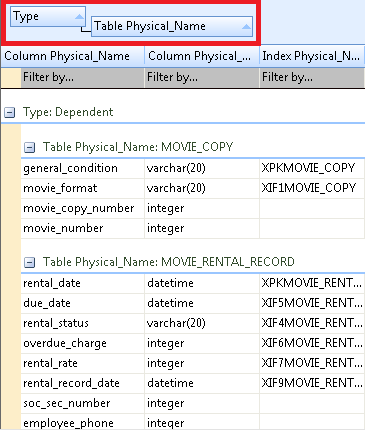
By design, a model is considered as the main Subject Area. Therefore, when you create a generic report on Subject Area and include its properties such as Name, the model is also displayed in the list of Subject Areas. However, the model name is not included when you generate a report on specific Subject Areas. You can generate a report on specific Subject Areas by selecting the Specify Diagrams at Run Time option.
The following diagram shows a generic report of Subject Area:
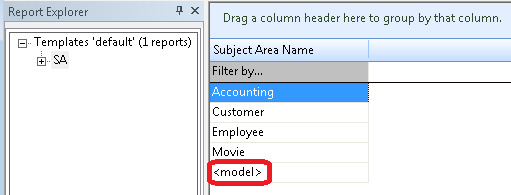
In the previous report, <model> is the model and the remaining entries are Subject Areas.
By default, CA logo is displayed on HTML reports and the logo is linked to the CA website. You can change the logo and link it to a website of your choice.
Follow these steps:
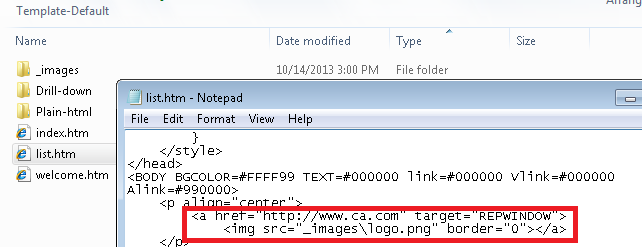
The logo and the link to the website are changed when you generate a report the next time.
|
Copyright © 2014 CA.
All rights reserved.
|
|