

In the previous versions, CA ERwin Data Modeler connected to the Mart server directly. Now, CA ERwin Data Modeler connects to the Mart server through a web server.
The Mart comprises the following components:
Stores the user data for the Workgroup Edition. You can use a Sybase Adaptive Server Enterprise 15.0 through 15.7 database for the Mart database. You must use a new database and not an existing database that was created for an older version of the data modeling tool.
Includes a web-based component named CA ERwin Mart Administrator that helps you manage the Mart through a web console.
Hosts CA ERwin Mart Administrator. You can use a web server of your choice. If you have not installed a web server, use the ERwin Mart Server option and install Tomcat.
If you are using the Workgroup Edition, you must install and configure CA ERwin Mart Administrator.
Note: The procedure to upgrade a Mart from r9.0.0 to r9.2.0 is different from the procedure to upgrade from r7.3 through r8.2.7 to r9.2.0. If your Mart version is r9.0.0, use the How to Upgrade a Mart from r9.0.0 to r9.2.0 procedure to upgrade your Mart to r9.2.0. The models that are created in r9.0.0 are upgraded when a user connects to the r9.2.0 Mart and opens the models. If your Mart version is r7.3 through r8.2.7, use the Installing and Configuring the Mart procedure and install the r9.2.0 Mart. After installing the Mart, use the Upgrade Mart utility to upgrade the Mart models from r7.3 through r8.2.7 to r9.2.0.
The following diagram illustrates how to install and configure Mart:
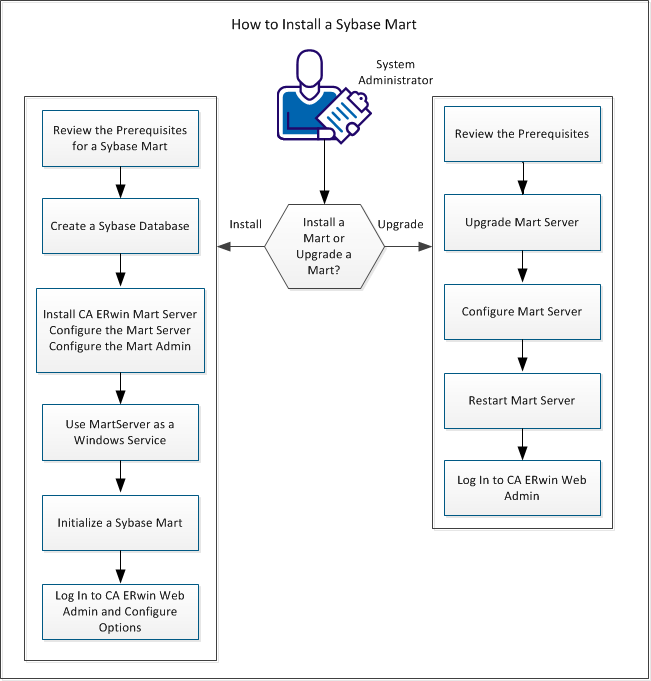
Complete the following steps to install and configure a Mart:
Complete the following steps to upgrade a Mart from r9.0 to r9.1:
|
Copyright © 2013 CA.
All rights reserved.
|
|
