

The Primary Selection Menu panel appears when you log on to CA Deliver. Notice the first three lines of the online panels; all panels share this common format.
This illustration shows the typical parts of a panel:
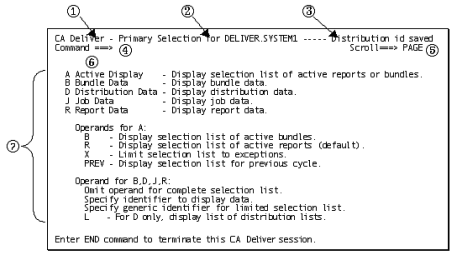
Displays the product name
Identifies the panel you are using or the operation you are performing
Displays the following:
Note: An error usually generates an audible alarm if your terminal has sound capabilities.
You can display more information about error messages in the long message area.
The area on the panel where you enter commands or options
Displays the scroll field option you selected
How you scroll through the display - by panels, lines, columns, up and down, and top and bottom
This field is also used to permanently change or temporarily override the scroll field option.
Note: The scroll field is available only on selected panels.
Displays additional information about error messages in the short message area
When an error message appears in the short message area, issue the HELP command to display additional error information in the long message area.
Displays unique panel information, such as lists of options, input fields, or scrollable text
|
Copyright © 2015 CA Technologies.
All rights reserved.
|
|