

As a report user you can create logical views to customize the way CA View displays SYSOUT and reports without modifying the physical data.
Logical viewing also provides a basic level of security, because the report user can restrict users to certain pre designated views.
Using logical views, you can do the following actions throughout a report and can improve online readability:
A logical view is the modified online display of a SYSOUT or report in CA View.
A logical view contains:
Optionally, a user can exclude specific columns, lines, or pages from the view. Users can also define columns for display and reorder columns on the display.
The following diagram describes how a report user creates a logical view using the view definition panel.
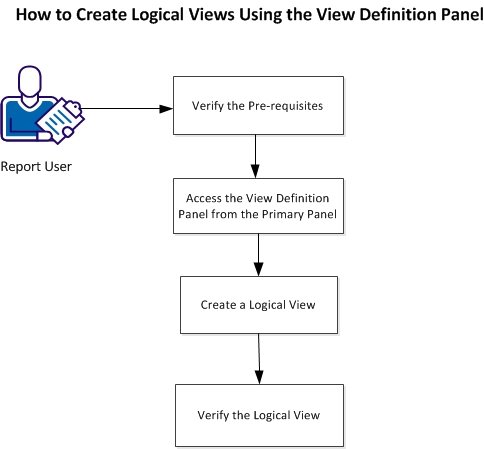
Follow these steps:
Access the View Definition Panel from the Primary Panel
To access the view definition panel and create a customized logical view, you must have master authority.
To access the administrative facilities of the product such as the user mode, private report viewing setup, device definition, and global view definition, you must have a user ID with the master authority. This authority can be set in one of two places:
Using the primary View Definition panel and its related panels, you can create a complete logical view definition. You can define global views pertaining to many reports only by accessing the view definition from the primary CA View panel.
Follow these steps:
Example:
Command ===> DEF VIEW
A list of all the defined public and global views is displayed from which you can either create a view or modify an existing view.
You can customize the way CA View displays SYSOUT and reports without modifying the physical data.
The different types of logical views include:
Users can create a private view for their own use if the user is defined to the system as a nonrestricted user. Nonrestricted means that the user has access to the native view (the view that is not secured). The Private views can only be created from the native view of a report.
When the user creates a global view, the user specifies a generic report ID in the definition using a trailing asterisk (for example, PAY*) to determine the reports that are included in the view.
Only users with master authority specified by the DEF USER specification can create global logical views.
Follow these steps:
where,
Signifies the ID of the view you are creating.
The View Definition panel is displayed where you can specify the new logical view criteria.
For example:
The following illustrations, show how the logical view is defined to produce a customized view:
This is the Initial View Definition screen:
CA View ALL ----------------- View Definition ----------------------------------
Command ===>

View ID        ===> REPORT1A
View Number    ===> 1                Filter Name ===>
                                    Secured     ===>N  (Y/N)

Description    ===> TEST LOGICAL VIEW DEFINITION

Display Attributes (Y/N):
   Default View         ===> N     Lock Left Column   ===> N
   Carriage Controls    ===> Y

 Data Extraction by Page:
   Pages   to Exclude   ===>        (Pages are excluded from top of file )
   Records to Exclude   ===> 3      (Records are excluded from top of page)
   Records to Display   ===>        (Leave blank for entire page)

To select the following, enter  the 1-character code on the command input line:
     H - Define primary heading         P - Define page indexing criteria
     C - Define column specifications   L - Define color specifications

            Enter END command to reenter viewing of report.
This is the Initial Column Specification screen:
CA View ALL -------------------View Definition -------------- Row 00001 of 00004
Command ===>                                                    Scroll ===>  CSR

View ID --> REPORT1A

Default Column Heading Record Numbers and Coloring Information:
   HED1 =>      HED2 =>      HED3 =>      HED4 =>      HED5 =>      HED6 =>
   CLR1 =>      CLR2 =>      CLR3 =>      CLR4 =>      CLR5 =>      CLR6 =>
   HLT1 =>      HLT2 =>      HLT3 =>      HLT4 =>      HLT5 =>      HLT6 =>

Column Specifications:
Sel Pos Len Hdg Clr Hlt Text
    1   13  YES
    59  15  YES
    19  18  YES
    47  12  YES
******************************** BOTTOM OF DATA ************************************
This is the Column Heading Specifications screen:
Note: The same specifications must be defined for all the four columns.
CA View ---------------------- View Definition -------------- Row 00001 of 00002
Command ===>                                                    Scroll ===>  CSR

View ID ---> REPORT1A

Column Heading Specifications:
Sel Rec Clr Hlt Text
    2
    3
******************************** BOTTOM OF DATA ********************************
Native View:
The following illustration shows the top of the first page of data of a SYSOUT as displayed in the native view. Note the title and column heading records at the top of the data display area.
<poductname>  Browse - REPORT1A ---- Rec 0000000 Pg 0000001.001 Lock 00 Col 001 080
Command ===>                                                 Scroll ===> PAGE
******************************* TOP OF DATA **********************************
.SARPAGE1
 NAME              ACCOUNT NUMBER    REGION    DIVISION    MONTH TOTAL
.----              --------------    ------    --------    -----------
.ABERNATHY         xxxxxxxxxxxxxx    xxxxxx    xxxxxxxx    xxxxxxxxxxx
.ACME              xxxxxxxxxxxxxx    xxxxxx    xxxxxxxx    xxxxxxxxxxx
.ADLER             xxxxxxxxxxxxxx    xxxxxx    xxxxxxxx    xxxxxxxxxxx
.ALLISON           xxxxxxxxxxxxxx    xxxxxx    xxxxxxxx    xxxxxxxxxxx
.AXEL              xxxxxxxxxxxxxx    xxxxxx    xxxxxxxx    xxxxxxxxxxx
.ALSTER            xxxxxxxxxxxxxx    xxxxxx    xxxxxxxx    xxxxxxxxxxx
.ALSTON            xxxxxxxxxxxxxx    xxxxxx    xxxxxxxx    xxxxxxxxxxx
.ATNE              xxxxxxxxxxxxxx    xxxxxx    xxxxxxxx    xxxxxxxxxxx
.BALICK            xxxxxxxxxxxxxx    xxxxxx    xxxxxxxx    xxxxxxxxxxx
.BARELL            xxxxxxxxxxxxxx    xxxxxx    xxxxxxxx    xxxxxxxxxxx
.BAROVELLI         xxxxxxxxxxxxxx    xxxxxx    xxxxxxxx    xxxxxxxxxxx
.BASSE             xxxxxxxxxxxxxx    xxxxxx    xxxxxxxx    xxxxxxxxxxx
.BASLICH           xxxxxxxxxxxxxx    xxxxxx    xxxxxxxx    xxxxxxxxxxx
.CANTRELL          xxxxxxxxxxxxxx    xxxxxx    xxxxxxxx    xxxxxxxxxxx
.CELESTE           xxxxxxxxxxxxxx    xxxxxx    xxxxxxxx    xxxxxxxxxxx
.CENNET            xxxxxxxxxxxxxx    xxxxxx    xxxxxxxx    xxxxxxxxxxx
.CHASE             xxxxxxxxxxxxxx    xxxxxx    xxxxxxxx    xxxxxxxxxxx
.CHASIN            xxxxxxxxxxxxxx    xxxxxx    xxxxxxxx    xxxxxxxxxxx
.CHINOIS           xxxxxxxxxxxxxx    xxxxxx    xxxxxxxx    xxxxxxxxxxx
.CLAPKIN           xxxxxxxxxxxxxx    xxxxxx    xxxxxxxx    xxxxxxxxxxx
After you create a logical view, you can view the report to verify that the desired customized view is displayed.
Example:
The following illustration shows the SYSOUT in the native view after scrolling down one page.
Note: The title and column heading records previously displayed at the top of the first page have scrolled off the top of the page.
<poductname>  Browse - REPORT1A --- Rec 000000000 Pg 0000001.001 Lock 00 Col 001 080
Command ===>                                                  Scroll ===> PAGE
******************************* TOP OF DATA **********************************
.CLAYTON           xxxxxxxxxxxxxx    xxxxxx    xxxxxxxx    xxxxxxxxxxx
.CORELLI           xxxxxxxxxxxxxx    xxxxxx    xxxxxxxx    xxxxxxxxxxx
.DAYAN             xxxxxxxxxxxxxx    xxxxxx    xxxxxxxx    xxxxxxxxxxx
.DAYGLASS          xxxxxxxxxxxxxx    xxxxxx    xxxxxxxx    xxxxxxxxxxx
.DIETERE           xxxxxxxxxxxxxx    xxxxxx    xxxxxxxx    xxxxxxxxxxx
.EDELMAN           xxxxxxxxxxxxxx    xxxxxx    xxxxxxxx    xxxxxxxxxxx
.EDSON             xxxxxxxxxxxxxx    xxxxxx    xxxxxxxx    xxxxxxxxxxx
.FRANK             xxxxxxxxxxxxxx    xxxxxx    xxxxxxxx    xxxxxxxxxxx
.FOURIER           xxxxxxxxxxxxxx    xxxxxx    xxxxxxxx    xxxxxxxxxxx
.GLASSMAN          xxxxxxxxxxxxxx    xxxxxx    xxxxxxxx    xxxxxxxxxxx
.GLABMAN           xxxxxxxxxxxxxx    xxxxxx    xxxxxxxx    xxxxxxxxxxx
 HEIDELBERG        xxxxxxxxxxxxxx    xxxxxx    xxxxxxxx    xxxxxxxxxxx
 HERBERT           xxxxxxxxxxxxxx    xxxxxx    xxxxxxxx    xxxxxxxxxxx
 HEZZENFELD        xxxxxxxxxxxxxx    xxxxxx    xxxxxxxx    xxxxxxxxxxx
 INDIANER          xxxxxxxxxxxxxx    xxxxxx    xxxxxxxx    xxxxxxxxxxx
 NAME              ACCOUNT NUMBER    REGION    DIVISION    MONTH TOTAL
.----              --------------    ------    --------    -----------
 IJEAKA            xxxxxxxxxxxxxx    xxxxxx    xxxxxxxx    xxxxxxxxxxx
 JACKSON           xxxxxxxxxxxxxx    xxxxxx    xxxxxxxx    xxxxxxxxxxx
 JAMA              xxxxxxxxxxxxxx    xxxxxx    xxxxxxxx    xxxxxxxxxxx
 JASON             xxxxxxxxxxxxxx    xxxxxx    xxxxxxxx    xxxxxxxxxxx
 KRAMAR            xxxxxxxxxxxxxx    xxxxxx    xxxxxxxx    xxxxxxxxxxx
 KROMWELL          xxxxxxxxxxxxxx    xxxxxx    xxxxxxxx    xxxxxxxxxxx
The following illustration shows the logical view of the same SYSOUT after the user has scrolled the display vertically.
Note: If you compare this illustration with the previous one the headings have not scrolled off the display and the data flows continuously below the headings without the interruption of page headings and footers. Also note how the headings have been modified and how the columns of data are defined and reordered.
<poductname>  Browse - REPORT1A ---- Rec 000000000 Pg 0000001.001 Lock 00 Col 001 080
Command ===>                                                  Scroll ===> PAGE
******************************* TOP OF DATA ***********************************
NAME         MONTH TOTAL  ACCOUNT NUMBER    DIVISION
----         ----------   --------------    --------
CLAYTON      xxxxxxxxxx   xxxxxxxxxxxxxx    xxxxxxxx
CORELLI      xxxxxxxxxx   xxxxxxxxxxxxxx    xxxxxxxx
DAYAN        xxxxxxxxxx   xxxxxxxxxxxxxx    xxxxxxxx
DAYGLASS     xxxxxxxxxx   xxxxxxxxxxxxxx    xxxxxxxx
DIETERE      xxxxxxxxxx   xxxxxxxxxxxxxx    xxxxxxxx
EDELMAN      xxxxxxxxxx   xxxxxxxxxxxxxx    xxxxxxxx
EDSON        xxxxxxxxxx   xxxxxxxxxxxxxx    xxxxxxxx
FRANK        xxxxxxxxxx   xxxxxxxxxxxxxx    xxxxxxxx
FOURIER      xxxxxxxxxx   xxxxxxxxxxxxxx    xxxxxxxx
GLASSMAN     xxxxxxxxxx   xxxxxxxxxxxxxx    xxxxxxxx
GLABMAN      xxxxxxxxxx   xxxxxxxxxxxxxx    xxxxxxxx
HEIDELBERG   xxxxxxxxxx   xxxxxxxxxxxxxx    xxxxxxxx
HERBERT      xxxxxxxxxx   xxxxxxxxxxxxxx    xxxxxxxx
HEZZENFELD   xxxxxxxxxx   xxxxxxxxxxxxxx    xxxxxxxx
INDIANER     xxxxxxxxxx   xxxxxxxxxxxxxx    xxxxxxxx
IJEAKA       xxxxxxxxxx   xxxxxxxxxxxxxx    xxxxxxxx
JACKSON      xxxxxxxxxx   xxxxxxxxxxxxxx    xxxxxxxx
JAMA         xxxxxxxxxx   xxxxxxxxxxxxxx    xxxxxxxx
JASON        xxxxxxxxxx   xxxxxxxxxxxxxx    xxxxxxxx
KRAMAR       xxxxxxxxxx   xxxxxxxxxxxxxx    xxxxxxxx
KROMWELL     xxxxxxxxxx   xxxxxxxxxxxxxx    xxxxxxxx
|
Copyright © 2013 CA.
All rights reserved.
|
|