

Policy Guide › Encrypting Data › Encrypt Files Being Copied to Removable Devices › Educate Your Users
Educate Your Users
When you roll out the CA DLP Encrypt feature across your organization, educate your users about how to encrypt and, critically, how to decrypt sensitive files. From their viewpoint, the process is as follows:
- When they try to copy an unprotected file (such as MyReport.docx) onto a USB drive, CA DLP displays an advisory message and prompts them for a password.
CA DLP uses this password to save an encrypted version of the file onto the USB drive. The file is stored with an .enc suffix (such as MyReport.docx.enc).
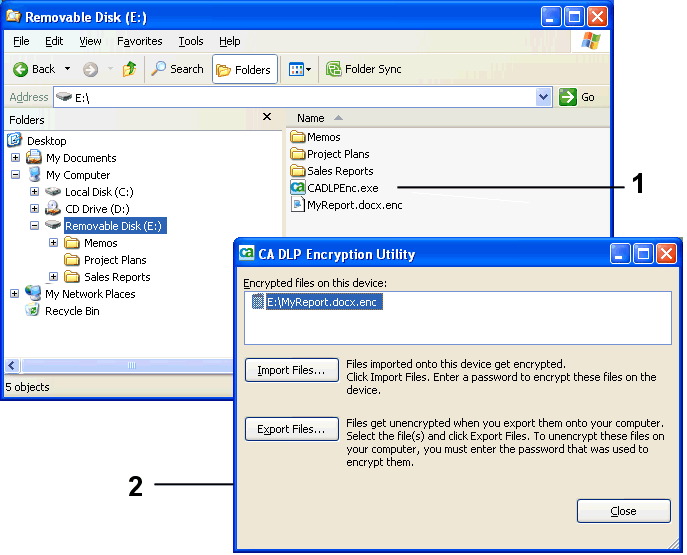
1 Encryption utility, CADLPEnc.exe, on removable device. 2 Encryption utility screen display.
- When the user wants to copy the encrypted file from the USB drive onto their home computer, they must run the CA DLP Encryption utility, CADLPEnc.exe.
This utility is found in the root of the USB drive.
- When the Encryption utility starts:
- The user must select the file they want to copy from the USB drive and click Export Files.
- They must then choose the target folder. This is typically a folder on their home computer.
- CA DLP then prompts them for the password they originally used to encrypt the file when it was copied onto the USB drive.
- Finally, CA DLP notifies the user when the file has been successfully decrypted and copied to the target folder.
- After the user has finished working on the file at home, they must encrypt and copy it back onto the USB drive in order to bring it back to the office. To do this:
- Run the Encryption utility and click Import Files.
The utility copies the file from the user's home computer onto the USB drive.
- The utility displays an advisory message and prompts them for a password.
CA DLP uses this password to save an encrypted version of the file back onto the USB drive. Be aware that the user does not have to enter the same password as before.
- When the users gets to the office, the procedure for decrypting and copying the file from the USB drive onto their office computer is exactly the same as steps 2 and 3.
Copyright © 2012 CA.
All rights reserved.
|
|