

|
|
|
Note: You may prefer to leave this task until you have deployed CA DLP to your client machines, in order to allow users to enroll themselves as CA DLP users. This entails setting up the CMS machine policy to permit self-enrolment.
You need to create and organize an initial set of user groups, and configure the policies for these groups. You can create as many user groups as you need and arrange them in any way you want. For example, you can organize users into groups based on location, job, or purchasing permissions:
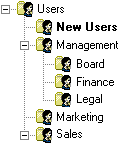
You create and organize user groups in the Administration console.
To create new user groups
 or choose Edit, New Group.
To edit a group policy
 or choose Edit, Edit Policy.
| Copyright © 2011 CA. All rights reserved. | Email CA Technologies about this topic |