

|
|
|
Important! Before using CA DLP for the first time after installation, we strongly recommend you choose a new default group and define a restrictive policy for this group.
A user group is a collection of associated users that share a common policy. Each group has its own customizable policy, providing you with a centralized but highly flexible method of user administration. When new users add themselves to CA DLP, they are automatically assigned to the default group. You make any user group the default group.
Why is this a problem? The default group is effectively a holding group until you can move new users into more appropriate groups. But when you use CA DLP for the first time, there is only one existing group. This is the 'Users' group and so it is automatically set to be the default group. Of necessity, 'Users' has—and must have—a non-restrictive policy: no settings are disabled, enforced or hidden.
This means any new user who inherits this policy has complete freedom to change any setting in their policy. In other words, they could potentially define their own policy to dodge the rules in your organization governing acceptable Web and email usage. But you can easily prevent this by choosing a default group with a restrictive policy. That is, key policy settings are enforced, hidden or disabled. This ensures that new users adhere to the rules governing acceptable Web and email usage.
For deployment operations based on Msiexec.exe, you can use a variable to customize the parent group for newly created users. This allows different teams or departments to install CA DLP from separate source images so that their respective users are added automatically to separate groups. For details, see general variable WGNDEFAULTUSERGROUPPATH in Command line parameters for Msiexec.exe.
To create a new default user group
 or choose Edit > New Group.
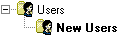
Example default group: All self-enrolled new users are added to this group.
To edit the default group policy
 or choose Edit, Edit Policy. This opens the User Policy Editor.
 or right-click and choose Disable. When you disable a folder, CA DLP ignores all settings in the folder itself and its subfolders.
| Copyright © 2011 CA. All rights reserved. | Email CA Technologies about this topic |