

All metrics will be reported on every polling interval unless the alert has been acknowledged, in which case, the metrics are absent and will go gray.
Only alerts that are unacknowledged will appear in the Workstation Investigator tree. Two metrics appear under the z/OS Metrics|Alerts folder, which give total counts of these unacknowledged alerts. These two metrics can be used to generate APM alerts using the management module editor if there is a desire to be alerted to CA-SYSVIEW z/OS alert activity.
The current number of alerts that have a status of problem.
The current number of unacknowledged alerts.
The metrics for each z/OS alert appear under the folder: z/OS Metrics|Alerts|<Alert Name>_<Resource Name>_<Alias Name>.
The name of the alert. In CA SYSVIEW it is the variable name for the data collection element of the alert. This metric is the prefix of the alert’s folder name.
The current alert threshold status. This can be NONE, NORMAL, HIGH, WARNING, or PROBLEM.
The current alert threshold status as a numeric value. This can be 0=NONE, 1=NORMAL, 2=HIGH, 3=WARNING, or 4=PROBLEM.
The alias of the alert. In CA SYSVIEW, it is the alias for the resource argument. This metric will not appear if it has no value. This becomes the third underscore separated segment of the metric folder name for the alert when it exists.
A description of the alert.
A group classification for the alert.
The priority of the alert from 0-999 with 999 having the highest priority.
The resource of the alert. In CA SYSVIEW it is the resource argument used to qualify the collection element of the alert. This metric will not appear if it has no value. This becomes the second underscore separated segment of the alert’s folder name when it exists.
The exception rule type. Possible values are:
The value last used during threshold processing. If the resource does not currently have an associated threshold definition, the value is the last value collected by the data Collector.
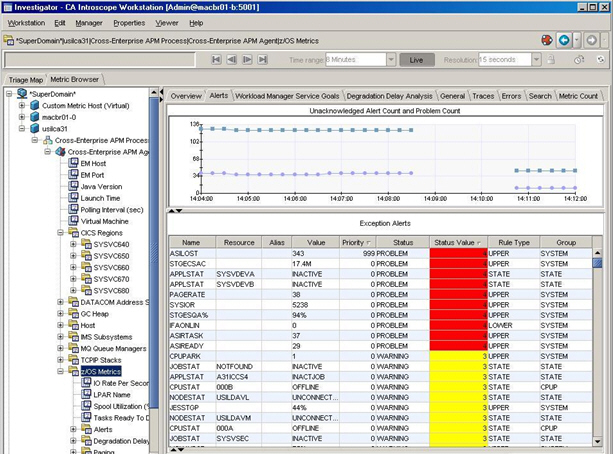
The typeview on the z/OS Metrics folder tab Alerts will display the Unacknowledged Problem Count and Unacknowledged Alert Count on a single graph at the top as well as display individual alerts in the table below. Similarly, the typeview will also display on the Alerts folder tab Overview. The columns will be sorted on Priority and then Status. In this way, the highest priority items appear at the top of the list and the highest status of those first. The status value column is color coded to severity with Red = Problem and Yellow = Warning. Selecting the z/OS Metrics | Alerts folder tab Overview brings up the identical typeview.
|
Copyright © 2013 CA.
All rights reserved.
|
|