

|
|
|
CA ControlMinder 企业管理 通过 CA Business Intelligence 公用报告服务器(CA ControlMinder 报告门户)提供报告功能。 安装报告门户和部署报告后,需要配置从 CA ControlMinder 企业管理 到 CA Business Intelligence 的连接。 使用 Identity Manager 管理控制台配置该连接。
配置到 CA Business Intelligence 的连接
将显示“报告属性”窗口。
重要说明! CA Business Intelligence 中央管理服务器 (CMS) 仅用于内部管理目的,并不包含用于生成和显示报告的报告数据。 有关 CMS 的详细信息,请参阅《CA Business Intelligence 安装指南》。
注意:有关详细信息,可以从应用程序访问并参阅 Identity Manager 管理控制台联机帮助。
重要说明! 在“业务对象端口”字段中,输入报告门户使用的端口号。 默认端口为 8080。 在“业务对象报告”文件夹字段中,输入 CA ControlMinder r12。
CA Business Intelligence 设置已保存。
注意:有关 CA Business Intelligence 的详细信息,请参阅 CA Technologies 支持提供的《CA Business Intelligence 安装指南》。
SSL(包括传输层安全性 (TLS))提供计算机程序之间的安全通信。 默认情况下,企业管理服务器组件不使用 SSL 进行通讯。
默认情况下,企业管理服务器组件不使用 SSL 进行通讯。 通过使用 Identity Manager 管理控制台和修改 CA Business Intelligence 服务器配置企业管理服务器在 SSL 上与 CA Business Intelligence 通信。 在您配置与 CA Business Intelligence 的 SSL 通信时,数据在 CA Business Intelligence 服务器和企业管理服务器之间被加密。
以下示例显示配置与 CA Business Intelligence 的 SSL 通信的过程。
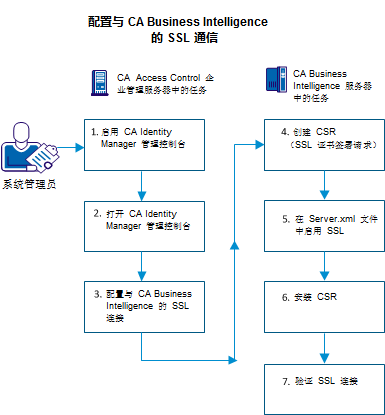
要配置与 CA Business Intelligence 的 SSL 通信,请执行这些步骤:
| 版权所有 © 2013 CA。 保留所有权利。 |
|