Integration Guide › Working with Multiple LDAP Servers › How to Configure Multiple LDAP Servers
How to Configure Multiple LDAP Servers
CA Directory supports the integration of LDAP servers into a distributed directory backbone.
CA Directory provides a utility called DXlink,that enables searches over a number of LDAP directory server.
The following diagram illustrates how to configure CA Access Control Enterprise Management for multiple LDAP servers using CA Directory:
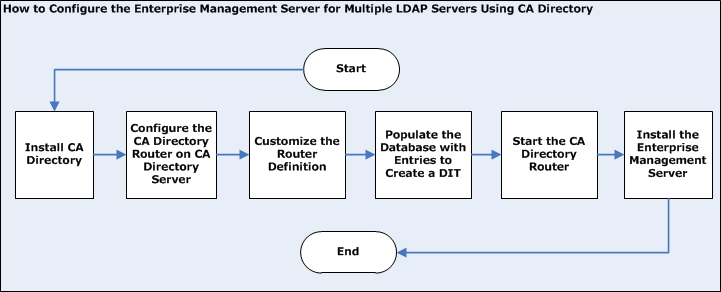
You perform the following steps to configure the Enterprise Management Server for multiple LDAP servers using CA Directory:
- Install CA Directory
- Configure the CA Directory router
- Customize the CA Directory router definitions
- Populate the database with entities to create a DIT
- Start CA Directory
- Install the Enterprise Management Server with Active Directory as the user store
Important! When you install the Enterprise Management Server, specify the following:
- Host name—CA Directory host name
- Port number—25389
- Base DN—specify a DN that is common to all Active Directory servers in the environment. Leave this field blank if not applicable.
- (Linux) Search Root—pecify a DN that is common to all Active Directory servers in the environment. Leave this field blank if not applicable.
- Administrative account—an administrative account from one of the Active Directory domains.
Note: When you log in to CA Access Control Enterprise Management, verify that you specify the domain name that the administrative account you are using is a member.
|
Copyright © 2012 CA.
All rights reserved.
|
|

