

Dispatches consist of a set of actions that will be dispatched along with some associated userdata. ENS passes this userdata to the action. In addition to the userdata, each dispatch includes the times of day (for each day of the week) when the event should be sent to that action. This allows you to specify different actions for the same filter to be dispatched depending on the time of day and the day of the week.
Dispatches have attributes as described in the following table.
|
Attribute |
Description |
Example |
|---|---|---|
|
Action to dispatch |
The name of the action to dispatch. The Console Manager supplied actions are: Archive Clean-up Broadcast Multi-Line Window Single-Shot Window |
Multi-Line Window |
|
Information |
Description to clarify what the dispatch does. |
Events on systems to pepper |
|
Userdata |
Values to be specified. |
Salt 0 0 tcpip |
|
Dispatch hours |
The times of the day when the action is to be dispatched. Clicking on this button invokes the Dispatch Hours dialog box |
Before 8.00 and after 17.30 |
The following figures show how filters and dispatches work.
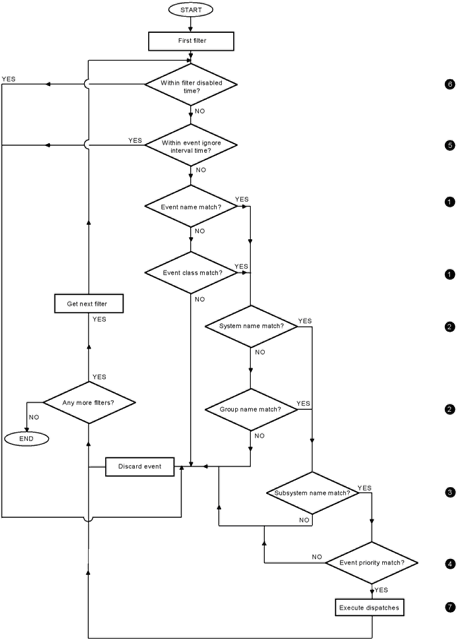
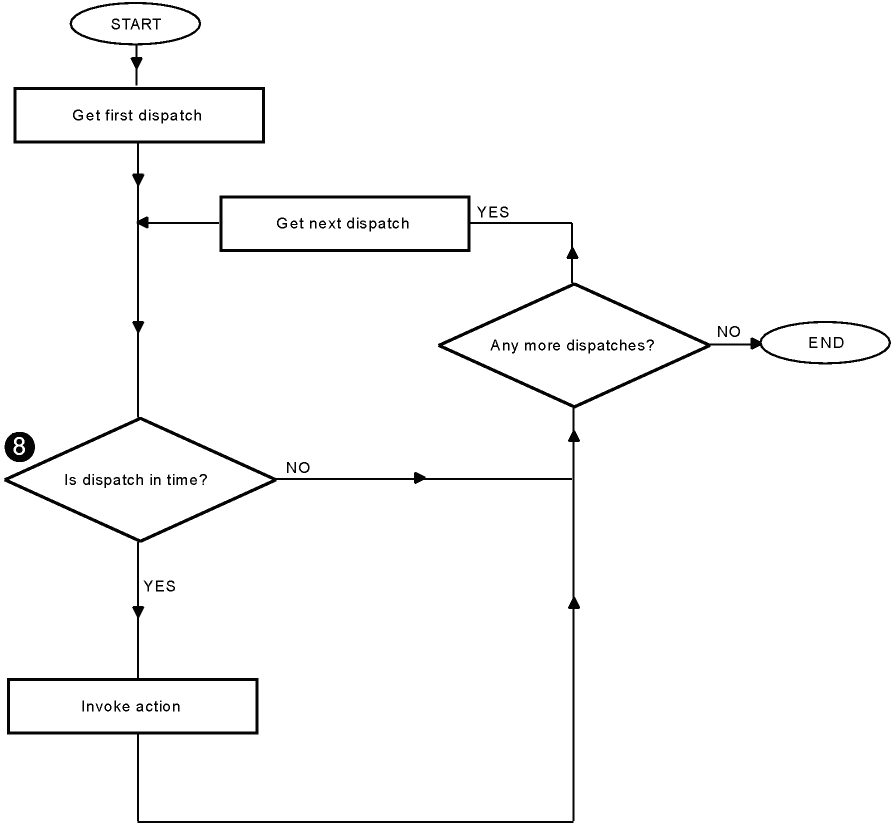
The following table describes how a new event is processed when you choose a subset for Events, Classes, Systems, Groups, Subsystems and Priorities.
|
|
Filter Mechanism |
Figure Reference1 |
|---|---|---|
|
IF OR |
the new event matches… |
1 |
|
AND OR |
the new event matches |
2 |
|
AND |
the new event matches |
3 |
|
AND |
the new event matches |
4 |
|
AND |
the new event is not one which |
5 |
|
AND |
the new event is not within the interval set |
6 |
|
THEN |
dispatch all the actions listed |
7 |
|
BUT ONLY IF |
they are within their individual hours for the current day of the week |
8 |
|
1See the preceding figures for figure references. |
||
The AND and OR parts are significant.
If you want to be notified of events A and B, which are members of class X, then on the Filter dialog box, you need only select the class X; deselect the "All events" button but do not select any events in the "Events..." dialog. Therefore, an event will match if its name matches one which is selected (in this example, none are selected), or its class matches one of the classes selected (in this case class X).
|
Copyright © 2010 CA.
All rights reserved.
|
|