

Variable substitution expressions have the following forms:
Provides access to the values of parameters that are defined in the current component.
Lets you address the value of any element in any service.
Lets you address the values from the CA Configuration Automation global variable repository.
The following sections describe these substitution types.
Parameter substitution expressions have the form:
$(VariableName)
Identifies a discovery parameter that is defined in the current component. The name is case-sensitive, so it must match the parameter name exactly. You can embed the parameter expressions in string literals or you can use them standalone. You can define multiple substitutions in the same expression, and you define them recursively. For example, the substitution value can be a string in the parameter expression. If so, the product evaluates the substitution value recursively.
Example:
If you define the following Discovery parameters:
User=info
Domain=ca.com
v1=$(User)
v2=$(Domain)
the following parameter substitution expression:
$(User)@$(Domain) [$(v1) at $($(v2))]
returns the following result after evaluation:
info@ca.com [info at ca.com]
Object substitution expressions define the path to an object in the CA Configuration Automation managed element tree. When an object is identified, the product returns the object value as the result of the expression. Alternatively, the product can return an attribute of the object, as the example in the Component-Scoped Object Substitution Expressions shows. If no object matches the expression, the product returns a null value.
You can define object substitution expressions in the scope of a service, in the current component, or globally.
Service-Scoped Object Substitution Expressions
A service-scoped object substitution expression must specify a component that can exist in the service. Service-scoped object expressions have the form:
${Component[ComponentName,ElementType[ElementName or Identifier, ...]]}
Distinguish the object syntax from the parameter expression syntax.
Defines either the name of a single component or a list of components that is delimited with the | character. The delimited list variant lets the object expression resolve a value when the service database contains multiple components.
Examples:
To use a delimited list variant where the component could be either SQL Server or Oracle:
${Component[Microsoft SQL Server|Oracle 8i
Server,Parameter[DatabaseUser]]}
To access the root parameter of a component:
${Component[CCA Server,Parameter[Root]]}
You can also select components by the Component Blueprint category:
${ComponentCategory[Relational Databases,Parameter[DatabaseUser]]}
The Component Blueprints page lists the valid category names:
Component-Scoped Object Substitution Expressions
Component-scoped object expressions have the form:
${ElementType[ElementName or Identifier, ...]]}
Example:
${FileSet[$(Root),Directory[admin/logs,File[filter.log,Attribute[size]]]]}
Globally Scoped Object Substitution Expressions
Globally scoped object expressions can access information from any service in a single CCA Database. Globally scoped object expressions have the form:
${Service[ServiceBlueprintName(ServiceName),Component[ … ]]}
Example:
To get the CA Configuration Automation mail from a configuration parameter from a service other than CA Configuration Automation:
${Service[CCA(MyCCA),Component[CCA Server,Configuration
[*,Files[*,Directory[lib,File[cca.properties,FileStructure[*,NVFile
[com.ca.mail.from]]]]]]]]}
Elements and Attributes that are Available for Object Substitution Expressions
The following tree enumerates:
You can use the strings in this example in an object substitution expression to build a path to an object in the tree.
Component [name or id]
(module_id, mod_name, mod_desc, mod_version, platform_id
mod_instance_type, mod_instance_of, release_version, mod_state,
created_by, creation_time, server_id, server_name, domain_name,
ip_address, mac_address, server_state, cc_agent_yn,cc_agent_port,
cc_agent_protocol, os_type, os_version, processor, platform_name)
Parameter [parameter name]
Files [$(Root)]
Directory [directory name or path (a/b/c)]
(name, mtime, ctime, owner, perm, bytes, depth, files, directories)
Directory ...
File
File [file name]
(name, mtime, size, owner, perm, prodver, filever, ctime)
Registry [*]
RegKey [keyname or path (a\b\c)]
(name, value)
RegKey ...
RegValue [name]
(name, value)
Configuration [*]
Files [*]
 File [name]
  FileStructure
   GroupFileBlock [name]
   GroupFileBlock [name(value)] where value is the group block's
            value, name qualifier, or name qualifier child value.
   GroupFileBlock ...
    NVFileBlock [name]
    NVFileBlock [name]
            (description, view, weight, password, folder)
Database [name]
ResultSet [name]
    (name, type, query, queryType, description)
DataRow [name]
DataCell [name]
    (name, value)
DatabaseKey [name]
(name, description, key, keyValues, column)
ExecutablesFileSystem [*]
File [name]
FileStructure
GroupFileBlock [name] or GroupFileBlock [name(value)] where value
    is the group block's value, name qualifier, or name qualifier
    child value.
GroupFileBlock ...
NVFileBlock [name]
    (description, view, weight, password, folder)
Database [database name]
DataBaseAccessSpec
    (server, user, password, driver, databaseName, databaseContext, env)
Table [table name]
    (name, description, rowcount)
Column [column name](name, description, length, nullable, default, ordinal, precision)
Index [index name]
    (name, sort, unique, description)
Column [column name]
    (name, description, length, nullable, default, ordinal, precision)
Global variable substitution expressions have the form:
$(GlobalVariableName)
Defines a valid path in the CA Configuration Automation global variable repository. The name is not case-sensitive. You can embed the global variable expressions in strings or you can use them standalone. You can define multiple substitutions in the same expression, and you can define them recursively. For example, if the substitution value is a string in the parameter expression, the application evaluates the substitution value recursively.
Example:
For a global variable repository with the following structure:
Global Variables
Site
Phoenix
  Main: x4000
  Fire: x4911
Tucson
  Main: x5000
  Fire: x5911
the following global variable substitution expression:
$(/Site/Tucson/Main)
returns the following result after evaluation:
x5000
Interpret As provides a hint to CA Configuration Automation about a configuration parameter string format and how it is intended for use by the associated component. The application uses context-sensitive parsers to inspect interpreted parameter values, which lets the application extract multiple subvalues from complex parameter strings.
For example, if CA Configuration Automation can interpret and extract the following value as a JDBC URL, it can extract the database type, server, port, and database name:
jdbc:oracle:thin:@dbserver:1521:MYDBNAME
In addition to enabling context-sensitive parsing, interpretation also lets the application derive relationships. Using the extracted server in the example above, the application can establish a relationship between the current server and the server dbserver. To establish a relationship, use the Relationship Key.
The application allows only one interpretation for each value, and many values have no interpretation (leave such values uninterpreted). If more than one interpretation applies (for example, File Name and File Name or Path), use the one that most accurately describes the field. For example, if a field is defined as a file name (with no path), select File Name. If the field can be a file name, path, or partial path, select File Name or Path. The application includes the following Interpret As selections:
The value is the name of a database in a database server.
Because no relationships are derived from this interpretation, always set the Relationship Key to No.
The value is the name of a database table in a database. The database table can contain a schema prefix.
Because no relationships are derived from this interpretation, always set the Relationship Key to No.
The value is a date in any format.
Because no relationships are derived from this interpretation, always set the Relationship Key to No.
The value is a date that is combined with the time of day.
Because no relationships are derived from this interpretation, always set the Relationship Key to No.
The application interprets the value as descriptive text.
Because no relationships are derived from this interpretation, always set the Relationship Key to No.
The value is only a directory with no path.
Because no relationships are derived from this interpretation, always set the Relationship Key to No.
The value is a directory name, path, or partial path.
Because the application can derive the Directory Reference relationships from this interpretation, you can set Relationship Key to Yes.
The value is the destination for an email message. The interpreter looks for one or more email addresses in the value string.
The value is only a filename with no path.
Because no relationships are derived from this interpretation, always set the Relationship Key to No.
The value is a file name, path, or partial path. Many named values allow any of these interpretations.
Because the application can derive the File Reference relationships from this interpretation, you can set Relationship Key to Yes.
The value is (or contains) an IP address or server name. Use this interpretation only when no port number is defined in the value. If the value contains a port number, use Server Name and Port.
The application can recognize server names and IP addresses that are embedded in larger strings.
Because the application can derive the Server Reference relationships from this interpretation, you can set Relationship Key to Yes.
Define a Server Reference relationship as a relationship key only if the referenced server is considered a dependency of the current server.
The value is (or contains) a server name or IP address and port number. A colon (:) must separate the server and port number.
The application can recognize server names, IP addresses, and port numbers that are embedded in larger strings.
Because the application can derive the Server Reference relationships from this interpretation, you can set Relationship Key to Yes.
Specify a Server Reference relationship as a relationship key only if the referenced server is considered a dependency of the current server.
The value is a Java class name. It can be a class name, a package name, or a fully qualified class name with a package prefix.
Because no relationships are derived from this interpretation, always set the Relationship Key to No.
The value defines a JDBC URL. The table shows the supported formats.
Because the application can derive the Server Reference relationships from this interpretation, you can set Relationship Key to Yes.
JDBC URLs almost always define an important relationship. You should typically identify them as Relationship Keys.
The value defines a path to an LDAP subtree.
Because no relationships are derived from this interpretation, always set the Relationship Key to No.
The value is the name of an LDAP directory entry or the full path to an entry.
Because no relationships are derived from this interpretation, always set the Relationship Key to No.
The value is a network domain (not including the server name). For example:
ca.com.
Because no relationships are derived from this interpretation, always set the Relationship Key to No.
The value defines an IP protocol, such as TCP, UDP, FTP, SNMP, or SMTP.
Because no relationships are derived from this interpretation, always set the Relationship Key to No.
The value is a password.
Because no relationships are derived from this interpretation, always set the Relationship Key to No.
The value is only a registry key name with no path.
Because no relationships are derived from this interpretation, always set the Relationship Key to No.
The value is the full path (starting with \) to a registry key.
Because no relationships are derived from this interpretation, always set the Relationship Key to No.
The value is only a registry value name with no path.
Because no relationships are derived from this interpretation, always set the Relationship Key to No.
The value is the full path (starting with a \) to a registry value.
Because no relationships are derived from this interpretation, always set the Relationship Key to No.
The value specifies an SNMP community string. For example:
public
Because no relationships are derived from this interpretation, always set the Relationship Key to No.
The value specifies an SNMP object ID. For example:
1.3.6.1.4.1.18071.1.1.1
Because no relationships are derived from this interpretation, always set the Relationship Key to No.
The value is a TCP port number (not UDP or unspecified).
Because no relationships are derived from this interpretation, always set the Relationship Key to No.
The value is an interval of time.
Because no relationships are derived from this interpretation, always set the Relationship Key to No.
The value is the time of day.
Because no relationships are derived from this interpretation, always set the Relationship Key to No.
The value is a UDP port number (not TCP or unspecified).
Because no relationships are derived from this interpretation, always set the Relationship Key to No.
The value specifies a URL, including the following protocols: file, http, https, ftp, jrmi, jmx:rmi, iiop, gopher, news, telnet, mailto, jnp, t3, and ldap.
The interpreter decomposes the URL and makes parts of it available through custom methods.
Because the application can derive the Server Reference relationships from this interpretation, you can set Relationship Key to Yes.
Define a URL relationship as a relationship key only if:
The value is a user group.
Because no relationships are derived from this interpretation, always set the Relationship Key to No.
The value is a user name.
Because no relationships are derived from this interpretation, always set the Relationship Key to No.
The value is any string that can be interpreted as a version.
Because no relationships are derived from this interpretation, always set the Relationship Key to No.
The value specifies a URL that identifies a web service that a component uses.
Because the application can derive the Server Reference relationships from this interpretation, you can set Relationship Key to Yes.
The JDBC URL relationship interpretation supports the following formats:
|
Database Name |
URL Pattern |
|---|---|
|
SQL Server2005 |
jdbc:sqlserver://<host>:<port>;databasename=<database>; SendStringParametersAsUnicode=false |
|
Oracle 9, 10, and 11 |
|
|
Informix |
jdbc:informix-sqli://<host>:<port>/<database>: informixserver=<serverName |
|
DB2 |
jdbc:db2://<host>:<port>/<database> |
|
Sybase 11 and 15 |
jdbc:sybase:Tds:<host>:<port>/<database> |
|
MYSQL |
|
|
Postgres |
jdbc:postgresql://<host>:<port>/<database> |
|
HSQLDB |
jdbc:hsqldb:hsql://<host>:<port> |
|
ODBC |
jdbc:odbc:<database> |
|
Cloudscape |
jdbc:cloudscape:<database> |
|
Java DB (Derby) |
|
|
Ingres |
jdbc:ingres://<host>:<port>/<database> |
|
Pointbase |
jdbc:pointbase:server://<host>:<port>/<database> |
|
Generic |
jdbc:<xyz>:server://<host>:<port>/<database> |
Multiple relationships are created for the following URL patterns:
For example: jdbc:oracle:thin:@((DESCRIPTION=(ADDRESS_LIST=(ADDRESS=(PROTOCOL=TCP)(HOST=<host1>)(PORT=<port1>)(ADDRESS=(PROTOCOL=TCP)(HOST=<host2>)(PORT=<port2>))(FAILOVER=ON)(LOAD_BALANCE=OFF)(CONNECT_DATA=(SERVER=DEDICATED)(SERVICE_NAME=<database>))
The following relationships are created:
For example:
The following Relationships are created:
The following Relationships are created:
Regular expressions are pattern descriptions that enable sophisticated matching of strings. CA Configuration Automation uses regular expressions to:
If you need more information about the concepts behind regular expressions, there are many sources on the Web. For example, the Google directory about computer programming languages includes a helpful section about regular expressions: http://directory.google.com/Top/Computers/Programming/Languages/Regular_Expressions/FAQs,_Help,_and_Tutorials.
The following table shows the supported syntax for regular expressions in CA Configuration Automation.
|
Regular Expression |
Description |
|
Characters |
|
|
unicodeChar |
Matches any identical Unicode character. |
|
\ (backslash) |
Used to quote a meta-character or to process a special character as normal or literal text. For example, \* makes the asterisk a normal text character, instead of a wildcard character. |
|
\\ |
Matches a single \ character. |
|
\0nnn |
Matches a specified octal character. |
|
\xhh |
Matches a specified 8-bit hexadecimal character. |
|
\uhhhh |
Matches a specified 16-bit hexadecimal character. |
|
\t |
Matches an ASCII tab character. |
|
\n |
Matches an ASCII newline character. |
|
\r |
Matches an ASCII return character. |
|
\f |
Matches an ASCII form feed character. |
|
Character Classes |
|
|
[abc] |
Matches any character between the square brackets (simple character class). |
|
[a-zA-Z] |
Matches any range of characters between the square brackets (character class with ranges). |
|
[^abc] |
Matches any range of characters except those between the square brackets (negated character class). |
|
Standard POSIX Character Classes |
|
|
[:alnum:] |
Matches alphanumeric characters. |
|
[:alpha:] |
Matches alphabetic characters. |
|
[:blank:] |
Matches space and tab characters. |
|
[:cntrl:] |
Matches control characters. |
|
[:digit:] |
Matches numeric characters. |
|
[:graph:] |
Matches characters that are printable and visible. (A space is printable but not visible, but an a is both.) |
|
[:lower:] |
Matches lowercase alphabetic characters. |
|
[:print:] |
Matches printable characters (characters that are not control characters). |
|
[:punct:] |
Matches punctuation marks (characters that are not letters, digits, control characters, or space characters). |
|
[:space:] |
Matches characters that create space (for example, tab, space, and formfeed characters). |
|
[:upper:] |
Matches uppercase alphabetic characters. |
|
[:xdigit:] |
Matches characters that are hexadecimal digits. |
|
Non-Standard POSIX-Style Character Classes |
|
|
[:javastart:] |
Matches the start of a Java identifier. |
|
[:javapart:] |
Matches part of a Java identifier. |
|
Predefined Classes |
|
|
. (period) |
Matches any character other than newline. |
|
\w |
Matches a “word” character (alphanumeric plus “_”). |
|
\W |
Matches a non-word character. |
|
\s |
Matches a whitespace character. |
|
\S |
Matches a non-whitespace character. |
|
\d |
Matches a decimal digit. |
|
\D |
Matches a non-digit character. |
|
Boundary Matches |
|
|
^ (caret) |
Matches only at the beginning of a string. |
|
$ (dollar sign) |
Matches only at the end of a string. |
|
\b |
Matches any character that is at the beginning or end of a word boundary. |
|
\B |
Matches any character that is not at the beginning or end of a word boundary. |
|
Greedy Closures (Also known as quantifiers. For more information, see the Note that follows this table.) |
|
|
A* |
Matches A zero or more times. |
|
A+ |
Matches A one or more times. |
|
A? |
Matches A one or zero times. |
|
A{n} |
Matches A exactly n times. |
|
A{n,} |
Matches A at least n times. |
|
A{n,m} |
Matches A at least n but not more than m times. |
|
Reluctant Closures (Also known as quantifiers. For more information, see the Note that follows this table.) |
|
|
A*? |
Matches A zero or more times. |
|
A+? |
Matches A one or more times. |
|
A?? |
Matches A zero or one times. |
|
Logical Operators |
|
|
AB |
Matches A followed by B. |
|
A|B |
Matches either A or B. |
|
(A) |
Parentheses are used to group subexpressions. |
|
Back References (Reaches back to what a preceding grouping operator matched and uses it again to match something.) |
|
|
\1 |
Back reference to first parenthesized subexpression match. |
|
\2 |
Back reference to second parenthesized subexpression match. |
|
\3 |
Back reference to third parenthesized subexpression match. |
|
\4 |
Back reference to fourth parenthesized subexpression match. |
|
\5 |
Back reference to fifth parenthesized subexpression match. |
|
\6 |
Back reference to sixth parenthesized subexpression match. |
|
\7 |
Back reference to seventh parenthesized subexpression match. |
|
\8 |
Back reference to eighth parenthesized subexpression match. |
|
\9 |
Back reference to ninth parenthesized subexpression match. |
Note: All closure operators (+, *, ?, {m,n}) are "greedy" by default. That is, they match as many elements of the string as possible without causing the overall match to fail. To use a "reluctant" (non-greedy) closure, follow it with a ? (question mark).
Optionally, Java plug-ins implementing the com.ca.catalyst.object.CCICatalystPlugin interface can filter directive values. You can develop the plug-ins and then add them to the CLASSPATH or use one of the following plug-ins that are supplied with CA Configuration Automation:
Formats the Version parameter. This filter only recognizes and alters directives named Version.
For example, if the Version value initially extracted from a file is 530, specifying the CCParameterRuleFilter(#.#.#) plug-in translates the Version to 5.3.0. Specifying the CCParameterRuleFilter(#.##) translates the Version to 5.30.
Returns "true" or "false" values by matching the specified regular expression with the directive value.
The application interprets the regular expressions with DOTALL and MULTILINE mode enabled. DOTALL mode implies that the regular expression character '.' matches all characters, including end of line characters. MULTILINE mode implies that the regular expression characters '^' and '$' delimit lines, instead of the entire value beginning to end.
Replaces the portions of the value that match the regular expression.
Surround the regular expression and the replacement with quotation marks, and separate them with a comma. To replace the regex value with a carriage return, use the \n special character in the replacement string. For example, CCReplaceAll(" ","\n") replaces all spaces with carriage returns.
Converts the directive value to upper or lower case.
Removes leading and trailing spaces from the value.
Runs the specified expressions that contain the directive value.
Expressions are written in ECMA-script (JavaScript) and can contain any syntax that is valid in Version 2 of that language. Include the value of the current parameter as $(VALUE) in the expression. The parameter must have a value or the application does not call the plug-in.
The application allows variable substitution in the expression. For example:
Multiplies the value by 50.
Returns "true" or "false".
Takes the square root of the value.
Defines and calls functions.
Tabular data is any text that is formatted in rows and columns. Tabular data can also include embedded comments and one or more heading rows.
Examples of Tabular Data
Host       Address          Type          Owner
Bertha     192.168.123.12   Linux         Jerome
Factotum   192.168.123.33   Windows 2008  Bukowski
Terrapin   192.168.124.13   AIX           Hunter
CA Configuration Automation provides a Tabular Data Parser that interprets and parses any form of tabular data within configuration files or executables. In addition, you can specify parser options that control the layout of rows and columns within the tabular data set, assign names to columns, eliminate header and comment text, as well as organize the data hierarchically.
You can also use the Tabular Data Parser and specify parser options at the structure class-level, however file- and executable-level assignments take precedence over any assignments made at the structure class level.
To use the Tabular Data Parser, follow these steps:

Parser Options are a set of attributes that are listed in a dropdown. Use the Add and Delete to add or delete an Option. Click the Name and Value option to edit the options.
For example, the Parser Options that are listed in the illustration are as follows:
The Parser Option(s) field is updated.
You can set the following options for the Tabular Data Parser in the Parser Option(s) field.
Note: Enclose all values that you supply for an option in parentheses.
Defines one or more column delimiters.
If you do not define this option, the application defaults to the tab character. You can also specify more than one column delimiter.
For example, to specify the colon, slash, and comma as potential delimiters:
Column delimiter characters=:/,
For example, to specify the space, tab, or both as delimiters:
Column delimiter characters=" "
Column delimiter characters=" "
Column delimiter characters=" "
Note: The quotation marks (" ") are only used for illustration. In actual practice, type only the space or tab character without enclosing quotation marks.
Defines how to process consecutive delimiters. You can set this option to "one" or "all."
If you do not define this option, the application defaults to "all" and it processes consecutive delimiters as a single delimiter. For example, if you specify:
column delimiter characters=,
column delimiter method=all
for the following data:
ftp,tcp,udp,,,,xyz
the parser returns four columns: ftp, tcp, udp, xyz.
Set the value to "one" to process multiple consecutive spaces as one delimiter or to include data columns even if they have no defined values. For example, if you specify:
column delimiter characters=:
column delimiter method=one
for the following data:
root::0:XDCGBH!:
the parser returns the following columns:
root, "", 0, XDCGBH!, ""
Note: If you specified "column delimiter method=all in the previous example, the parser would return only the following columns:
root, 0, XDCGBH!
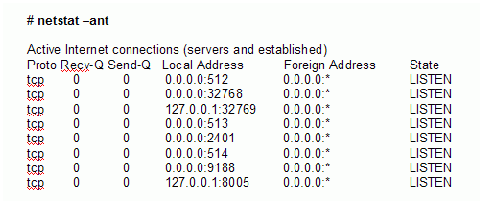
Defines the number of lines to ignore at the beginning of the data set. For example, you can use:
Header count=2
to eliminate the header information from the tabular data results of netstat command.
You can only eliminate complete lines with the Header count= option. The parsed file does not include lines that you remove in the CA Configuration Automation UI.
Defines a regular expression that identifies comments in the data set. For example, if you specify:
Comment regular expression=#.*
the parser interprets and ignores as comments patterns that start with # (including all other characters to the end of a line). For example:
#
# These three lines are removed
#
The parser also uses this option to interpret and ignore partial lines. For example:
some data # this comment is also removed
The parsed file does not display lines and partial lines that you remove in the CA Configuration Automation UI.
Defines the assignment of names to individual columns of data. The format of the field is a comma-delimited list of names and column index numbers. Column indexing starts at zero. For example:
"Column Names"=Protocol:0,Recv:1,Send:2,Local:3,Remote:4,State:5
The parsed file does not display columns that are that you exclude from the Column Names= option in the CA Configuration Automation UI.
An important aspect of parsing tabular data to the standard CA Configuration Automation internal data format is the structuring of data into Structure Class groups. Groups allow you to assign each row of data a unique qualifier, nest them, and display them hierarchically on the user interface. The Tabular Data Parser uses the first name:index pair that is defined in the Column Names= option to name the group that contains the data rows (the group pivot).
With the Column Names= option in the previous example and the netstat command output as input, the application would display the data as follows:
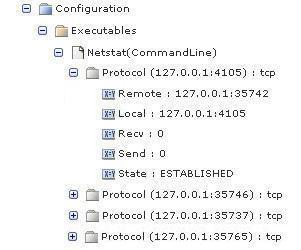
Note: The Structure Class used to interpret the parsed data in this example specifies Local as the qualifier for Protocol.
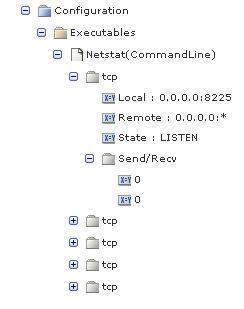
You can also group multiple columns to form subgroups under the top-level group pivot. For example, to nest the Recv and Send columns by one level in the hierarchy, apply the group modifier as follows:
"Column Names"=Protocol:0,Send/Recv(group):1-2,Local:3,Remote:4,State:5
The data would be displayed as:
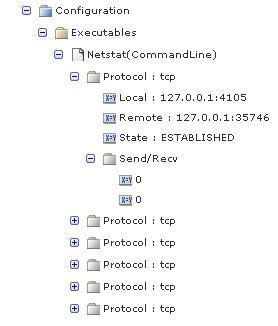
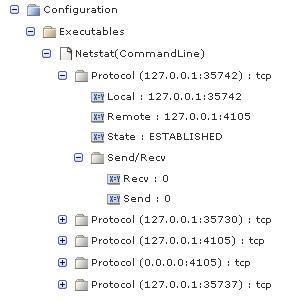
Note: In this example, the nested values are displayed under the named group and do not have names. The lack of names can limit the ability to write Structure Classes that accurately qualify the parent group. To define names for the nested columns, specify name:index pairs for the columns that are nested after the group modifier. For example:
"Column Names"= Protocol:0,Send/Recv(group):1-2,Recv:1,Send:2,Local:3,Remote:4,State:5
The application displays the data as:
In the name:index pair specification, you can define groups as ranges of columns, lists of individual columns, or a combination. Valid group column formats include:
Column 5 and all successive columns
Columns 3 through 5 and 7 and all successive columns
Columns 3 through 5, 7, and 9 through 11
Note: You cannot specify the group option for the first name:index pair because it is the group pivot on which the application builds the hierarchy.
To substitute the value of a column for the name that a name:index pair specifies, use the valueasname modifier. You can specify the valueasname modifier on the group pivot (the first name:index pair). This is a convenient way to display tabular data because one column in a table is commonly a unique key. For example, if you applied the valueasname modifier as follows:
"Column Names"=Protocol(valueasname):0,Send/Recv(group):1-2,Local:3,Remote:4,State:5
The application displays the data:
Defines a regular expression to identify the line continuation syntax.
For example, use the line continuation character \ to continue a single row of data across multiple lines in the following file:
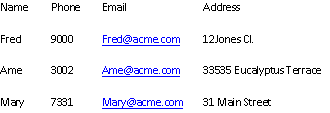
To parse the data correctly, use the following Line continuation regular expression= option:
Line continuation regular expression= \\$
Note: The first \ escapes the second \ to form a valid regular expression.
|
Copyright © 2014 CA.
All rights reserved.
|
|