

CAICCI includes optional SSL support under TCP/IP. Connections between mainframes, PCs, UNIX, and Linux boxes can be secured using CAICCI with SSL implemented. A key database that contains security certificates is used to secure these SSL connections.
For client-server connections, mainframe started task CCISSL is used. The CAICCI-PC Configurator controls whether SSL is used and how to locate the security certificates on the PC.
For peer-to-peer connections, mainframe started task CCISSLGW is used. Certificates can be stored on an HFS or in a keyring for a security package. Supported security packages are CA Top Secret, CA ACF2, and RACF.
Security Certificates
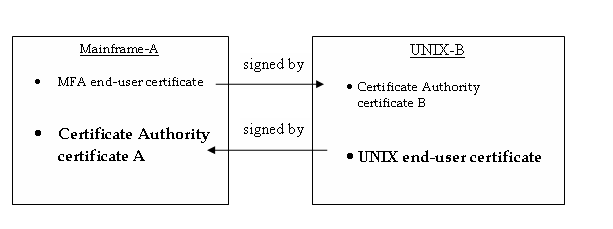
On each node using SSL, two certificates are required: an end-user certificate and a Certificate Authority certificate that signs or verifies the end-user certificate on another node. CAICCI is delivered with two default certificates that can be installed on each node. For security in a production environment, the client node generates its own certificates after the basic installation with default certificates has been tested.
For example, in a two node environment, there would be a total of four certificates as shown in the following diagram:
The key database is an ordinary file that can be saved anywhere within the HFS, such as:
/etc/cci/keyring/cci.kdb
You can have multiple key databases that are defined, or you can modify the CCISSL and CCISSLGW procs to reference your key database file instead. The procs require the specification of your key database pathname, certificate name, and a stored (stashed) password file pathname.
Follow these steps:
You probably have to set the STEPLIB environment variable to point to GSK.SGSKLOAD (z/OS before 1.6) or SYS1.SIEALNKE (z/OS 1.6) to run this program. This can be done by updating the profile member (export STEPLIB=$STEPLIB:GSK.SGSKLOAD or export STEPLIB=$STEPLIB:SYS1.SIEALNKE) or issuing the export command for the session only.
The sample Root certificate is stored in the key database. When the client authentication is requested, CCISSL can now validate the PC client incoming certificate. CCISSLGW can now authenticate a peer host that is initiating the connection to it.
The CAICCI End-User certificate is imported into the key database and is available to CCISSL and CCISSLGW. When a PC connects to CCISSL or a remote host initiates a connection to CCISSLGW, these local servers respond with this End-User certificate to identify them. The PC or remote host must have the corresponding Root Certificate (cciroot.pem or CCIRTARM) installed to authenticate their identities.
If these servers are already running, recycle them or a certificate error message is displayed.
|
Copyright © 2015 CA Technologies.
All rights reserved.
|
|