

The confirmation email includes a self-registration link that the user click or copy to a browser to complete the registration process.
Follow these steps:
Specify a name and category for the email. Select the Enabled check box.
In the first list box, select Task Completes.
In the second list box, select the self registration task that you created.
The self-registration task should be associated with the BLTHSelfRegEmailConfirm business logic task handler.
Select User.
You can select additional user types, if other users should receive the email.
Specify the message that self-registered users see in the confirmation email.
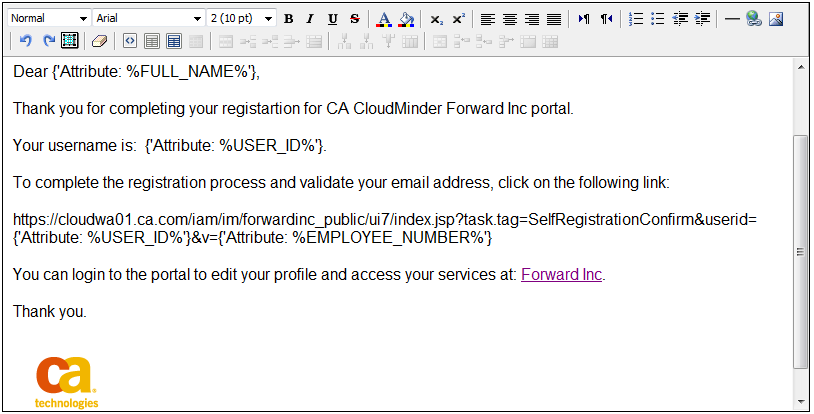
Include a link to the self-registration confirmation task.
For example:
<p>To complete the registration process and validate your email address, click on the following link:</p> <p>https://server/iam/im/environment_public/ui7/index.jsp?task.tag=SelfRegistrationConfirm&userid={'Attribute: %USER_ID%'}&v={'Attribute: %EMPLOYEE_NUMBER%'}</p>
In this example:
Specifies the server for your environment
Specifies the self registration confirmation task that you created.
Specifies the well known attribute that stores the validation code. In this example its %EMPLOYEE_NUMBER%
Note: To avoid issues when specifying the link and well-known attributes, create the email in HTML mode. To use HTML mode, click the <> icon in the email editor.
The following screen shows a sample confirmation registration.
|
Copyright © 2014 CA.
All rights reserved.
|
|