

Depending on your environment configuration, a report will be available to view when an administrator approves the request for that report. If your report request is pending approval, the system sends you an email alert. The report that you want to view does not appear in the search list until it is approved.
Note: In order to view reports in Identity Management using the View My Reports task, enable third-party session cookies in your browser.
Follow these steps:
Both recurrence generated reports and on-demand report instances are displayed.
Note: If the status of the report is Pending/Recurring, the report is not generated and may take time to complete.
A non-snapshot report includes data from other data sources, such as the Audit, Workflow, or Task Persistence databases. Identity Management includes default audit reports with prefix "Audit-" to their name, in the user console. By default, Identity Management includes only Audit reports, but you can create your own custom reports that can include data from any data source.
This scenario describes how a Super Administrator configures a report database connection and run a non-snapshot report.
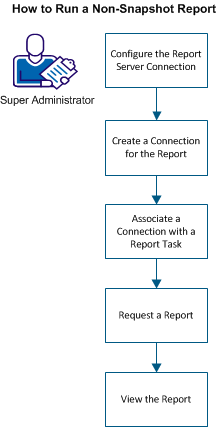
The following diagram illustrates the process running a snapshot report:
To run the non-snapshot report, perform the following steps:
|
Copyright © 2013 CA.
All rights reserved.
|
|