

This section contains the following topics:
Credentials Selector Introduction
Credentials Selector Solution for the Use Case
Establish a Front-End Authentication Scheme
Manage Unsuccessful Authentication Attempts
Protect the Sample Application
Test the Credentials Selector Solution
The Credentials Selector is a strong authentication solution. The Credentials Selector enables users to select the type of authentication credentials necessary to access protected resources. Based on the user authentication context, the Policy Server can make authorization decisions and then generate user responses in the same single sign-on environment.
The Credentials Selector functionality is implemented as a standalone component, which any CA SiteMinder®-protected application can use.
In this use case, the user is given a choice of different credentials to obtain different levels of access when they request access to a protected resource. When the user requests a protected sample application, the user is presented with the following login dialog:
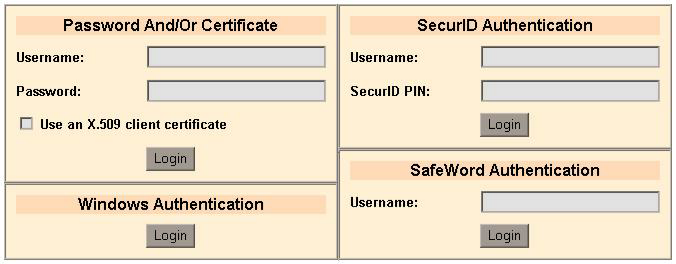
Each login button on the dialog submits different credentials. The user experience depends on the type of credentials that they provide. The user can choose from the following types of authentication:
After the user is successfully authenticated and authorized, the user is permitted access to the sample application, which displays a greeting that informs them of their authentication level and the type of authentication scheme they used to log in.
In the Password And/Or Certificate section of the login dialog, the user can choose one of the following combinations of credentials to provide:
If the user provides only their valid username and password, the following message is displayed:
Greetings, SampleUser!
Your authentication level is 5
You have used username/password authentication
If the user selects only the X.509 client certificate check box, they are prompted to select one of the client certificates that are configured with the browser. If the Policy Server recognizes the certificate, the following message is displayed:
Greetings, SampleUser!
Your authentication level is 10.
You have used X.509 client certificate authentication
The Password And/Or Certificate option offers the flexibility of providing a different authentication level depending on the credentials the user provides. The X.509 Cert Or Form authentication scheme, which can seem similar to the Password And/Or Certificate option, does not distinguish between the types of credentials that the user provides. The protection level is therefore the same regardless of what credentials the user provides.
If both Username and Password are provided and the X.509 client certificate check box is marked, the user is prompted for a client certificate. If the Policy Server recognizes the certificate and the certificate matches the username that the user provides, the following message is displayed:
Greetings, SampleUser!
Your authentication level is 15
You have used X.509 client certificate and username/password authentication
If the user is logged in to a Windows domain when they request a protected resource, the following message is displayed:
Greetings, SampleUser!
Your authentication level is 5
You have used the Windows domain authentication
If the user is not logged in to a Windows domain, the user is prompted for their Windows domain credentials.
If the user provides a valid Username and SecurID PIN for SecurID authentication when they request a protected resource, the following message is displayed:
Greetings, SampleUser!
Your authentication level is 20
You have used the SecurID authentication
If the user provides only their username for SafeWord authentication, a two-step process occurs. CA SiteMinder® passes the username to the SafeWord server and the server determines the credentials for which it challenges the user. SafeWord supports up to four authenticators per login. The authenticators can be fixed (using a password) or dynamic (using a token card pin).
Upon successful access, the following message is displayed:
Greetings, SampleUser!
Your authentication level is 20
You have used the SafeWord authentication
To set up the Credentials Selector for this use case, you configure the following components:
The front-end authentication scheme uses the Forms Credential Collector (FCC), selectlogin.fcc, to generate the login selection screen that is used to request access to the protected resource. The FCC dynamically constructs the FCC directives for the agent so the agent can redirect the user as appropriate for any of the authentication scheme choices.
Note: The selectlogin.fcc is a sample for use by the Credentials Selector. The set of authentication choices and HTML formatting depends upon your particular situation.
The FCC format is a proprietary format that Web Agent use to collect credentials and pass them to the Policy Server. An FCC consists of a header and a body.
An FCC header is a list of FCC directives, one per line. The FCC directives have the following syntax:
@<directive>[=<value>]
The values can contain % substitutions, formatted as %parameter%. The parameters are passed with the FCC file on a POST action when the credentials are submitted.
The set of FCC directives is limited. For the purposes of this example, the most important directives are:
Resource URL that the Web Agent must pass to the Policy Server.
Username that the Web Agent must pass to the Policy Server.
Password that the Web Agent must pass to the Policy Server.
Agent name that the Web Agent must pass to the Policy Server. If the EncryptAgentName parameter in the agent configuration is set to yes, the name is encrypted.
Not all FCC directives must be listed in the header; many have implicit defaults, such as:
The FCC body contains HTML or other web-browser readable format. The FCC body is rendered in the web browser when the user is challenged.
The body can contain substitutions, formatted as $$parameter$$. The parameter name must belong to a certain set of known parameters that are passed with the FCC file on a GET action.
For the purposes of this example, the important directives are:
Resource URL that the user has requested.
The agent name. If the EncryptAgentName parameter in the agent configuration is set to yes, the name is encrypted.
The selectlogin.fcc file is included with the Web Agent installation as a sample FCC. The front-end authentication scheme uses the selectlogin.fcc file to render the login dialog that is presented to the user when they request the protected resource.
When a user requests a resource, the Web Agent passes the requested URL to the Policy Server. In most cases, the resource URL that the Web Agent passes is the same one that the user requests. The FCC files that are defined for the authentication schemes ensure that the requested URL is sent by passing $$target$$ (the GET parameter) as %target% (the POST parameter), and using the @target=%target% directive. For example:
<!-- some HTML code -->
<form name="Login" method="POST">
<!-- some HTML code -->
<input type="hidden" name="target" value=”$$target$$”>
<!-- more HTML code -->
</form>
<!-- more HTML code -->
Note: The @target=%target% directive is used by default.
In this case, the selectlogin.fcc file works by replacing the value of the %target% parameter with the following value:
/path/redirect.ext?authtype=type&target=$$target$$
A simple script that redirects to the URL provided in the target parameter. Example values are redirect.asp or redirect.jsp. Alternatively, you can use different redirect script files or different virtual directories that expose the same physical file as long as the URLs in the redirect script depend on the credentials provided.
A string that is determined by the credentials that the user chooses.
If different authentication schemes protect different redirect URLs, the chosen authentication scheme processes the credentials that the FCC collects. The chosen authentication scheme establishes the user session, including the user authentication level. After the user is authenticated and authorized for the redirect script resource, the user is redirected to the originally requested resource.
Note: If single sign-on is in effect and the user protection level is equal or higher than the protection level of the front-end authentication scheme, then the user session is validated against the original resource. Whether the user is authorized depends on the policy configuration, which can check for the user authentication context. For example, a minimal protection level or certain conditions can be required to access particular resource.
You can configure various authentication schemes in the selectlogin.fcc file. The following list shows configuration details for some schemes:
The following JavaScript code can be used to convert the URL to an SSL URL:
arr = document.URL.split("://");
document.Login.action = "https://" + arr[1];
document.Login.action = "safeword.fcc";
document.Login.action = "/siteminderagent/ntlm/creds.ntc";
Note: SCC pseudo-resource URLs are used for certificate-only authentication.
A simplified version of the selectlogin.fcc file (without the HTML formatting) follows. Hidden input fields for smquerydata and postpreservationdata are necessary for passing the GET and POST parameters, respectively.
The smauthreason parameter holds the reason code that the Policy Server provides together with the authentication challenge.
A sample selectlogin.fcc file follows:
@username=%USER%
@smretries=0

<html>
<head>
  <script language="JavaScript">
    function submitForm(form)
    {
      authtype = "none";

      if (form == 1)
      {
        document.Login.USER.value     = document.Login.USER1.value;
        document.Login.PASSWORD.value = document.Login.PASSWORD1.value;

        if (!document.Login.UseCert.checked)
        {
          // username/password only
          authtype = "form";
        }
        else if (document.Login.USER.value == "" &&
                 document.Login.PASSWORD.value == "")
        {
          // certificate only
          authtype = "cert";
        }
        else
        {
          // username/password and certificate
          authtype = "certform";

          // This option requires posting over SSL.
          arr = document.URL.split("://");
          document.Login.action = "https://" + arr[1];
        }
      }
      else if (form == 2)
      {
        // SecurID authentication
        authtype = "securid";
        document.Login.USER.value     = document.Login.USER2.value;
        document.Login.PASSWORD.value = document.Login.PASSWORD2.value;
      }
      else if (form == 3)
      {
        // SafeWord authentication
        authtype = "safeword";
        document.Login.USER.value     = document.Login.USER3.value;
        document.Login.PASSWORD.value = "";

        // POST to safeword.fcc, for additional processing.
        // NOTE: This forces the web agent to POST to safeword.fcc
        // even if the authentication scheme's URL parameter
        // is set to selectlogin.fcc for redirection purposes.
        document.Login.action = "safeword.fcc";
      }
      else if (form == 4)
      {
        // Authenticate with the current Windows login credentials
        authtype = "windows";
        document.Login.USER.value     = "";
        document.Login.PASSWORD.value = "";

        // POST to creds.ntc (required by the Windows authentication scheme).
        document.Login.action = "/siteminderagent/ntlm/creds.ntc";
      }
      // Generate the target, depending on the user's choice of credentials.
      // This sample uses redirect.asp, but it could also be redirect.jsp, redirect.pl, etc.
      // This sample uses the following format: /auth/redirect.asp?authtype=<choice>&target=<original target>
      // Other formats are also possible, e.g.: /auth-<choice>/redirect.asp?target=<original
         target>
      // The helper realms' resource filters must be defined accordingly (see the tech note).
      // Check if the target is not already in the same format. The user may
      // have been redirected back to selectlogin.fcc upon authentication failure,
      // if the authentication scheme's URL parameter is set to selectlogin.fcc.
      if ("$$target$$".indexOf("/auth/redirect.asp?authtype=") == 0 &&
          "$$target$$".indexOf("&target=") > 0)
      {
        // This must be a redirect. Extract the original target, but not
        // the authtype parameter, because the user may have made a different
        // choice of credentials this time.
        trgarr = "$$target$$".split("&target=");
        document.Login.target.value = "/auth/redirect.asp?authtype=" + authtype + "&target=" + trgarr[1];
      }
      else
      {
        // This is not a redirect. Pass $$target$$ as a URL query parameter.
        document.Login.target.value = "/auth/redirect.asp?authtype=" + authtype + "&target=$$target$$";
      }

      document.Login.submit();
    }
    function resetCredFields()
    {
      document.Login.PASSWORD.value  = "";
      document.Login.PASSWORD1.value = "";
      document.Login.PASSWORD2.value = "";
    }
  </script>
</head>

<body onLoad="resetCredFields();">
  <center>
    <form name="Login" method="POST">
      <input type="hidden" name="USER">
      <input type="hidden" name="PASSWORD">
      <input type="hidden" name="smagentname"  value="$$smagentname$$">
      <input type="hidden" name="smauthreason" value="$$smauthreason$$">
      <input type="hidden" name="smquerydata"  value="$$smquerydata$$">
      <input type="hidden" name="postpreservationdata" value="$$postpreservationdata$$">
      <input type="hidden" name="target">
      <!-- Some table formatting throughout -->
        <!-- Authentication Choice: Password And/Or Certificate -->
          <input type="text"     name="USER1">
          <input type="password" name="PASSWORD1">
          <input type="button"   value="Login" onClick="submitForm(1);">

        <!-- Authentication Choice: Windows Authentication -->
          <input type="button"   value="Login" onClick="submitForm(4);">

        <!-- Authentication Choice: SecurID Authentication -->
          <input type="text"     name="USER2">
          <input type="password" name="PASSWORD2">
          <input type="button"   value="Login" onClick="submitForm(2);">

        <!-- Authentication Choice: SafeWord Authentication -->
          <input type="text"     name="USER3">
          <input type="button"   value="Login" onClick="submitForm(3);">
      <!-- More table formatting -->
    </form>
  </center>
</body>
</html>
Configure a front-end authentication scheme that protects the sample application which generates the greeting. For this solution, you can configure the AuthChannel authentication scheme.
See the following illustration for an example of an AuthChannel authentication scheme.
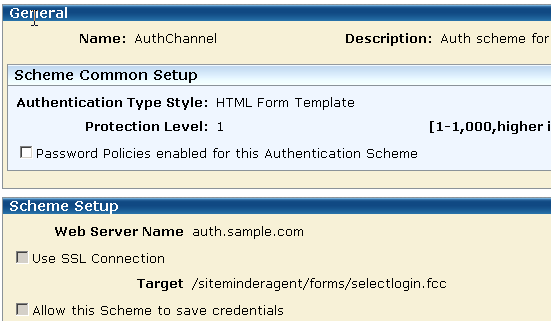
The AuthChannel authentication scheme is set as follows:
HTML Form Template
1
The Protection Level for the AuthChannel scheme is set to 1 because the front-end authentication scheme must have a lower protection level than any other scheme in the configuration. The authentication scheme the user chooses when logging in to access the protected resource determines the actual protection level for that user. When the user is redirected back to the originally requested resource, the low protection level of the front-end scheme ensures that the user is not rechallenged.
auth.sample.com
Specifies the web server where the sample application resides.
/siteminderagent/forms/selectlogin.fcc
This target points to the selectlogin.fcc file. The selectlogin.fcc file is a sample file that is included with the Web Agent installation.
If an authentication scheme rejects a user, the user is redirected to the URL specified in the Target parameter that is specified for the authentication scheme.
Configure the following behaviors that best suits your situation:
If a particular choice of credentials requires posting the credentials to an FCC file other than the selectlogin.fcc file, set the action parameter for the HTML form in the selectlogin.fcc to the desired FCC file URL. For example, this command sets the action parameter to the safeword.fcc file:
document.Login.action = "safeword.fcc";
If you are using a scheme that does not have a Target parameter (such as the basic authentication scheme) the user experience is the same for a successful authentication. However, if the user has to be rechallenged, the rechallenge is based on basic authentication scheme. That is, with a prompt dialog instead of an HTML form.
Note: The SafeWord basic scheme does not support two-step authentication and multiple authenticators, unlike the SafeWord HTML forms scheme.
To use the Credentials Selector, the following components are required for back-end processing:
Set up several authentication schemes for back-end processing, one for each choice of credentials made available to the user. These schemes enable a user to choose the type of credentials they provide to access a protected resource.
There is one authentication scheme for each type of credential:
Note: The Basic authentication scheme is a default scheme set up as part of the Policy Server installation.
Configure a policy domain to represent the Credentials Selector back-end processing. In this solution, the policy domain is named BackendAuth.
Define one realm for each configured back-end authentication scheme. Each realm needs a resource filter that is defined as follows:
/auth/redirect.asp?authtype=type&target=
Can be one of the following values:
form username/password authentication
cert certificate authentication
certform cert-and-form authentication
securid SecurID authentication
safeword SafeWord authentication
windows Windows authentication
Note: These are the types that are chosen for the purposes of this use case. You are not restricted to these specific values, but the types must correspond to the authtype values in the selectlogin.fcc file, or any other FCC file that is based on the selectlogin.fcc template. Also, the realm resource filter must match the redirect target in the FCC file.
The following pane lists the realms.
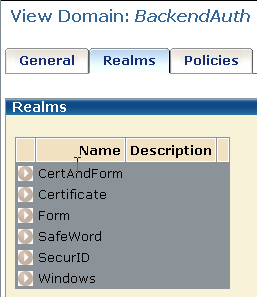
The Web Agents protecting the realms can but do not need to be the same. This solution uses a single Web Agent; however, if multiple Web Agents are used, they must satisfy specific requirements.
The following requirements are necessary for agents that are protecting realms as part of the Credentials Selector functionality:
The expected value is the value of the AgentName parameter or the DefaultAgentName parameter, if the AgentName parameter is not assigned a value. If the EncryptAgentName parameter in the agent configuration is set to yes, the value must be encrypted.
One way of setting the @smagentname directive is by configuring each Web Agent with the same naming properties. They can even share an Agent Configuration Object. Another method is to configure the @smagentname directive programmatically in the FCC file, if the name is not encrypted.
Important! If the @smagentname directive is misconfigured, you can see a “No realm received in request” error message in the Policy Server log.
In each realm that you configure for the BackendAuth policy domain, configure the following two rules:
Configure an asterisk (*) as the value for the Resource field for both rules.
For example, for the Form realm in the BackendAuth policy domain, the rules would be:
Resource: /auth/redirect.asp?authtype=form&target=*
Action: OnAuthAccept
Resource: /auth/redirect.asp?authtype=form&target=*
Action: Get
Configure an AuthContext response for each authentication scheme in the BackendAuth domain. Each of these responses contains an AuthContext response attribute, which is evaluated only on an OnAuthAccept event. Its value is added to the CA SiteMinder® session ticket as the value of the SM_AUTHENTICATIONCONTEXT user attribute. The value is not, however, returned to the client as a user response.
For this example, the list of responses are as follows:
|
Name |
Agent Type |
Description |
|
Form |
Web Agent |
AuthContext for username/password auth |
|
Certificate |
Web Agent |
AuthContext for certificate auth |
|
CertandForm |
Web Agent |
AuthContext for cert and form auth |
|
SecurID |
Web Agent |
AuthContext for SecurID auth |
|
SafeWord |
Web Agent |
AuthContext for SafeWord auth |
|
Windows |
Web Agent |
AuthContext for Windows auth |
Note: The response attribute value is truncated to 80 bytes in length.
To configure an AuthContext response attribute, select the WebAgent-OnAuthAccept-Session-AuthContext response attribute type.
The following illustration shows the creation of an AuthContext response attribute using the WebAgent-OnAuthAccept-Session-AuthContext attribute type.
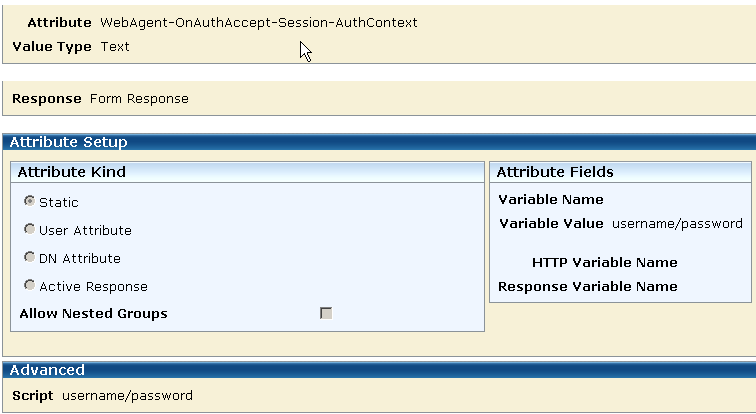
As the illustration shows, the AuthContext response attribute type is static. When legacy federation is in use, you can specify a static attribute to define a constant or literal value for better encapsulation. Constant values include strings.
CA SiteMinder® variables and active expressions add more flexibility to configuring AuthContext response attributes. They can also contain the authentication timestamp, a hash value, or both of a SAML assertion.
The following group box shows one of the resulting responses that are configured for this solution. This is the attribute for the Form response.
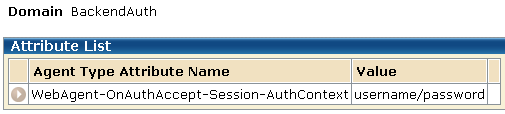
Configure two policies for the BackendAuth domain in this example:
The following illustration shows the two policies.
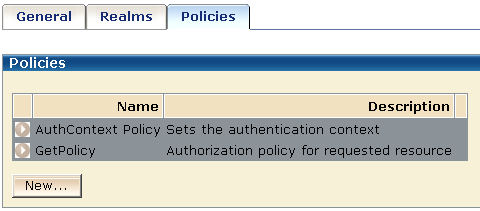
The AuthContext policy sets the authentication context in the CA SiteMinder® session ticket, which is used for authentication and validation. In this policy, the OnAuthAccept rules from each realm are paired with the corresponding responses to permit access to protected resources. For example, the OnAuthAccept Rule for the Form realm is paired with the Form response and the OnAuthAccept rule for the SafeWord realm is paired with the SafeWord response.
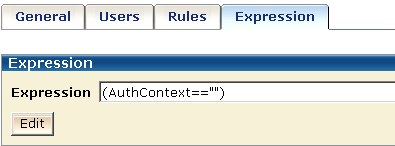
User authentication and user validation are OnAuthAccept events so the authentication context in the session ticket can be overwritten after each validation. The ability to update the authentication context attribute can be useful in some circumstances, for example, if the value of that attribute includes a counter. However, in this solution using the Credentials Selector, the AuthContext policy is configured to fire only if the authentication context is empty to ensure that the session ticket is not overwritten. The credentials that the user chooses are thus remembered.
Protect the authentication context from being overwritten by writing an active expression in the AuthContext policy to retrieve the SM_AUTHENTICATIONCONTEXT attribute from the session ticket.
When legacy federation is in use, you can create a user context variable called AuthContext and can use it in the AuthContext policy to define an active expression that retrieves the SM_AUTHENTICATIONCONTEXT attribute from the session ticket.
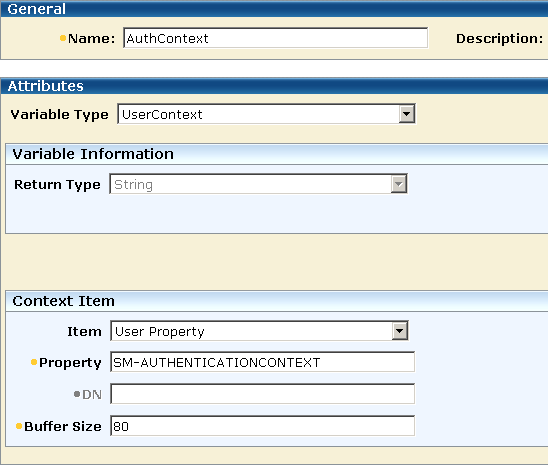
Define an active expression using the AuthContext variable in the AuthContext policy:
Authorizing an authenticated user for a requested resource requires a second policy in the BackendAuth domain. This policy protects the resources and is in addition to the authentication context policy in this domain.
Configure the protection policy to authorize the authenticated user for the redirection target, which is a GET action on the redirect.asp file. Name the policy GetPolicy.
The GetPolicy would contain the associated rules:
|
Rule |
Realm |
|
GetRule |
Form |
|
GetRule |
Certificate |
|
GetRule |
CertandForm |
|
GetRule |
SecureID |
|
GetRule |
SafeWord |
|
GetRule |
Windows |
To use the Credentials Selector, configure the protected realms of a CA SiteMinder® application with the front-end authentication scheme of the component. The policies protecting the application can have restrictions that are based on the user authentication level and authentication context.
In this solution, the sample application generates the greeting message for the authenticated and authorized user.
The file that generates this greeting has the following code:
<html>
<head></head>
<body>

<h3>
<p>Greetings, <%=Request.ServerVariables("HTTP_USERNAME") %>!
<p>Your authentication level is <%=Request.ServerVariables("HTTP_AUTHLEVEL") %>
<p>You have used <%=Request.ServerVariables("HTTP_AUTHCONTEXT") %> authentication
</h3>

</body>
</html>
The different authentication options in the login dialog result in different access levels and a different greeting, such as:
Greetings, SampleUser!
Your authentication level is 5
You have used username/password authentication
Greetings, SampleUser!
Your authentication level is 10.
You have used X.509 client certificate authentication
Greetings, SampleUser!
Your authentication level is 5
You have used Windows domain authentication
The sample application has four kinds of resources that are contained in different realms. The realms must each be configured with the front-end authentication scheme.
For this example, the following four realms protect the various resources that make up the sample application:
The realms are shown in the following illustration.
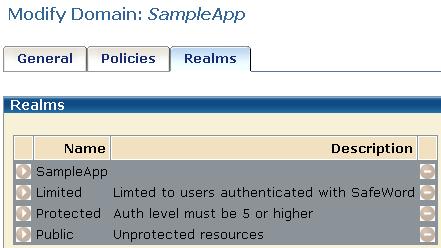
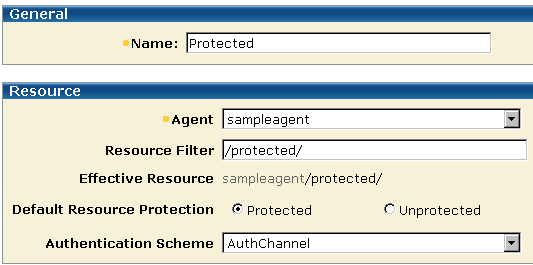
The protected realms are configured with the AuthChannel front-end authentication scheme, as shown in the following illustration.
The SampleAgentGroup can contain any Web Agents that provide points of entry to the sample application.
The following requirements are necessary for agents that are protecting realms as part of the Credentials Selector functionality:
The expected value is the value of the AgentName parameter or the DefaultAgentName parameter, if the AgentName parameter is not assigned a value. If the EncryptAgentName parameter in the agent configuration is set to yes, the value must be encrypted.
One way of setting the @smagentname directive is by configuring each Web Agent with the same naming properties. They can even share an Agent Configuration Object. Another method is to configure the @smagentname directive programmatically in the FCC file, if the name is not encrypted.
Important! If the @smagentname directive is misconfigured, you can see a “No realm received in request” error message in the Policy Server log.
You can configure any type of rule for the realms that contain the sample application resources.
The GetProtected policy requires a protection level of 5 or greater for access to protected resources. To enforce this protection level restriction, you can write an active expression in the GetProtected policy to retrieve the SM_AUTHENTICATIONLEVEL attribute from the CA SiteMinder® session ticket.
Note: This authentication level restriction is designed to protect applications from custom Web Agents that only support password authentication levels of one.
When legacy federation is in use, you can create a user context variable that is named AuthLevel and can use it in the GetProtected policy to define an active expression that retrieves the SM_AUTHENTICATIONLEVEL attribute from the session ticket.
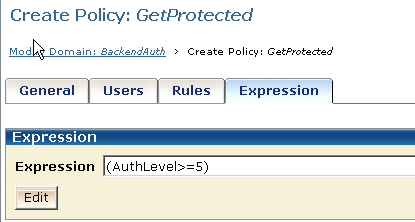
In this example, the sample application that displays the greeting message uses three HTTP header variables:
These headers are returned to the client with the following response:
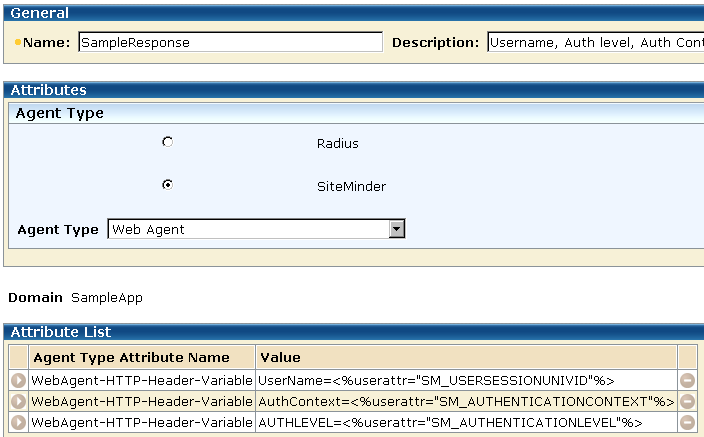
Attribute values are specified on the Response Attribute pane.
If you have set up the various components that are described in this use case, you can test the Credentials Selector functionality. This test should show that you see different greetings depending on the credentials you specify.
Follow these steps:
You should be presented with the login screen defined by the selectlogin.fcc file.
You should see the greeting appropriate for the credentials you entered. For example, if you entered a username and SecurID PIN, you should see a greeting
Greetings, SampleUser!
Your authentication level is 20
You have used the SecurID authentication
You should see a greeting message appropriate for the specified credentials.
You have successfully tested the Credentials Selector.
|
Copyright © 2013 CA.
All rights reserved.
|
|