

Single Sign-On Service › SSO Policy Server Configuration Guide › CA SSO/WAC Integration
CA SSO/WAC Integration
This section contains the following topics:
Overview
SiteMinder and CA SSO Integration Architectural Examples
CA SiteMinder® and CA SSO Integration Prerequisites
Configure Single Sign-On from SiteMinder to CA SSO
Configure Single Sign-On from CA SSO Client to SiteMinder
Configure Single Sign-On from CA SSO to SiteMinder
Configure an smetssocookie Web Agent Active Response Attribute
Configure an smauthetsso Custom Authentication Scheme
Overview
This product provides single sign-on to the CA SSO environments. Users log in to an environment with either product. Once authenticated, they can access both environments. Any authenticated users can access protected resources in either environment without having to reenter credentials, as long as they are authorized. User authorization is based on the policies in effect within each environment.
When allowing users to access secure resources, both products each maintain user credentials in their own session stores. They also have their own proprietary session credentials which are maintained separately. Since these credentials reside in different stores, the Policy Server and CA SSO Policy Server must be part of the same cookie domain. They also must share a user or authentication store.
In a single sign-on configuration, both Policy Servers can be on the same or on different machines. The product can contain a Web Agent, the CA SiteMinder® SPS, or both. You use an Agent or CA SiteMinder® SPS based on your own environment. The CA SSO product uses the eTrust Web Access Control (WAC) agent. You do not need to modify your current environment to enable single sign-on with the product.
More information:
SiteMinder and CA SSO Integration Architectural Examples
SiteMinder and CA SSO Integration Architectural Examples
The following examples demonstrate single sign-on between CA SiteMinder® and CA SSO environments:
- A user authenticates to CA SiteMinder® using a Web browser and then accesses an CA SSO-protected resource (see Example 1: User Accesses SiteMinder-Protected Resource Before CA SSO).
- A user authenticates to CA SSO through a desktop CA SSO Client and then accesses a CA SiteMinder®-protected resource using a Web browser (see Example 2: Authenticated CA SSO Client User Accesses SiteMinder Resource).
- A user authenticates to CA SSO using a Web browser and then accesses a CA SiteMinder®-protected resources (see Example 3: User Accesses CA WAC-Protected Resource Before SiteMinder).
More information:
Configure Single Sign-On from CA SSO Client to SiteMinder
User Accesses SiteMinder-Protected Resource Before CA SSO
The following example illustrates a user accessing CA SiteMinder®-protected resource before a WAC-protected resource:
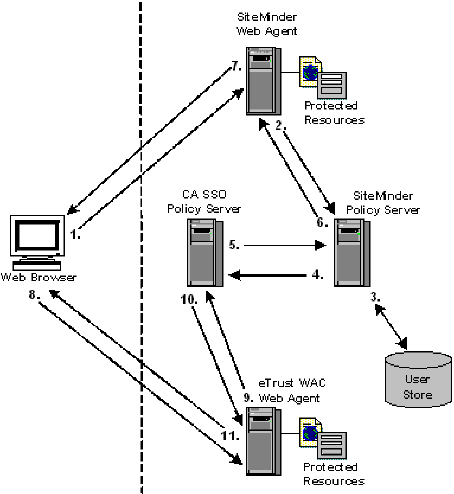
- The user tries to access a CA SiteMinder®-protected resource and the CA SiteMinder® Web Agent/CA SiteMinder® SPS intercepts the request. The user provides the Agent/SPS with authentication credentials.
- The Web Agent/CA SiteMinder® SPS forwards the credentials to the Policy Server for validation.
- The Policy Server verifies that the credentials of the user are valid.
- After successful authentication, the Policy Server requests the CA SSO Policy Server to issue and return a CA SSO cookie for the user.
- The CA SSO Policy Server validates the user and forwards the CA SSO web authentication credentials of the user to the Policy Server.
- The CA SiteMinder® Policy Server forwards the CA SSO web authentication credentials to the CA SiteMinder® Web Agent/CA SiteMinder® SPS.
- The CA SiteMinder® Web Agent/CA SiteMinder® SPS sets the CA SSO web authentication and CA SiteMinder® cookies in the browser of the user. The resource appears to the user.
- The user tries to access a CA SSO resource and the eTrust WAC Web Agent intercepts the request.
- The eTrust WAC Web Agent validates the CA SSO web authentication cookie credentials of the user with the CA SSO Policy Server.
- The CA SSO Policy Server tells the eTrust WAC Web Agent that the user has valid credentials.
- The eTrust WAC Web Agent allows the user to access the CA SSO-protected resource.
Authenticated CA SSO Client User Accesses SiteMinder Resource
The following example illustrates an authenticated CA SSO client user accessing a CA SiteMinder® protected resource:
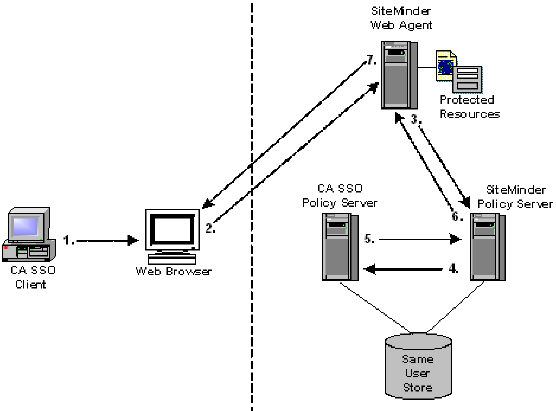
- An authenticated CA SSO Client user launches a Web browser. While this is happening, the CA SSO Client places an CA SSO Web authentication cookie into the browser.
- The user tries to access a CA SiteMinder®-protected resource using the Web browser and the request is intercepted by the CA SiteMinder® Web Agent/CA SiteMinder® SPS.
- The CA SiteMinder® Web Agent/CA SiteMinder® SPS forwards the CA SSO Web authentication cookie to the CA SiteMinder® Policy Server.
- The CA SiteMinder® Policy Server forwards the CA SSO Web authentication cookie to the CA SSO Policy Server.
- The CA SSO Policy Server validates the CA SSO Web authentication cookie and returns the user name to the CA SiteMinder® Policy Server.
- The CA SiteMinder® Policy Server verifies the returned user name in the CA SiteMinder® user store, then issues a corresponding CA SiteMinder® cookie and returns it to the CA SiteMinder® Web Agent/CA SiteMinder® SPS.
- The CA SiteMinder® Web Agent/CA SiteMinder® SPS returns the requested resource to the user, who now has the authentication cookie credentials necessary for CA SiteMinder® and CA SSO environments.
User Accesses eTrust WAC-Protected Resource Before SiteMinder
The following example illustrates a user accessing a WAC-protected resource before the product.
Note: The example assumes that the environment is using an IIS6 WAC Agent. An IIS6 WAC Agent is the only platform that the following example supports.
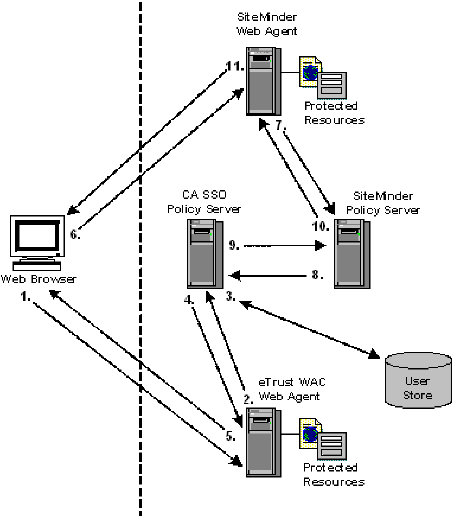
- The user tries to access a CA SSO-protected resource and the eTrust WAC Web Agent intercepts the request. The user provides the Agent with authentication credentials.
- The agent forwards the credentials to the CA SSO Policy Server for validation.
- The CA SSO Policy Server verifies that the credentials of the user are valid.
- The CA SSO Policy Server forwards the eTrust SSO web credentials of the user to the eTrust WAC web agent.
- The eTrust WAC web agent sets the CA SSO web authentication cookie in the web browser of the user.
- The user tries to access a protected resource and the web agent/CA SiteMinder® SPS intercepts the request.
- The web agent/CA SiteMinder® SPS forwards the CA SSO web authentication credentials of the user to the Policy Server.
- The Policy Server forwards the CA SSO web authentication credentials of the user to the eTrust SSO Policy Server.
- The CA SSO Policy Server validates the CA SSO web authentication credentials of the user. Then the CA SSO Policy Server forwards the user name back to the Policy Server.
- The Policy Server verifies the returned user name in the user store, then issues a corresponding cookie and returns it to the agent/CA SiteMinder® SPS.
- The Web Agent/CA SiteMinder® SPS sets the cookies in the browser of the user. This process allows the user to access the requested resource.
CA SiteMinder® and CA SSO Integration Prerequisites
Before configuring a single sign–on integration between CA SiteMinder® and CA SSO:
- Install and configure CA SSO.
Note: When installing the CA SSO Policy Server, gather the following:
- An SSO administrator name and password. The CA SiteMinder® Policy Server uses the administrator name and password when authenticating to the CA SSO Policy Server through the smauthetsso authentication scheme.
- The SSO ticket encryption key. The CA SiteMinder® Policy Server smetssocookie active response requires this value.
- Be sure that the CA SiteMinder® environment and the CA SSO environment are operating in the same FIPS mode (AES encryption) of operation.
Important! The integration fails if both environments are not operating in the same FIPS mode of operation.
- Consider the following:
- If the integration is to operate in FIPS–only mode, CA SiteMinder® Policy Servers must be operating at r12.0 SP1 CR3 or later. If necessary, upgrade the CA SiteMinder® Policy Servers that are to communicate with the CA SSO Policy Server.
- Be sure that operating systems on which the Policy Servers are installed support the smauthetsso authentication scheme. The integration requires that you configure the smauthetsso authentication scheme. For more information, see the 1.1 CA SiteMinder® Platform Support Matrix.
Configure Single Sign-On from SiteMinder to CA SSO
The product provides single sign-on to CA SSO environments.
To enable single sign-on from CA SiteMinder® to CA SSO using a CA SiteMinder® Web Agent or CA SiteMinder® SPS
Enable the CA SiteMinder® SSO Plug-in that is installed with the agent or CA SiteMinder® SPS:
- For the Apache 2.0 Web Agent
-
- Remove the comment (#) character from one of the following lines in the WebAgent.conf file:
- (Windows operating environments) #LoadPlugin=Path_to_eTSSOPlugin.dll_file
- (UNIX or Linux operating environments) #LoadPlugin=Path_to_libetssoplugin.so_file
Note: Restart the web server after you modify the WebAgent.conf file so the new configuration settings take effect.
- For the 6.0 CA SiteMinder® SPS
-
Note: Restart the CA SiteMinder® SPS after you modify the WebAgent.conf file so the new configuration settings take effect.
Follow these steps:
- Configure the domain in the webagent.ini file of the WAC Web Agent by setting the following parameter:
DomainCookie=<domain>
where <domain> is the same domain (for example, test.com) for the CA SSO and CA SiteMinder® Web Agents.
The file is installed in the following location on the WAC Web Agent computer:
C:\Program Files\CA\WebAccessControl\WebAgent\webagent.ini
- Verify the following web server and the authentication method settings in the webagent.ini file:
- Configure the "Authentication methods" and the "Default authentication method" as SSO.
- The WebServerName, PrimaryWebServerName, AgentName, NTLMPath, and Secure point to the computer where CA SSO Web Access Control is installed.
- The ServerName attribute points to the IP Address of the computer where the CA SSO Policy Server is installed.
CA SSO Policy Manager Verification Steps
- Ensure that the CA SiteMinder® and CA SSO Policy Servers use the same user or authentication store.
- Verify the following settings:
- An SSO administrator name and password. The CA SiteMinder® Policy Server uses the administrator name and password when authenticating to the CA SSO Policy Server through the smauthetsso authentication scheme.
- The SSO ticket encryption key. The active response of the smetssocookie in the Policy Server requires the key.
- CA SiteMinder® Policy Server Configuration Steps
-
- Create a Web Agent, Agent Configuration Object, and Host Configuration Object using the CSP console.
- Configure the CA SiteMinder® and CA SSO Policy Servers for the same user or authentication store.
- Configure a smetssocookie (certificate) custom active response.
- Create a domain, realm, and rules using the CSP console. Protect any resource with the CA SiteMinder® Web Agent.
Note: When creating the rules, append the smetssocookie custom active response to them.
Overall Verification Steps
- Configure the user with credentials to access resources that are protected by the CA SiteMinder® Web Agent and the WAC Web Agent.
- Restart the CA SiteMinder® Policy Server and Web server hosting the CSP console.
- Access the resource that is protected by the CA SiteMinder® Web Agent and provide this Web Agent with the appropriate user credentials.
- In the same browser session, request a resource that is protected by the WAC Web Agent.
Access to this resource should be granted without being prompted for credentials.
More information:
Realms
Rules
Domains
Configure Single Sign-On from CA SSO Client to SiteMinder
CA SiteMinder® provides single sign-on from the CA SSO Client to CA SiteMinder®.
To enable single sign-on from a CA SSO Client to CA SiteMinder®:
CA SiteMinder® Policy Server Configuration Steps
- Configure the smauthetsso custom authentication scheme using the CSP console.
- Create a domain, realm, and rules using the CSP console. Protect any resource with the CA SiteMinder® Web Agent.
- Configure the smauthetsso custom authentication scheme for a resource.
- Create a policy granting access to the protected resource to users who can access the browser protecting the CA SSO Client.
CA SSO Client Verification Steps
In the CA SSO Client SsoClnt.ini file, set the following items:
Note: The SsoClnt.ini file is installed in C:\Program Files\CA\CA SSO\Client on the CA SSO Client computer.
DomainNameServer=<eSSO_WA_FQDN> <SM_WA_FQDN>
- eSSO_WA_FQDN
-
(Optional) Specifies the fully qualified domain name for the WAC Web Agent
- SM_WA_FQDN
-
Specifies the fully qualified name for the CA SiteMinder® Web Agent
Overall Verification Steps
- Restart the CA SSO Client, CA SiteMinder® Policy Server, and web server hosting the CSP console.
- Access the protected browser through the SSO Client and enter the URL of the resource that the Policy Server protects.
The resource appears without a rechallenge from CA SiteMinder®.
More information:
Realms
Rules
Domains
Configure Single Sign-On from CA SSO to SiteMinder
CA SiteMinder® provides single sign-on from CA SSO to the product.
Follow these steps:
Policy Server Configuration Steps
- Configure the smauthetsso custom authentication scheme using the CSP console.
- Create a domain, realm, and rules. Protect any resource with the Web Agent.
- Configure the smauthetsso custom authentication scheme for the protected resource.
WAC Web Agent Verification Steps
- Configure the domain in the webagent.ini file of the WAC Web Agent by setting DomainCookie=<domain>.
Note: The Domain value must be the same for the CA SSO and CA SiteMinder® Web Agents. The file is installed on the WAC Web Agent computer at C:\Program Files\CA\WebAccessControl\WebAgent\webagent.ini
- Verify the following web server and the authentication method settings in the webagent.ini file:
- Configure the "Authentication methods" and "The default authentication method" parameters to SSO.
- The WebServerName, PrimaryWebServerName, AgentName, NTLMPath, and Secure must point to the computer where SSO Web Access Control is installed.
- Point the ServerName attribute to the IP Address of the computer where the CA SSO Policy Server is installed.
- For more information about configuring the WAC Web Agent, see the CA SSO documentation.
CA SiteMinder® Web Agent or CA SiteMinder® SPS Configuration Steps:
- Enable the SSO plug-in that is installed with the Web Agent or CA SiteMinder® SPS. This plug‑in authenticates the SSO Client cookies. Remove the comment character (#) from the following line in the WebAgent.conf file:
#LoadPlugin=path_to_eTSSOPlugin.dll | path_to_libetssoplugin.so
Note: The WebAgent.conf file is located as follows:
- Apache 2.0 Web Agent
-
- 6.0 CA SiteMinder® SPS
-
SPS_install_dir\proxy-engine\conf\defaultagent\
SPS_install_dir
CA SiteMinder® SPS installation directory
- Restart the Policy Server.
Overall Verification Steps
- Restart the WAC Web Agent, the Policy Server, and the web server hosting the CSP console.
- Access a resource that the WAC Web Agent protects. Provide valid credentials.
- Using the same browser, access a resource that the Web Agent protects in the same browser.
The resource appears without a challenge for credentials.
Configure an smetssocookie Web Agent Active Response Attribute
The smetssocookie Web Agent active response generates and sends an SSO cookie to a Web browser. The SSO cookie lets a CA SiteMinder®-authenticated user access WAC or CA SSO protected content without having to reauthenticate.
Follow these steps:
- Click Policies, Domain.
- Click Responses.
- Click Create Response.
- Select a domain from the list and click Next.
- Define a Name and Description for the response.
- Verify that the CA SiteMinder® is selected and that Web Agent appears in the Agent Type list.
- Click Create Response Attribute.
- Verify that Create a new object is selected, and then click OK.
- Select WebAgent-HTTP-Cookie-Variable from the Attribute list.
- Select Active Response in Attribute Kind.
- In the Cookie Name field, type SSOTK.
- In the Library Name field, type smetssocookie.
- In the Function Name field, type GenEtssoCookie.
Note: The function name is case-sensitive.
- In the Parameters field, define the following tokens:
<CA_PS_Host_Name>;<SSO_Auth_Host>;<SSO_AuthMethod>;<EncryptionKey>
- CA_PS_Host_Name
-
Specifies the host name of the CA SSO Policy Server.
- SSO_Auth_Host
-
Specifies the SSO authentication host name in the CA Policy Manager. You can specify this host name by going to Web Access Control Resources, Configuration Resources, Authentication Host.
Required value: SSO_Authhost
- SSO_AuthMethod
-
Defines the SSO authentication method.
Required value: SSO
- EncryptionKey
-
Defines the ticket encryption key for the SSO authentication host name in the CA Policy Manager.
Note: To improve legibility, you can type a space before and after any token.
- Click Submit.
- Click Finish.
The response can be added to an OnAuthAccept rule.
Configure an smauthetsso Custom Authentication Scheme
The CA SSO CA SiteMinder® (smauthetsso) authentication scheme lets the Policy Server validate CA SSO authentication credentials so that a user already authenticated in a CA SSO/WAC environment does not need to re‑authenticate. This custom authentication scheme accepts a CA SSO Cookie as a login credential; has it validated by a CA SSO Policy Server; extracts the user name from it; and verifies that the name is present in the user store. You can set this authentication scheme in a cookie, cookieorbasic, or cookieorforms mode.
You can configure one CA SSO Policy Server to failover to another CA SSO Policy Server when it fails for some reason. To configure fail‑over, specify a comma-separated list of CA SSO Policy Servers as parameter field in Scheme Setup on the Authentication Scheme page.
Follow these steps:
- Click Infrastructure, Authentication.
- Click Authentication Schemes.
- Click Create Authentication Scheme.
Verify that the Create a new object of type Authentication Scheme is selected.
- Click OK
Note: Click Help for descriptions of settings and controls, including their respective requirements and limits.
- Select Custom Template from the Authentication Scheme Type list.
- Enter smauthetsso in the Library field.
- Enter and confirm the password of the CA SSO Policy Server administrator in the Secret and Confirm Secret fields.
- Define an ordered set of tokens in the Parameter field with the following format:
Mode [; <Target>] ; AdminID ; CAPS_Host ; FIPS_Mode ; Identity_File
Note: Separate tokens with semicolons. You may enter a space before and after each token for improved legibility.
Example: cookie ; SMPS_sso ; myserver.myco.com ; 0 ; /certificates/def_root.pem
Example: cookieorforms ; /siteminderagent/forms/login.fcc ; SMPS_sso ; myserver.myco.com ; 1 ; /certificates/def_root.pem
- Mode
-
Specifies the type of credentials the authentication scheme accepts. Accepted values include cookie, cookieorbasic, or cookieorforms.
- cookie
-
Specifies that only CA SSO cookies are acceptable.
- cookieorbasic
-
Specifies that a basic authentication scheme is used to determine the login name and password if a CA SSO cookie is not provided.
- cookieorforms
-
Specifies that a forms authentication scheme is used to determine the login name and password if a CA SSO cookie is not provided.
- Target
-
Specifies the pathname of the .fcc file used by the HTML Forms authentication scheme.
Note: This value is only required for the cookieorforms mode.
- AdminID
-
Specifies the user name of the CA SSO Policy Server administrator for the CA SSO Policy Server. CA SiteMinder® uses the user name of the administrator and password to request validation of CA SSO cookies when authenticating to the CA SSO Policy Server.
- CAPS_Host
-
Specifies the name of the host where the CA SSO Policy Server resides.
- FIPS_Mode
-
Specifies the FIPS mode of operation in which the Policy Server is operating. Zero (0) specifies non-FIPS mode. One (1) specifies FIPS mode.
- Identity_File
-
Specifies the path to the CA SSO identity file. The Policy Server uses this file to communicate with the CA SSO Policy Server.
- Click Submit.
More information:
HTML Forms Authentication Schemes
CA User Activity Reporting Module Integration
CA User Activity Reporting Module (CA UAR) provides CA SiteMinder® connector guides, which detail how to configure a CA UAR integration with CA SiteMinder®. The guide you use depends on whether CA SiteMinder® is configured to store audit information in a text file (smaccess.log) or an ODBC database.
To locate the CA UAR connector guides
- Go to the CA User Activity Reporting Module Integration Matrix.
- Click Authentication Service that is located under Product Integrations.
The CA SiteMinder® connector guides are based on the type of logsensor that CA UAR is to use.
- Do one of the following:
- If CA SiteMinder® stores audit information in a text file, use the connector guide for a File logsensor.
- If CA SiteMinder® stores audit information in an ODBC database, use the connector guide for an ODBC logsensor.
Each of these guides is also available from the CA UAR CSP console when you create the required connector. To access these guides when creating the connector, click Help.
Copyright © 2013 CA.
All rights reserved.
|
|