

Software Management provides you with an easy-to-use graphical user interface (Java GUI) for the Packager, that helps you define, build, and manage the PIF product.
Additionally, all Packager functions are available through commands at the command line interface (CLI).
To run the Packager Java GUI, the Java Runtime Environment (JRE) Version 1.5 or 1.6 must be installed on the packaging computer, the monitor must be graphics-enabled, and the $DISPLAY variable must be set to the local terminal.
Before calling any Packager command, you must start a new login shell by entering one of the following commands at the command line:
su - [user]
. /etc/profile
You start the Packager GUI by executing the smgui command at the Packager’s installation directory.
A sample Packager GUI is shown below:
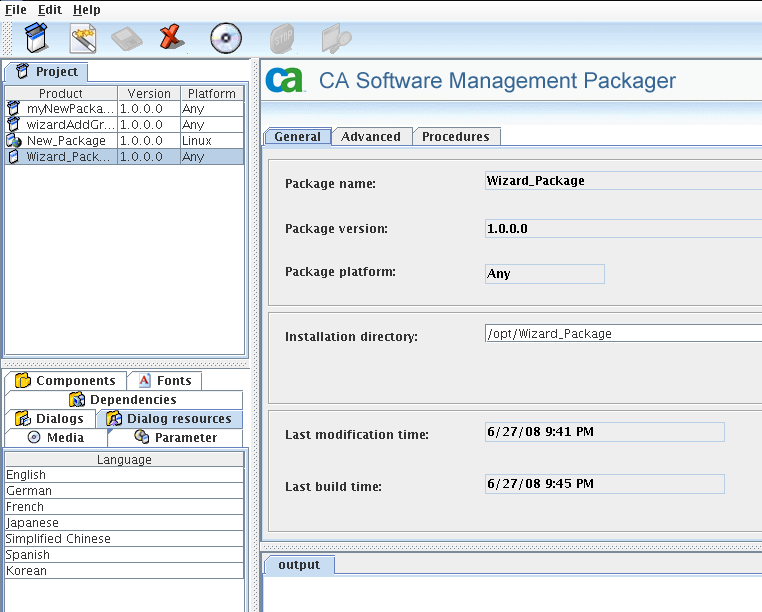
You can perform the main software packaging tasks from the File menu on the menu bar or by clicking the appropriate icon on the toolbar.
The toolbar additionally provides the Cancel and the Test dialog functions. You can access the Packager online help by choosing Help, Help topics on the menu bar or by pressing the F1 key.
The following table includes the icons and associated functions that the toolbar provides:
|
Icon |
Icon Name |
Description |
|---|---|---|
|
|
New |
Create the prototype file for a new PIF product. |
|
|
Save |
Save the PIF product. |
|
|
Delete |
Remove the PIF product. |
|
|
Build |
Build the PIF product. |
|
|
Cancel |
Stop a running sub process of the packaging process. |
|
|
Test dialog |
Preview the installation dialog being designed. |
|
|
Package wizard |
Launch the package creation wizard. |
The project pane is located in the upper-left side of the window and lists all created and imported products. To manage a product, you must select the appropriate item in the project pane.
The subproject pane is located beneath the project pane and shows relevant modules (subprojects) of the product selected in the project pane. Each tab in the subproject pane provides the current contents of the subproject. You can select an item to view and modify its properties in the work pane.
The work pane is located at the upper-right side of the GUI window and shows the properties of the selected product or subproject item.
The output pane lists status and error messages issued by commands that have been called through the Packager GUI. The error message is displayed in a separate tab of the output pane. This error message tab remains visible till a new build job is started; thus, allowing you to switch between patches without losing the error information.
|
Copyright © 2014 CA Technologies.
All rights reserved.
|
|


