Previous Topic: Modify the Migration ProcessNext Topic: Create Software Job Data Definitions


Add and Configure the Wait Operator

A wait operator waits for the job to finish and takes the workflow to different tasks depending on whether the job is successful. You must add a wait operator for the generic software jobs operator manually.

To add the wait operator

  1. Open the migration process that you modified.
  2. Add the Wait for Finish operator after the Software Generic Job container.

    The operator is added with two default results, Completed and Failed.

  3. Remove the default results.
  4. Right-click the wait operator and select Custom Result.

    The Custom Port dialog opens.

  5. Specify a name for the success result and enter the following in the Expression field:
    Process[OpName].JobStatus == "SUCCESS"
    
  6. Right-click the wait operator again and select Custom Result.
  7. Specify a name for the failure result and enter the following in the Expression field:
    Process[OpName].JobStatus == "FAIL"
    
  8. Double-click the wait operator.

    The Properties for the wait operator opens.

  9. Specify the following values in the fields displayed in Wait For Finish section:

    MachineUUID: Process.MachineUUID

    Job ID: Process.genericJobID

    Event Name: SWDeployJobFinish
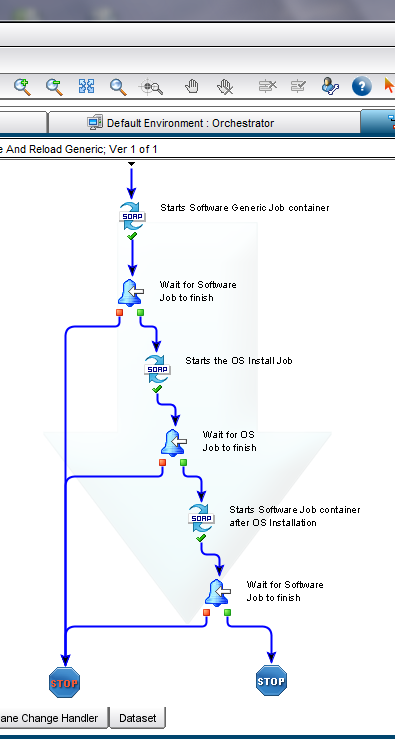
  10. Link the success result to the next valid operator in the process definition and the failure result to abnormal exit as shown in the following screenshot:

    Screenshot showing CA IT PAM process definition with the software generic job container

    The wait operator is configured.