

This section provides user interface updates for CA Clarity PPM Release 13.3.
You can use the UI theme CSS to customize the appearance of the login page. For example, set a custom logo for an organization or set a message for all users to view when they log in. A sample system maintenance message appears as follows:
The system will be unavailable from Sun April 15 at 11:30 pm until Mon April 16 at 3:30 am.
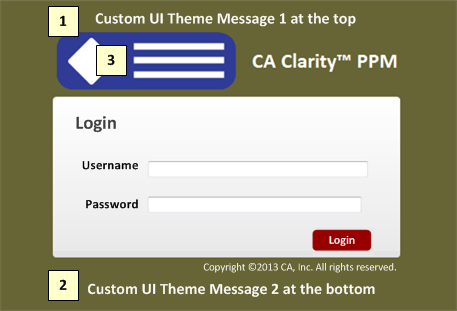
1. Login Page Top Message
You can add a service announcement or custom message at the top of the login page.
2. Login Page Bottom Message
You can add a service announcement or custom message at the bottom of the login page.
3. Login Page Logo
You can insert a custom logo on the login page.
Note: See the Studio Developer Guide for more information.
Upgrade Action: None
Starting with Release 13.3, the bubbles in a bubble chart are translucent. This change allows smaller bubbles that appear behind larger bubbles to be viewed. Previously, smaller bubbles were not visible when hidden because the bubbles appeared as solid objects in the chart.
Upgrade Action: None
The display type of a static lookup on an editable list view changes automatically from pull-down to browse when the number of displayed values exceeds 20. The browse lookup is easier to use when the list of values is long.
OBS, dynamic, and dependent lookups always display as browses on the editable list view.
Upgrade Action: None
Before this release, an export to Excel or PowerPoint exported portlet information for all tabs for a selected page. With Release 13.3, only information that is on the selected tab is exported. Exporting the portlet information for a tab is the default behavior.
This behavior is governed by the system-level option ENABLE_PAGE_LEVEL_EXPORT. The value of this option is false by default, which means the information from the current active tab is exported. If the value of this flag is set to true, information from the portlets of all page tabs are exported.
Upgrade Action: To put the new value into effect, flush the server cache.
To check the value of this option, use the following SQL:
SELECT cov.value FROM cmn_option_values cov, cmn_options cos
WHERE cos.option_code = ‘ENABLE_PAGE_LEVEL_EXPORT’ AND cov.id = cos.id
The Y-Axis unit of measure for the Major Unit Increment field is days when the Y-Axis for a chart represents date data.
This section provides XOG updates for CA Clarity PPM Release 13.3.
When you import or export a large number of instances through XOG, you may encounter Out of Memory (OOM) or time-out exceptions. To handle these issues, you can now configure the Maximum XML Nodes option available under the Application tab in the CSA. The Maximum XML Nodes is referred as nodes limit in the document. The default value for the Maximum XML Nodes is 150,000 for both the On-Demand and On-Premise environments.
Before this release, for a XOG read request, the entire requested information was sent in a single response which resulted in the OOM or time-out exceptions. Starting this release, the server processes the instances until the node limit is reached. After processing the response is sent back to the client in chunks using pagination. A new read request should be sent to the server with the appropriate information using pagination for the next set of instances. The number of the processed instances for a read request is updated in the skip element of the XOG output.
When you import instances, the server processes 20 instances per iteration. If the node limit is reached even before the 20 instances are loaded, the server processes only those instances that have loaded until that point for the current iteration. The remaining instances are considered automatically for the next iteration.
Note: For more information about setting the XOG Governor limit, see the XML Open Gateway Developer's Guide.
Upgrade Action: None
|
Copyright © 2015 CA Technologies.
All rights reserved.
|
|