

You can run a report immediately or you can schedule it to run at a specific interval and frequency. You can also manage your scheduled reports by monitoring the list of scheduled reports, changing schedules, or deleting schedules.
Important! Your report output cannot exceed 500 pages. This limit applies to each output format that you select. As a best practice, we recommend that you filter the report to limit the output data. Do not use reports to extract large volumes of data.
Follow these steps:
The Advanced Reporting page opens. You see links to the different Advanced Reporting functions (in blocks). The functions that you can see and access depend on your user role. The following block requires explanation:
Allows you to create and format reports from existing ad hoc views or access a list of existing reports.
A list of reports appears. The reports that appear depend on your permissions.
Note: The Options act as filters to focus the report on only the data that you want to see.
The New Schedule page opens with the Schedule tab selected. The following graphic shows an example of this page.
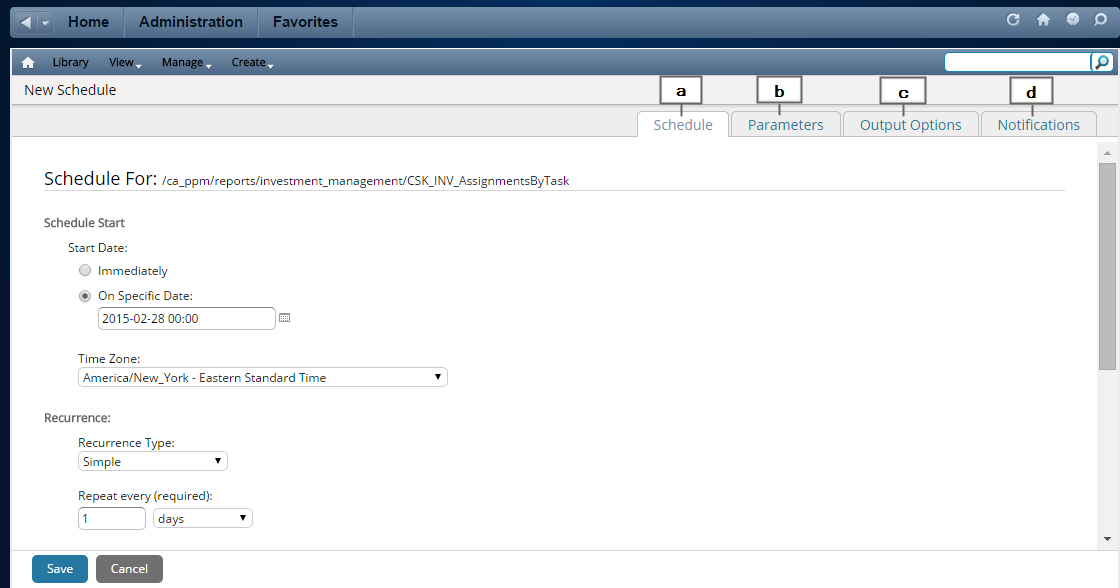
Select a schedule definition using a Simple or Calendar recurrence schedule.
Select the parameters, which are similar to the report filter options.
Select output options (for example, PDF, Excel, or Powerpoint) and distribution methods. The output options also allow you to specify a locale. Then when the scheduled report runs, the report is presented in the specified language. The following fields require explanation:
Select a maximum of two options (for example, Powerpoint and Word or PDF and Excel).
Browse to select the Shared folder (or a subfolder) or your own user folder (under Users). Other users can access your report if you save to the Shared folder. Only you can access the report if you save to your own user folder.
Output to Repository Examples:
We do not recommend that you save your report to the CA PPM folder or any of its subfolders. These folders are overwritten during a system upgrade, and your reports are then lost.
Select the notifications that you want to send when the scheduler runs. The notifications can include the report as an email attachment. The following fields require explanation:
Enter email addresses, up to a maximum of 200 characters. Separate email addresses with commas. You can also enter email aliases, which we recommend if you are sending the report to a large number of users.
Note: For information about using Jaspersoft, access the Jaspersoft Community web site and click the Documentation link or Docs link. On the Documentation page, select the correct version of Jaspersoft that corresponds to your CA Clarity PPM release. Then click the link for the JasperReports Server User Guide. Refer to the CA Clarity PPM Release Notes for the Jaspersoft version that corresponds to your CA Clarity PPM release.
|
Copyright © 2015 CA Technologies.
All rights reserved.
|
|