

The following examples show how team members and a team manager can use a dashboard.
Example: Monitoring Project Status
Karen, a team member who tracks the project information for multiple projects, creates a dashboard with tabs. From the details page of the new dashboard, she creates the portlets to show the dashboard data. The portlets include the following information:
Karen configures her dashboard by determining which portlets to present on each tab. Then, Karen adjusts the layout of portlets on each tab by dragging-and-dropping the portlets into position on the tab layout section. She adds a filter that gives her the ability to filter information for all of the portlets at the same time. When the dashboard is complete, she views the dashboard, filters for the information that she wants, and exports a copy to PowerPoint as a test.
Before each weekly team meeting, she views the dashboard to monitor her projects, exports the results to PowerPoint, and provides the information to her team leader. The team leader includes the PowerPoint slides in the regular team meeting agenda to provide status.
Example: Completing Development Tasks and Fixing Software
Roberto, a team member who does not have the right to create dashboards, navigates to Dashboards. Roberto can see two dashboards that his team manager shares with him: Security Development Team and Weekly Time Entries. Roberto views the Security Development Team dashboard. He sees that he has five assigned development tasks and three software bugs. He clicks the first task to get more information and starts working on the task.
Example: Sharing a Dashboard with an OBS Development Unit
Stan, the team manager creates a dashboard with two tabs: Team Work and Team Status. He populates the tabs with portlets that were created beforehand and with stock portlets to which he has access. Stan adds the following portlets:
Stan does not allow others to personalize his dashboard. He shares the dashboard with the entire OBS development unit and the executive management team to view portlets in the dashboard.
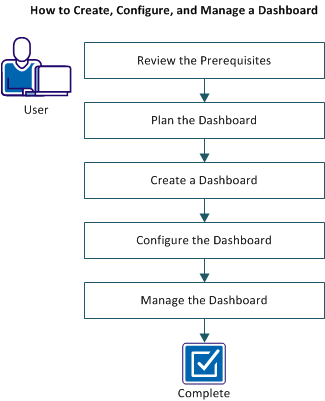
The following diagram shows how a user creates, configures, and manages a dashboard:
Follow these steps:
|
Copyright © 2015 CA Technologies.
All rights reserved.
|
|