

Organizations often build their Resource OBS hierarchy based on real-world reporting relationships and org charts. Each node on the Resource OBS represents a department manager. For example, a senior manager has a team of three direct report managers who work 40 hours each week. The capacity of the direct report managers for any given week is 120 hours. The senior manager also has 15 indirect employees who report to the three direct report managers. The total capacity of the organizational unit includes the units for each of the managers. The total capacity is the sum of the capacities of the direct reports (120) plus the indirect reports (600).
As a resource manager, you share a reporting structure that is similar to the one for the senior manager. You also share the following goals:
In this example, the senior manager navigates to the Capacity Planning Overview page. The manager sets the Resource OBS filter to the top-level Resource OBS (the level with the direct reports). The manager also sets the OBS filter mode to include the unit and descendants. The Capacity Planning Overview portlet provides a complete view of the capacity, demand, remaining bandwidth, and the actual hours. The capacity planning overview appears in an expandable hierarchy with a time-varying chart of capacity and demand metrics. The senior manager scans the high-level capacity planning data that is grouped by Resource OBS. To view more details, the portlet allows expansion of the following sub-portlets:
The following graphic describes how a resource manager manages capacity.
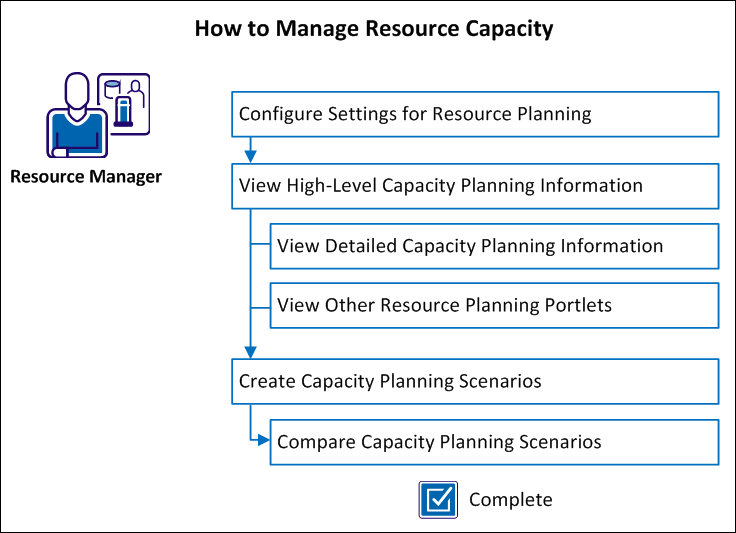
Follow these steps:
Before managing resource capacity, work with your administrator to configure the following items.
Follow these steps:
Note: To assign the access rights using a group, assign the user to one of the following groups: Resource Manager or Resource Planner.
This setting appears in the Investment Demand metrics for the selected Staff OBS unit.
Use the Capacity Planning Overview page to see a high-level summary of resource capacity, unfilled roles, and resource demand filtered by the selected OBS level. Set additional filtering criteria for the Capacity Planning Overview to display information about the appropriate resources and investments.
Follow these steps:
For the allocation (hard booked staff, soft booked staff, and unfilled roles) calculation, the staff OBS at the team level is considered first. If the staff OBS matches with the filtering OBS, the named resource is included in the allocation calculation, if it doesn’t match, the resource is ignored in the calculation If the staff OBS is blank, then it checks whether the filtering OBS matches with the OBS at the resource properties level. If it matches, the resource is considered; otherwise it’ll be ignored during the calculation.
Hard-booked Staff: Represents named resources with Hard booking status; does not include metrics for roles.
Soft-booked Staff: Represents named resources with Soft or Mixed booking status; does not include metrics for roles. Mixed status is reported as soft-booked staff because it means there is a change in the way the resource is planned to be allocated.
Unfilled Roles: Represents roles which are allocated to investments irrespective of booking status. If the booking status filter is used, the results are narrowed down further according to the filter.
The Capacity Planning Overview portlet also provides detailed information about individual resources, unfilled roles, and demand for resources by investments. For example, select a Resource OBS and select Unit and descendants as the filter mode. You see the OBS unit and its descendants in the Capacity Planning Overview page. To see the staffing allocation details for a specific descendant OBS unit, click the Resources icon for that OBS unit. The Staff Allocation portlet opens and it is pre-filtered to show you only resources who are assigned to the OBS unit.
Follow these steps:
The Staff Allocation list shows named resources where the Team Member Staff OBS matches the filter OBS. If the Staff OBS setting is blank, the Resource OBS Properties for the selected OBS unit are used for the filtering criteria. The allocation data per resource is the aggregated allocation of the resource across all the investments against which this resource is allocated after any investment filtering criteria is applied.
The Unfilled Roles list shows the unfilled roles where the Team Member Staff OBS matches to the filtering OBS. If the Staff OBS setting is blank, the Role OBS Properties for the selected OBS unit will be used for the filtering criteria.
The Investment Demand list shows the investments which have named resources and/or roles as Team Staff Members Where the Staff OBS setting matches the filtering OBS. If the Staff OBS setting is blank, the Resource’s OBS Properties for the selected OBS unit will be used for the filtering criteria. The allocation data per investment is the aggregated allocation of all the matching named resources and roles of the investment for the selected OBS.
Note: The filter criteria that are set for the Capacity Planning Overview page are passed down to the drill-down portlet to pre-filter the results. The drill-down portlets provide default values for their filter criteria based on the OBS Unit and Hierarchy Level from which you click to drill down.
|
Copyright © 2014 CA.
All rights reserved.
|
|