

As a resource manager or application administrator, create roles first as placeholders for the resources that your projects require. Then, create the resources that you hire to fill the demand that is recognized by role allocations. Finally, assign your resources to the right project teams.
For example, create a role for a field technician and then create resources for your staff and contractors. You can create an advanced role for a lead field technician with more skills. Create a non-labor equipment role whenever a project requires machinery. Then create resources for each available machine that your company owns or leases.
The product uses the financial properties of the resource to apply the correct rates and costs to their work transactions as they are processed. Enable the financial transactions for a resource to post to CA Clarity PPM and appear in financial pages and reports. The financial actuals are visible in the product only if a resource is financially enabled.
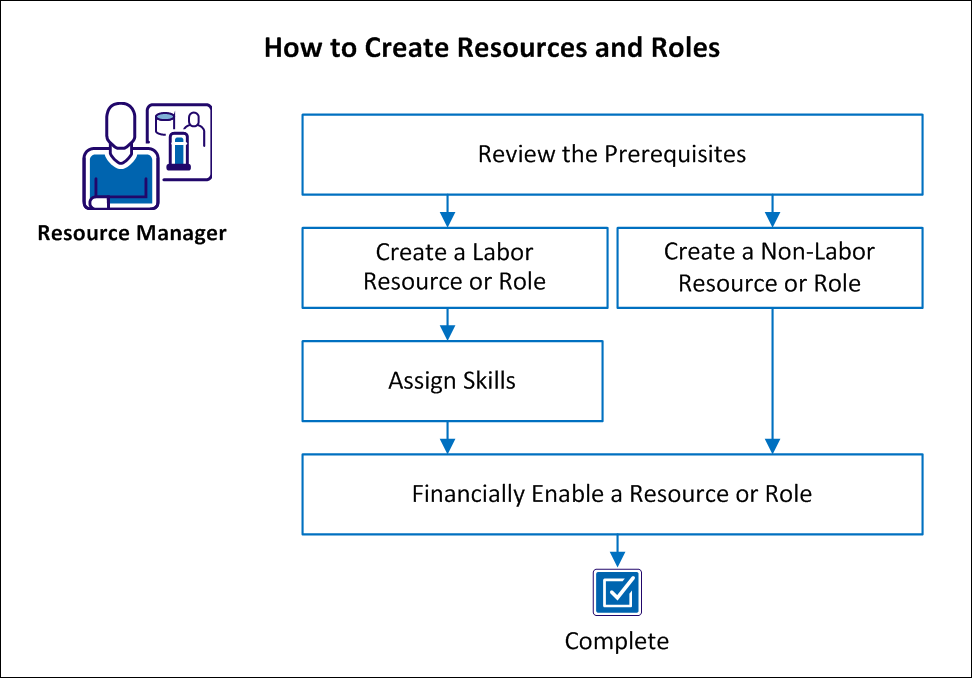
The following graphic shows the primary steps for creating resources and roles.
Follow these steps:
|
Copyright © 2013 CA.
All rights reserved.
|
|