

Use the Capacity Planning Overview portlet to get a complete picture of the capacity, demand, remaining bandwidth, and the actual hours provided by any given unit in the organization from a Resource OBS hierarchical view. The capacity planning status for a selected OBS unit is presented in a grid format and a bar graph. The capacity planning data is rolled up to the OBS level you select. The grid provides drill-down to the following sub-portlets:
For example, Forward, Inc. uses its reporting relationships to model one of its Resource OBS units. Mary has a team of three direct reports who work 40 hours each week in the Research organization. The capacity of the direct reports for any given week is 120 hours. Mary also has 15 indirect employees who report to her direct reports. The total capacity of Mary's organizational unit is the sum of the direct reports plus the indirect reports.
As a manager, Mary wants to understand the total investment demand for resources in the organization, including allocated staff and unfilled roles. Mary navigates to the Capacity Planning Overview page. Here Mary can see a grid portlet and a graph portlet on the same page. Mary sets the Resource OBS filter to be the top-level unit of the organizational Resource OBS (level with the direct reports). Mary sets the OBS filter modes to include the unit and descendants, and then filters.
At a glance, Mary can see the aggregated information for the OBS unit and its descendant. The information helps with decisions about the team workload (allocation demand), capacity, booking status, and trends for posting actual work. Mary can also drill down to get details on the allocation of individual resources, unfilled roles, and demand for resources by investment.
The following diagram describes how a resource manager manages capacity planning.
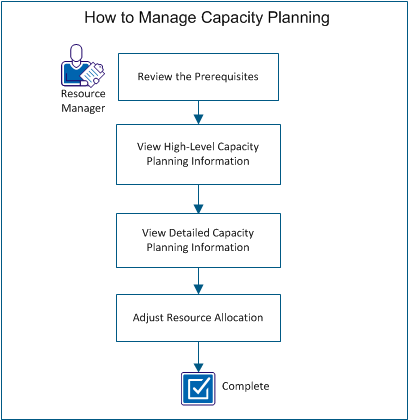
Follow these steps:
Verify that you have satisfied the following prerequisites:
Note: To assign the preceding access rights using a group, assign the user to one of the following groups: Resource Manager or Resource Planner.
View the Capacity Planning Overview page to see a high-level summary of resource capacity, unfilled roles, and resource demand at a selected OBS level. Set the filtering criteria for the Capacity Planning Overview to display information about the appropriate resource and investment OBS units.
For example, to see the overall OBS capacity and demand, select a high-level OBS unit with OBS descendant units. To narrow the information that appears, you can elect to see only the information for a specific OBS unit with no information from ancestor or descendant OBS units.
Follow these steps:
A value is required in this field to produce results in the Capacity Planning Overview portlets.
The Capacity Overview portlet displays the information based on the filter you select:
This portlet provides an overview of resource capacity rolled up for the target resource OBS unit. If you selected Unit only in the filter for Investment OBS -Filter Mode, you see the resource allocation for the individual OBS unit. If you selected Unit and ancestors or Unit and descendants, information for parent or child OBS units also displays in a hierarchy format.
The default time period that is shown is monthly. Monthly hour totals are presented for the following items in the OBS unit:
This portlet contains icons that let you drill down to detailed information about individual resources, unfilled roles, and demand for resources by investments.
This portlet provides a visual representation of the information presented in the Capacity Overview portlet. The bar graph shows time-scaled values for the OBS unit for unfulfilled roles, soft-booked staff, and hard-booked staff. In addition, line graphs track capacity and actuals.
Use the icons in the Capacity Planning Overview portlet to drill down to detailed resource information for an OBS unit. Each icon represents a different set of information. The detailed information presented is based on the filter criteria that are set for the Capacity Planning Overview page.
For example, consider the following setup for the Capacity Planning Overview page. You select a specific Resource OBS and you select Unit and descendants as the filter mode. You see the OBS unit and its descendants displayed in the Capacity Planning Overview page. You want to see staffing allocation details for a specific descendant OBS unit, and you click the Resources icon for the descendant. What displays in the Staff Allocation portlet is the staff allocation information for the descendant portlet and any descendants that belong to it.
The following detailed resource information is available by clicking an icon for an OBS unit:
Follow these steps:
Examine the detailed capacity planning information for resources and make any adjustments.
Follow these steps:
When you are satisfied with the adjustments, you have successfully used the Capacity Planning Overview page to manage capacity planning.
|
Copyright © 2013 CA.
All rights reserved.
|
|