

You can show operating and capital costs separately on the financial summary page and in a detailed financial plan. You can enter the cost information in the following ways:
Financial Summary Page
The financial summary page for an investment displays high-level operating and capitalization costs for planned and budgeted costs. You can edit the amounts on the financial summary until you create a cost plan of record (POR). When you create a POR, the fields for operating and capitalization costs in the planned and budgeted cost sections of the financial summary become read-only. The POR information updates the planned cost fields on the financial summary page automatically. The latest approved budget updates the budget fields.
Detailed Financial Plan
You can create a detailed financial plan manually, or you can populate the plan automatically from tasks or team allocations. To populate from task or team allocations, Cost Type must be selected as a grouping attribute. To populate cost and budget plans automatically with capital and operating costs, use one of the following methods:
Specify an investment-level default (Capital or Operating) for all tasks. If you do not specify a cost type, the default is Operating. You can override the default at the task or task hierarchy level for individual tasks as needed. For example, you have an investment in which most tasks have operating costs, and a few tasks have capital costs. Set the investment cost type as Operating so all tasks inherit the cost type of Operating. For each task that has capital cost, edit the cost type in those specific tasks to override the default cost type.
Specify a capital cost percentage for individual team member allocations. For example, you have six team members who are assigned to a project. Alice, one of the members, has capital cost of 15 percent. Specify the capitalization percentage for Alice. The capitalization percentage is used to calculate the percentage of operating cost and capital cost for an employee allocation. When you populate from the team allocation, Alice has two lines in the cost plan. One line shows the operating percentage and the other shows units and costs per the operating percentage.
Important! The procedures in this scenario describe the product navigation with no add-ins installed. If you have an add-in such as the PMO Accelerator installed, the navigation can vary.
The following diagram describes how a financial administrator displays capital and operating costs on summary and detailed financial plans.
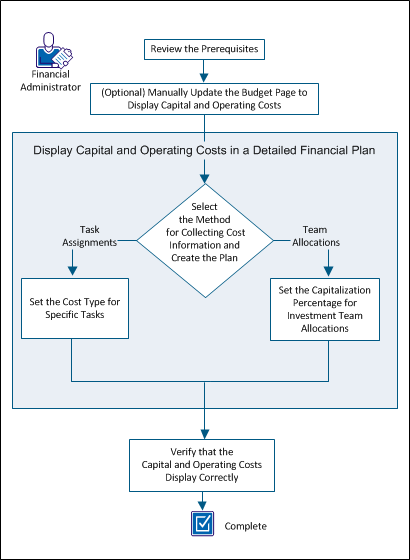
To display capital and operating costs, perform these steps:
Complete the following setup tasks before beginning the procedures described in this scenario:
To assist with high-level planning, you can manually add capital and operating amounts on the financial summary page. For example, you have a new project and must deliver high-level, planned cost estimates. You can enter estimates for operating and capital costs. Once you have created a cost plan of record (POR) or have an approved budget, these fields become read-only.
Follow these steps:
Note: If the POR does not use the Cost Type grouping attribute, the Planned Operating Cost field summarizes all costs as operating.
Specifies the amount of capital cost that is planned for the investment. If the plan has a cost POR, the values from the POR populate this field and it becomes read-only.
Specifies the percentage of total cost that comes from capital. This read-only field is automatically calculated based on the Planned Cost field value.
Specifies the amount of operating cost that is planned for the investment. If the plan has a cost POR, the values from the POR populate this field and it becomes read-only.
The percentage of total costs that comes from operating. This read-only field is automatically calculated based on the Planned Cost field value.
Note: If Cost Type is not a grouping attribute, then all values are combined in the Budgeted Operating Cost field.
Specifies the amount of capital cost that is budgeted for the investment. This field is unavailable when:
Specifies the percentage of total budget costs that come from capital. This read-only field is calculated from the Budgeted Capital Cost field value.
Specifies the amount of operating cost that is budgeted for the investment. This field is unavailable when:
Specifies the percentage of total budget costs that come from operating. This read-only field is calculated from the Budgeted Operating Cost field value.
Create the detailed financial plan to update capital and operating costs automatically from either task assignments or team allocations.
If you plan to populate your financial plan using task assignments, you can override the investment Cost Type setting at the specific task level. Set the investment default for the cost type when you create the financial plan.
For example, consider an investment with 90 tasks that break down into the following cost types: 80 operating cost tasks and ten capital cost tasks. In this case, the financial manager sets the investment Cost Type attribute to Operating. This setting automatically assigns the Operating cost type to all tasks and the 80 operating cost tasks are correctly identified. For the ten tasks that are capital cost, the financial administrator specifies the cost type at the task level to override the default setting.
Follow these steps:
The cost plans list appears.
The properties page appears showing the default values from the associated entity and investment. You can accept these default values, or you can change them.
Cost plans with information that is populated from task assignments can have some tasks with a cost type different from the default. You can indicate a cost type for a specific task that overrides the default cost type that is selected for the plan.
Example 1
The Cost Type attribute for an investment is set to Operating. However, there are some tasks or task hierarchies that require the Capital cost type. In this case, you select the Capital cost type for only those tasks. When you populate the cost plan from tasks assignments, the plan displays a breakdown of capital and operating costs by line item.
Example 2
The Cost Type attribute for an investment is set to Operating. The investment has a parent task with a cost type of Capital. The parent task has two children tasks: Task 1 has a cost type of Operating and Task 2 has no cost type selected.
In this case, Task 1 has Operating specified and Task 2 inherits the cost type Capital from its parent task. When a cost plan is created using New from Task Assignments, two rows get created, one for Operating costs and one for Capital costs.
Note: The Cost Type field does not display out-of-the-box for tasks. The system administrator must configure the Tasks view in in Studio to display the field.
Follow these steps:
Note: A child task inherits the selected value, unless it has a different cost type selected.
To show capital costs by team allocation, specify the capitalization percentage value for team members. For example, you have a team of six people who are assigned to a project. You can specify a capitalization percentage for each team member. Each member can have a different percentage. The cost plan displays the capital and operating costs for team members for whom you set a capitalization percentage.
Follow these steps:
The value is used to calculate the percentage of operating cost and capital cost for the employee allocation.
Note: The Capitalization field does not display out-of-the-box for teams. The system administrator must configure the Teams view in in Studio to display the field.
Verify that the investment capital and operating costs display on the following pages:
To view the Financial Summary page, follow these steps:
To view the Cost Plans Detail page, follow these steps:
The cost plans list appears.
When the capital and operating costs appear on both pages, you have correctly displayed this information.
|
Copyright © 2013 CA.
All rights reserved.
|
|
