

This section contains the following topics:
How to Set up an Interactive Portlet for Real-time Data
Set up the CA Clarity PPM Web Service Connection to Xcelsius Visualizations
Add a Web Connection Definition
Add Flash Variable Definitions
Test the Data Connection at Design-time
Create the Interactive Portlet
Create Object or Global Parameters
The following process provides the basic steps on how to set up an interactive portlet that displays real-time CA Clarity PPM data. These instructions assume that you have installed the required tools for an Xcelsius implementation and have the appropriate access rights.
To get optimal performance from your Xcelsius visualizations, follow the guidelines outlined in the BusinessObjects Xcelsius 2008 User Guide. For example, set up complex calculations in the database queries.
Best Practice: Create a mockup of the visualization and create a static visualization in Xcelsius when you first build an interactive portlet.
See the BusinessObjects Xcelsius 2008 User Guide for more information.
See the BusinessObjects Xcelsius 2008 User Guide for more information.
For more information, see the Studio Developer’s Guide.
These interactive portlet parameters are used to define the CA Clarity PPM information that is sent to the Xcelsius visualization. Use these parameters to map to the Flash variables created in Xcelsius to establish the real-time data connection between CA Clarity PPM and Xcelsius.
For more information, see the Studio Developer’s Guide.
Use these steps to do the following:
Follow these steps:
For more information, see the Studio Developer’s Guide.
http://<servername:port>/niku/wsdl/
For more information, see the XML Open Gateway Developer Guide.
See the BusinessObjects Xcelsius 2008 User Guide for more information.
Defines the URL of the web service to import the URL.
Defines the Web service connection.
Value: Query
Defines the mapping for an output value of the Web service to a cell in the embedded spreadsheet.
Defines the mapping for an output value of the Web service to a cell in the embedded spreadsheet.
Defines the mapping for an output value of the Web service to a cell in the embedded spreadsheet.
Create a connection definition in Xcelsius using the Data Manager. The approach to connecting real-time data from CA Clarity PPM to an Xcelsius visualization can vary depending on the following:
To allow real-time CA Clarity PPM data transfers, you must bind elements to cells in the embedded Excel spreadsheet of a visualization. The series of steps enable the components of the visualization to retrieve data from the cells to which they are bound. The external data connection must be configured to insert data into the embedded spreadsheet. Components that use the data from the external source are then bound to the cells updated by the external connection.
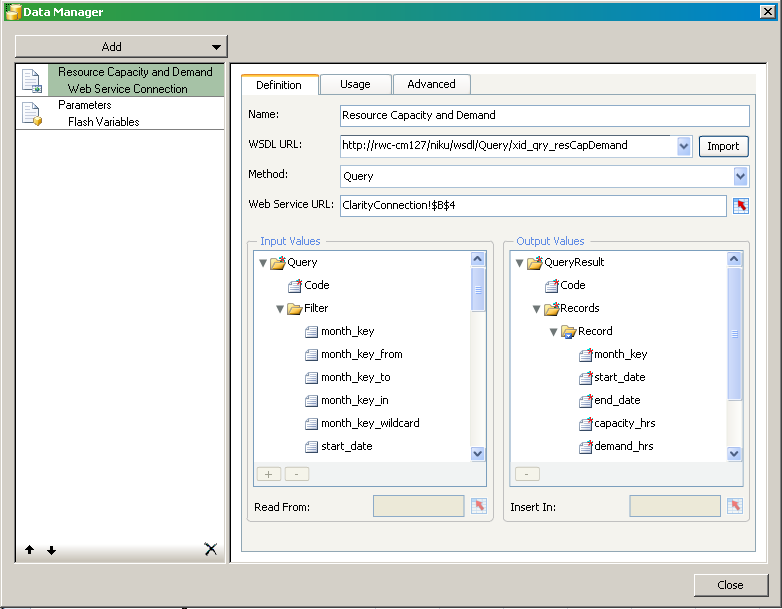
The following figure shows the Data Manager with a basic external data connection setup:
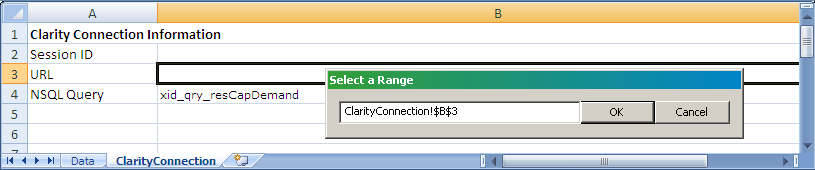
The following figure illustrates the corresponding, embedded spreadsheet for the web service connection:
Create an external data connection for each query associated with the visualization. In addition, create one for the Flash variables that map to the global and object parameters.
For complete information about how to set up a data connection definition, see the following:
Flash variables are defined in Xcelsius. For each Flash variable, create a corresponding global or object parameter for the interactive portlet in CA Clarity PPM. At runtime, the Web Service URL passes a value from CA Clarity PPM using the parameter to the Flash variable. The Flash variable saves the value to a linked (bound) cell in the embedded spreadsheet. Components in the visualization are also bound to spreadsheet cells and the visualization data is generated from the embedded spreadsheet.
After you set up the run-time connection, test the data connection from Xcelsius. Do the test before you export the Xcelsius visualization to a SWF file.
Important! Cross-domain must be enabled if you are logged in to CA Clarity PPM through a different URL than your Web Services URL.
Follow these steps:
The about page appears.
<n0:Auth><n0:SessionID>0000000__-0z11111:22y222222x2:-3a3b3333333333333</n0:SessionID></n0:Auth>
where 0000000__-0z11111:22y222222x2:-3a3b3333333333333 is your current session ID
Note: If you close your CA Clarity PPM session, update this cell with your latest session ID.
If the connection is successful, you are ready to export to a .SWF file. If the connection is not successful recheck your data connection settings.
Use the following procedure to create an interactive portlet and import the Xcelsius visualization.
Before you start, create the Xcelsius visualization and export it to the Flash (.SWF) format.
Follow these steps:
The portlet list appears.
The create page appears.
Defines the name of the portlet. This name appears on the title bar of the portlet and in the list of available portlets.
Defines a unique alphanumeric identifier for the portlet.
Specifies where the data that appears in the portlet originates.
Specifies the general area on which the portlet reports data.
Defines the purpose of the portlet and provides any relevant information.
Indicates the portlet is active and is visible to users. You can edit inactive portlets and activate them later.
Default: Selected
Specifies the type of page the portlet can be placed on. If you select General, the portlet can be added to any CA Clarity PPM page. If you select an Object, the portlet can only be added to CA Clarity PPM pages associated with that Object.
Specifies the .SWF file used for the interactive portlet content.
Click the Browse icon to select the .SWF file. Do not enter or copy the file path.
The Xcelsius visualization is imported into the interactive portlet.
Interactive portlet object or global parameters define the data that is exchanged between CA Clarity PPM and the Xcelsius visualization. Your CA Clarity PPM administrator defines the Flash variables in Xcelsius while designing the visualization. The Flash variables allow the visualization to accept information from CA Clarity PPM. You use the Flash variable name when you create parameters in the interactive portlet.
Your CA Clarity PPM administrator must first create the Xcelsius visualization and the required Flash variables before you can create object or global parameters.
Important! You can delete object and global parameters from the parameters list page. Use care when deleting global and object parameters. Deleting these parameters can cause data instability in the Xcelsius visualization.
Follow these steps:
The interactive portlet parameters list page appears.
The properties page appears for the selected parameter type.
(Global Parameter only) Displays the selected global parameter.
Required: Yes
(Object Parameter only) Displays the name of the object to which this object parameter is associated.
(Object Parameter only) Specifies the field name. The values displayed are associated with the selected object.
Required: Yes
Defines the name for the flash variable. This name must be the same as the Flash Variable Name associated with the visualization.
For Global Parameter, BusinessObjects Session ID, displays the required value: CELogonToken
Required: Yes
Defines the description for the parameter.
Limits: 240 characters
Required: No
|
Copyright © 2013 CA.
All rights reserved.
|
|