

Use the waterline view to prioritize and rationalize the investments in your portfolio. The waterline signifies an analysis point your list of portfolio investments. For example, the waterline might appear where the target for the primary constraint of total budget is met. By default, approved investments with the most recent finish date sort to the top of the list on the view. The unapproved investments with later finish dates sort to the bottom.
You can define rules to set up your own custom criteria to rank investments initially. As you review the list of investments during portfolio planning meetings with stakeholders, you can evaluate how the list of prioritized work compares to the set portfolio constraints of cost, benefit and resources over the time. Based on feedback from your stakeholders, you can manually fine-tune the prioritization to rationalize your current investments and override the predefined ranking rules.
For example, you can determine a planned cost target for a portfolio plan, then set up the waterline configuration to snap to the primary constraint Planned Cost. The waterline displays in your list of investments at the point where the planned cost target is met. Everything above the waterline is within the planned cost of the portfolio, and everything below the waterline exceeds the planned cost.
While the primary constraint determines where the waterline appears in the list, ranking rules determine which investments appear above or below the waterline. You can manually override what is above the waterline by dragging the waterline itself or by dragging investments to a new place in the list. As you rearrange the waterline or investments in the list, the resulting variance between the target constraints and your portfolio totals displays.
The following diagram describes how a portfolio manager configures the waterline view.
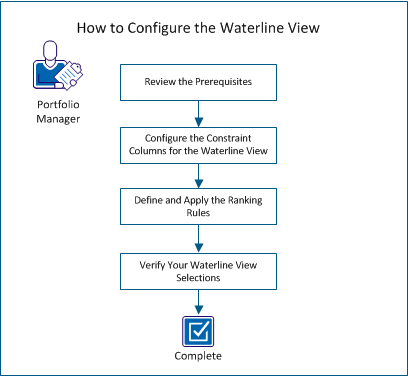
To configure the waterline view, perform these steps:
Before you attempt the procedures in this scenario, verify that the following tasks are complete:
To display the information you want to show on the waterline view, begin by configuring the columns. For example, to use planned cost as the primary constraint that the waterline tracks, configure the waterline view to show the Planned Cost column. The columns that you add to the waterline view depend on your business needs and how you manage your investments.
Follow these steps:
The List Column Layout appears.
Note: If you have added role totals to your targets, you can select the role to display as a column on the waterline view. For example, if you select DBA as a role on your portfolio Targets tab, a selection named Role: DBA becomes available as a column selection.
Note: You can also drag the column edge on the waterline view to increase or decrease the width.
Note: Drag the Gantt portion of the view to the right if your new columns are not visible. You can also expand or collapse the Gantt chart using the icon that is located at the top of the list.
The ranking rules determine where investments appear in the waterline view list. You create a ranking by assigning weights to investment attributes that apply to your investments. For example, you can weight approved investments to rank higher than unapproved investments. When the ranking calculations are made for all investments, approved investments appear higher in the list ranking. The more ranking rules you include, the more complex the calculations and the more variable the results. Consider carefully the rules you set for the initial ranking.
The weighting that you assign to attributes is relative. Select the investment attributes to weight and assign a weight that is based on your business needs. The initial ranking provides a starting place for an evaluation of the portfolio or plan. To rationalize your portfolio, manually move investments in the list and see the results of your changes.
The following points outline how to set up ranking rules:
Note: When you create a plan for a portfolio, the plan inherits the ranking rules of the portfolio. When you copy a plan, the copied plan inherits the ranking rules of the original plan.
Follow these steps:
The Prioritization Criteria page appears.
For example, if you want to use planned cost as a primary constraint, select Planned Cost (Horizon). The waterline displays when the planned cost target is exceeded in your list of investments.
The attributes appear on the Prioritization Criteria page.
For example, if the ranking method is Lower is better, the attribute weighting value 1 produces the most impact.
Note: If you select an attribute that is a lookup, click Lookup Value Weighting on the attribute row to indicate a weighting for each individual lookup value.
The calculations for the ranking rules complete, and the list on the waterline view is reordered. The waterline displays in the list at the point where the portfolio exceeds the primary constraint.
Verify that the waterline results are what you expect. Any column constraints that you display in the list also display in the pane below the list. The display in the pane provides variance information about the totals above and below the waterline.
Note: Investments added to the portfolio after the last ranking appear at the top of the list on the waterline view. The investments are assigned NR (not ranked) in the Rank column. The investments with this rank are not included in the waterline view totals. Run the ranking rules again to include newly added investments.
|
Copyright © 2013 CA.
All rights reserved.
|
|