

As a storage administrator, one of your responsibilities is to release idle space in over-allocated data sets. By releasing idle space, other applications can use the space, and you can avoid space abends. In both instances, you improve the efficiency of your site. This scenario includes the procedures to achieve this goal.
Idle space can be released from physical sequential (PS), partitioned (PO), and virtual storage access method (VSAM) type data sets. This procedure includes an example to release idle space from PO and PS data sets.
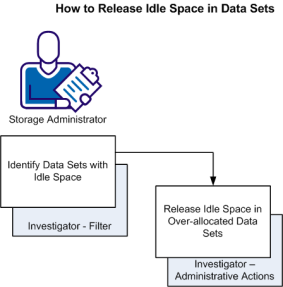
The following illustration shows how a storage administrator identifies idle space in over-allocated data sets and then releases the idle space.
Follow these steps:
The Investigator opens.
For example, create the following filter statement:
% Idl >= 80
AND Dso = PS
Note: The greater-than or equal-to 80 percent idle space is a suggested value. Use a filter value according to your policy. Sites can release idle space that is based on a lower or higher idle space percentage value.
The table is updated and lists only the PS data sets containing idle space greater-than or equal-to 80 percent. If data sets do not appear, none meet the search criteria. Consider changing the percent idle space filter to a lower value. If data sets are listed and you want to release idle space, go to the next step.
Note: We suggest that you first simulate the line action. When you are satisfied with the results, perform the real line action by selecting the Live Mode (Y,N) field.
Clear this check box to indicate N for simulate mode.
Select this check box to indicate Y, which indicates cylinder allocation attributes are converted to track allocations. Clear this check box to indicate N, which indicates cylinder allocation attributes are not converted to track allocations.
Note: Consider if the data set receives many updates and a large amount of allocated space is needed. If that is the case, then you should probably not convert the cylinder allocation attributes to track allocations.
Specify the amount of idle space to remain in the data set after the release occurs, according to your policy.
A simulated result of the action is displayed.
- Unselect the error items in the Investigator so they are not included in the line action.
- Change the Pct Idle After Space Release value to a lower value.
Idle space is released according to your specifications. The idle space values that you specified for Pct Idle After Space Release remains in the data sets.
% Idl >= 80
AND Dso = PO
You have identified the PO data sets with idle space above your policy and released idle space from them.
Other applications can now use the released space, which can help to avoid space abends. You have improved the efficiency of your site.
|
Copyright © 2013 CA Technologies.
All rights reserved.
|
|