

As a storage administrator, you review and manage storage space usage in Storage Groups to avoid space abends. We recommend that you archive or migrate older data to lower-cost media instead of occupying online DASD space in critical storage groups. This scenario shows how a storage administrator identifies potential space problems within Storage Groups and then migrates old data to free online space.
The Storage Groups object describes the space usage in each defined Storage Group. Each Storage Group is a collection of one or more volumes. The following is a list of the types of Storage Groups:
Storage Groups defined within your MVS System Generator (sysgen) or IO Generator (IO Gen).
Storage Groups defined within your IBM Data Facility Storage Management Subsystem (DFSMS).
Storage Groups defined within your CA Allocate system.
Storage Groups you defined within your storage engine.
The following illustration shows how a storage administrator identifies potential space problems within Storage Groups and then migrates old data to free online space.
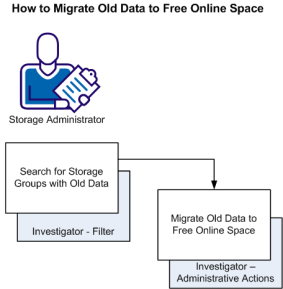
This procedure shows how to free online space in SMS Storage Groups.
Follow these steps:
The Investigator opens.
Type = SMS
The object table updates and displays only the SMS Storage Groups.
If the Storage Groups with the highest percent allocated are candidates for migration, record them for further investigation in step 8.
SG-Name = storage_group_name
The object table updates and displays the data sets in the Storage Group specified.
AND DaysUn > number_of_days
For example, enter 365 to identify data sets that have not been used for more than 365 days.
The complete filter statement in the filter pane is:
SG-Name = storage_group_name
AND DaysUn > number_of_days
The object table updates and displays the data sets that have not been used for the specified number of days, which qualifies them for migration according to your policy.
You have identified old data sets that you can migrate to alternative storage media.
The archive action that you select depends on your policy for the selected data sets and the systems you have. For example, your Archiving actions could be one of the following:
Instructs CA Disk to create a backup copy of an online data set, to index the copy in the CA Disk files data set, and to dispose of the online copy.
Generates a deferred archive request and inserts it into the ABR queue for processing using Innovation Data Processing's FDRABR system.
Migrates a data set to level 1 storage using IBM's DFSMShsm system.
Migrates a data set to level 2 storage using IBM's DFSMShsm system.
The Actions dialog opens.
Note: If you select CA Disk Archive, you must enter the appropriate parameters in the Actions dialog. You can simulate the CA Disk Archive action by selecting the check box next to SET MODE=SIMULATE - Simulated execution in the Actions dialog.
Note: The CA Disk Archive action is a batch job that is put in the job queue for execution. When the job runs depends on how many jobs are in the queue.
The data is migrated offline upon completion of the action job.
You have migrated data offline to free online space after the archive action jobs have run. Additional online DASD space in critical storage groups is available for use.
The storage engine pool-scan process updates the data displayed in the Storage Group. To verify the data is migrated offline, open the Storage Group object in the Investigator after the next pool-scan is completed and verify that the data sets are archived.
|
Copyright © 2013 CA Technologies.
All rights reserved.
|
|