

The following screenshot details the Investigator window:
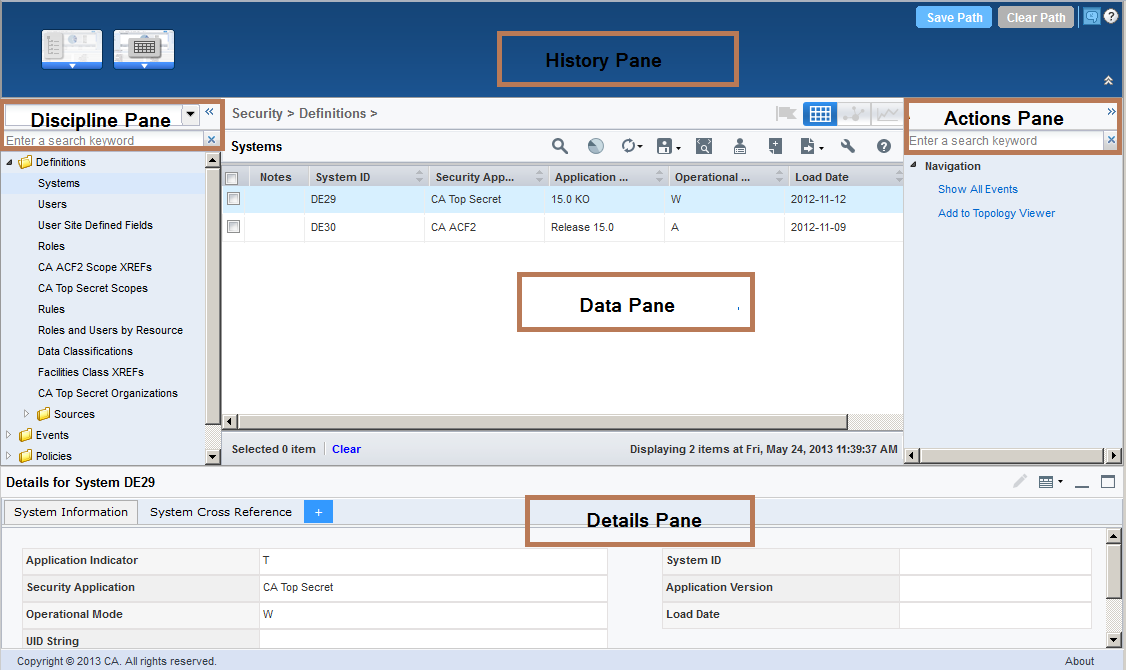
The Investigator window has the following panes:
Note: To hide or expand a pane, use the double arrows.
Displays discipline-specific objects and helps you retrieve data for querying, analyzing, maintaining, and monitoring systems. Note the following behaviors:
Note: The Discipline drop-down list also includes your saved queries and an option to add custom objects to the Investigator. To access shared dashboards, maps that are saved from the Topology Viewer, and policies, select Chorus from the Discipline drop-down list.
Investigator lets you create policies that are specific to your needs, assign objects, define rules, and set actions. To create policies, follow these steps:
Displays all data for the selected object in the tree in a table view by default. The table contains all properties of a path displayed in columns. When you select a path in the table, detailed information of that path appears in the Details pane. You can view the SQL query behind the data in the table view by clicking the View SQL icon ( ). The auto-refresh option is disabled by default for authorized users. When this option is enabled, any changes in the back-end data refreshes the front-end data automatically. For example, whenever the server generates new alerts, they are automatically added to the Alerts module. Click Refresh (
 ) to disable or enable the auto-refresh option. If you are not authorized for auto-refresh, click Refresh (
 ) to refresh the data manually.
Note: For the custom investigator grid in wizards, the refresh icon does not have a drop-down option for Auto-refresh. Currently, the wizard investigator only supports manual refresh, therefore the grid contains a refresh icon in place of the split icon as shown in the Chorus Investigator.
You can select rows or highlight a row in the Data Pane. The following screenshot illustrates a selected row:

The following screenshot illustrates a highlighted row:

The following screenshot illustrates a highlighted and selected row:

The following table differentiates selecting and highlighting:
|
Selecting |
Highlighting |
|---|---|
|
Select the check box on each row to select those rows. Select the Select All check box to select all rows. you cannot cancel the selection of individual rows. |
Click anywhere on the row except the check box to highlight that row. You can highlight only one row at a time. |
|
Cancel the selection of a row by clearing the check box on that row or by clicking the Clear button on the status bar. When you select the Select All check box to select all rows, you cannot cancel the selection of individual rows. Cancel the selection of all rows by clearing the Select All check box or by clicking the Clear button on the status bar. |
Cancel the selection of a row by highlighting the same row again, by selecting the same row using the check box, or by clicking the Clear button on the status bar. |
|
For both single-row and multi-row selections, the Details pane shows no data. |
See the details of the highlighted row in the Details pane. When you highlight a row that is already selected, the Details pane shows the details. |
|
When a single row is selected and no row is highlighted, the Action pane shows actions corresponding to the selected row. When multi-rows are selected and no row is highlighted, the Action pane shows actions that are common to the selected rows. When a single row or multi-rows are selected and a row is highlighted, the Actions pane shows the actions corresponding to the highlighted row. |
See the actions corresponding to the highlighted row in the Actions pane. |
|
The Notes icon is disabled. |
The Notes icon is enabled. |
|
The Status bar displays the count of selected rows. |
The Status bar does not display the count of highlighted rows. |
To delete a row from the Data pane, highlight or select the row, select Delete Record from the Actions pane, and follow the prompts.
Displays actions based on your discipline and the object. Actions let you manipulate data or drill further into data for analysis. Actions appear as active links under different categories.
Displays detailed information in list form about the highlighted row of the table.
Note: If you customize the Data pane to include columns from a related table, the new columns do not appear in the Details pane.
Edit the details available in the Details pane by clicking the Edit button on the header of the Details pane. All tabs in the Details pane enter into edit mode. Make the changes and click Save to save the changes.
Note: You can edit only the fields of the objects that are set as editable.
Add a tab to the Details pane by clicking the + icon on the tab header. Right-click inside a tab and select Insert Field to add fields to the tab. To delete a field or a tab, right-click and select the Delete option. The Details pane must have at least one tab on it, so you cannot delete all the tabs. To change the name of a tab, double-click the name. The drag-and-drop option helps you rearrange the fields. To select multiple fields, use the Ctrl or Shift keys. After customizing the Details pane, you can save the latest view. Saving a view helps you or others reuse the view. To save a view, click the View icon, click Save View, provide a name and description for the view, select the permissions, and click Save. To reuse a view, click the View icon, click Manage Views, click the + sign on the view, and select Apply. The owners can edit and delete their views.
Note: The view that you have saved or applied becomes your default view. To restore the initial view of the Details pane, use the System Default button.
If the data is presented in a tabular format, the auto-refresh option is available in the Details pane also.
Displays the pages that you visit in an Investigator session. A breadcrumb in this pane represents each page, and the breadcrumb for the current page is highlighted. This pane lets you follow the steps you or other users made to reach a certain result. These steps form a path. You can save paths private for review later or set to public to let others view the path.
|
Copyright © 2015 CA Technologies.
All rights reserved.
|
|