

|
|
|
This section describes how CA ERwin DM users can use a concurrent license with CA ERwin DM Standard Edition or Workgroup Edition.
Note: Before you start this procedure, your System Administrator must set up the License Server and import the license to it. You have the License Server details and know which edition to use.
In the concurrent licensing model, licenses are stored in a License Server. You check out a license to use CA ERwin DM; when you close the application, the license is checked in. The License Server increases or decreases the count of available licenses by one when you check in or check out a license.
Note: If all the licenses are checked out, you cannot open another instance of CA ERwin DM.
When using CA ERwin DM, if you lose connection to the License Server, the License Server recovers the license and CA ERwin DM closes. The recovery happens after four hours of disconnection and several warning messages.
The following diagram illustrates how to use CA ERwin DM with the concurrent licensing model:
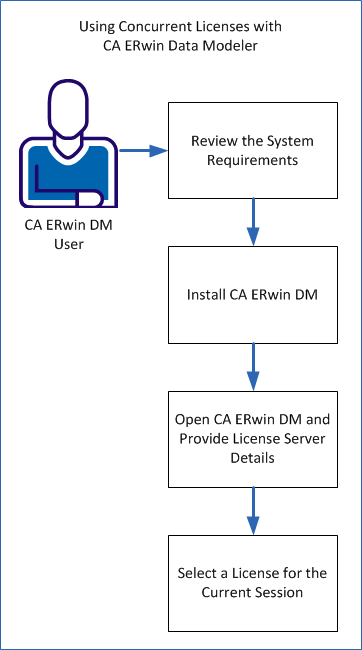
Perform the following tasks to use concurrent licenses:
| Copyright © 2012 CA. All rights reserved. | Tell Technical Publications how we can improve this information |