The Connection Manager opens.
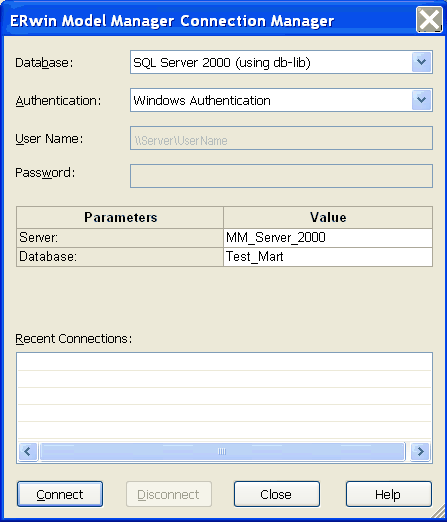
- Database
-
Identifies the type of relational database management system (DBMS) you will connect to. Select from the current list of supported databases.
- Authentication
- Windows Authentication
-
Specifies the use of Windows user names and passwords to secure database access. You must be logged on to your computer as the user who is the dbo of the database. (Available only for Oracle and SQL Server.)
- Database Authentication
-
Specifies the use of a local user name and password for the connection.
- Parameters/Value Options
- Connection Type (Microsoft SQL Server 2005 Only)
-
Specifies the use of Native Connection to connect using the API provided by the SQL Server Native client software or ODBC data to connect using the ODBC data source you have defined.
- Server
-
Identifies the server name.
- Database
-
Identifies the name of the CA ERwin MM database or mart.
- Connection String (Oracle Only)
-
Specifies the connection string (TNSNames entry).
You can select a database connection from the Recent Connections panel to automatically populate the Database or Connection String previously used.
Click Connect.
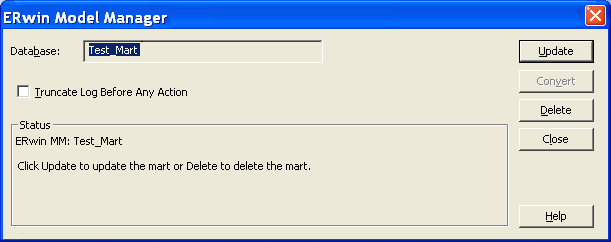
The ERwin Model Manager dialog opens.
- Database (SQL and Sybase DBMS)
-
Identifies the master database name to create the tables and stored procedures.
- CA ERwin MM Role (Oracle DBMS)
-
Identifies the Oracle MMUSER security role. This role is created in the procedure for creating the CA ERwin MM database on Oracle. Other user roles can connect to CA ERwin MM, but they will encounter access problems.
- Table Tablespace
-
Indicates where you want to store the CA ERwin MM tables.
Note: The drop-down box is not active if there is only one tablespace.
- Index Tablespace
-
Indicates where you want to store the CA ERwin MM indexes.
Note: You can store tables and indexes in the same tablespace or in different tablespaces.
- Truncate Log Before Any Action
-
Specifies to remove the database transaction log. Truncating the database transaction log is especially important for Microsoft SQL Server and Sybase users since a large transaction log can cause the database to hang.
Note: When you initialize a Microsoft SQL Server 2008 database, it is not necessary to select the "Truncate Log Before Any Action" option. If you select this check box, and click Create, the following error message displays: "Incorrect syntax near the keyword 'TRANSACTION'." To avoid this message, clear the check box for "Truncate Log Before Any Action" before you click Create.
Select one of the following after verifying the mart name in the Status window:
- Create
-
Creates an empty mart. You can manually open and save existing CA ERwin Data Modeler models to this new mart.
- Update
-
Creates a new mart with the current version and updates the data from the old mart to the new mart. The Update button is enabled only when an earlier version of a CA ERwin MM is detected. When you update your mart, the old mart is no longer usable in the previous version.
Note: The Create and Update buttons are mutually exclusive and the text of the button changes depending if a previous version of the mart is detected. If the Create button is not enabled, then a previous version of a mart is detected.
- Convert
-
Creates a new mart with the current version and copies the data from the old mart to the new mart. The old mart is retained in the same database.
The dialog displays conversion progress messages.
The ERwin Model Manager dialog displays the status.
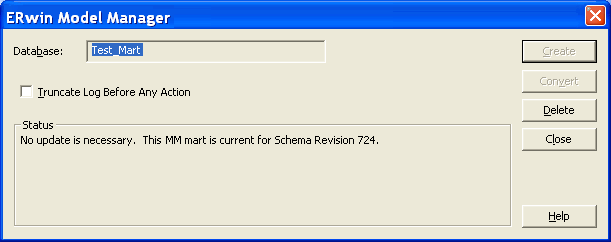
The administrative setup is complete.
The conversion is complete.