

User Guide › Service Comparison › Filter Services in the Services View › Create a New Filter View
Create a New Filter View
Work with the default View Filter list to select the information you want to include in your new view filter.
Follow these steps:
- In the Filters pane, select the information you want to include in your filter.
For example, you can select the following to display only internal e-mail services data for the New York Sales group:
- In the Service Category list, select E-mail.
- In the Business Owner list, select Internal IT Service.
- In the Business Units list, select Sales.
- In the Location list, select New York.
- Click the Save button at the bottom of the Filters pane.
The Saved Filter dialog opens.
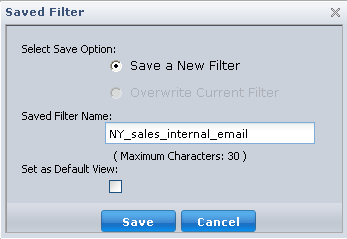
- Enter a name for the filter. Optionally, you can overwrite an existing filter with different filter criteria, and select to set the filter as the default view.
- Click Save to close the dialog and return to the Service Overview display.
Note: Click the drop-down arrow next to a saved filter to rename or delete the filter, or set it as the default view.
Copyright © 2012 CA.
All rights reserved.
|
|