

Input Toolbar
The Input toolbar allows you to edit the structure of the Input table that contains the data that is retrieved from a data source. Initial data filtering and data manipulations are performed in this section by using the validation and compound fields respectively.
In the Input toolbar:
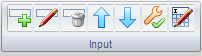
 to add an input field. For more information, see Adding Input Fields.
 to edit the input field. For more information, see Adding Input Fields.
 to delete an input field.
 to move the selected row up.
 to move the selected row down.
 to perform quality checks for the input data or to perform initial filtering of the input. For more information, see Input Validation.
 to rename the input table.
|
Copyright © 2012 CA.
All rights reserved.
|
|