

You categorize a service to enable features in CA Business Service Insight that enable you to gather data and analyze performance for the service. After you categorize a service, you can filter by that category on the Services Overview page, and compare it to other services categorized the same way.
Follow these steps:
The Service Discovery and Management page opens.
The Service Categorization dialog opens.
Your selected services display in the left pane. Available service categories display in the right pane.
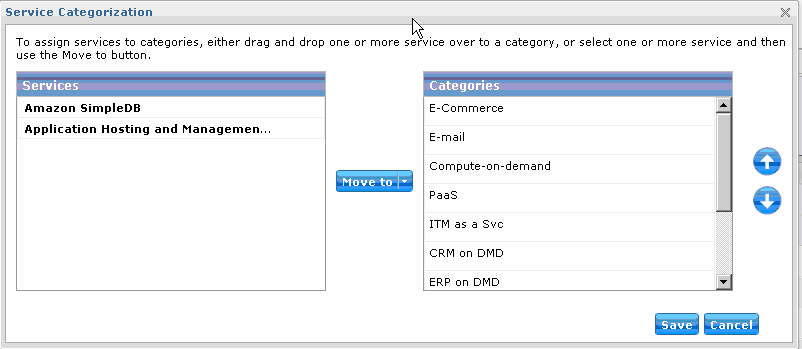
Note: Use the up or down icon to rearrange the order of the category names.
|
Copyright © 2013 CA.
All rights reserved.
|
|