

Installation Guide › Required Post Installation Activity
Required Post Installation Activity
Carry out the steps in this section immediately after installation of CA Business Service Insight 8.2.5 on Windows Server 2008 R2.
Do these tasks once. Do not do these tasks when installing CA Business Service Insight on other servers.
This section contains the following topics:
1-Tier Installations
Multi-Tier Installations
3-Tier Installations: Advanced Settings
Select Language
1-Tier Installations
- Install CA Business Service Insight 8.2.5 according to the instructions in the Installation Guide.
- Ignore the DocumentLoader error that can be received towards the end of the installation.
- When prompted to restart after the BSI installation, open a Window 32-bit command prompt as follows:
- Click Start, Run.
The Run window opens.
- Enter the following command into the Run window: C:\Windows\SysWOW64\cmd.exe
The command prompt opens.
- In the command prompt, type:
cd %OG_HOME%\bin
StringsLoader.exe -a [Path to language strings xml files]
(For example: C:\Inetpub\wwwroot\Oblicore\App_Data\Resources)
cd %OG_HOME%\Setup\Migration\
DocumentLoader.exe
- Restart the server.
Multi-Tier Installations
Follow the post-installation steps described here when your installation is multi-tier.
Server contains both App and Web Components
- When the server contains both App and Web Components:
-
- Install CA Business Service Insight 8.2.5 according to the instructions in the Installation Guide, and select Copy Database Files.
- Ignore the DocumentLoader error.
- When prompted to restart after the installation, open a Window 32-bit command prompt as follows:
- Click Start, Run.
- Enter the following command into the Run window:
C:\Windows\SysWOW64\cmd.exe
The command prompt opens.
- Enter the following command:
cd %OG_HOME%\bin
StringsLoader.exe -a [Path to language strings xml files]
(For example:  C:\Inetpub\wwwroot\Oblicore\App_Data\Resources)
cd %OG_HOME%\Setup\Migration\
DocumentLoader.exe
- Restart the server.
APP and WEB Components are Separate and Installed on Different Servers
- On the Web Server
-
- Install CA Business Service Insight 8.2.5 according to the instructions in the Installation Guide. Make sure to check the option “Copy Database Files”.
- At the prompt instructing you to restart after the BSI installation, open a Window 32-bit command prompt as follows:
- Click Start, Run.
The Run window opens.
- Enter the following command into the Run window: C:\Windows\SysWOW64\cmd.exe
- In the command prompt, type:
cd %OG_HOME%\bin
StringsLoader.exe -a [Path to language strings xml files]
(For example: C:\Inetpub\wwwroot\Oblicore\App_Data\Resources)
cd %OG_HOME%\Setup\Migration\
DocumentLoader.exe
- Restart the server.
- On the APP Server
-
- Install CA Business Service Insight 8.2.5 according to the instructions in the Installation Guide.
- When prompted to restart after the BSI installation, open a Window 32-bit command prompt as follows:
- Click Start, Run.
The Run window opens.
- Enter the following command into the Run window: C:\Windows\SysWOW64\cmd.exe
- In the command prompt, type:
cd %OG_HOME%\bin
- Restart the server.
3-Tier Installations: Advanced Settings
During installation on 3-tier environments some Advanced Settings are not automatically updated. Update the following items manually.
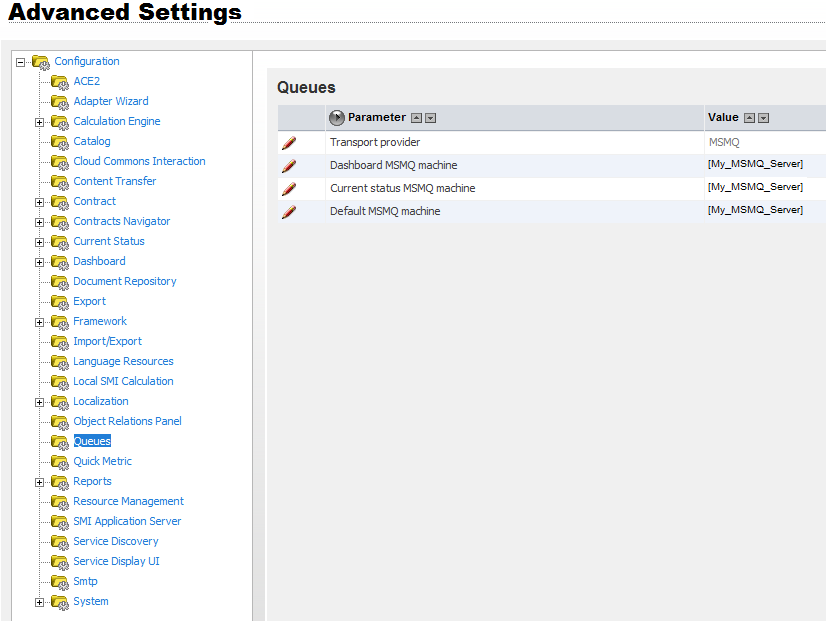
MSMQ Configuration
On three tier environments the MSMQ configuration server locations are not automatically updated with the Application Server Name.
- Update the Queues settings manually via Administration, Advanced Settings, Queues as shown in the figure below.
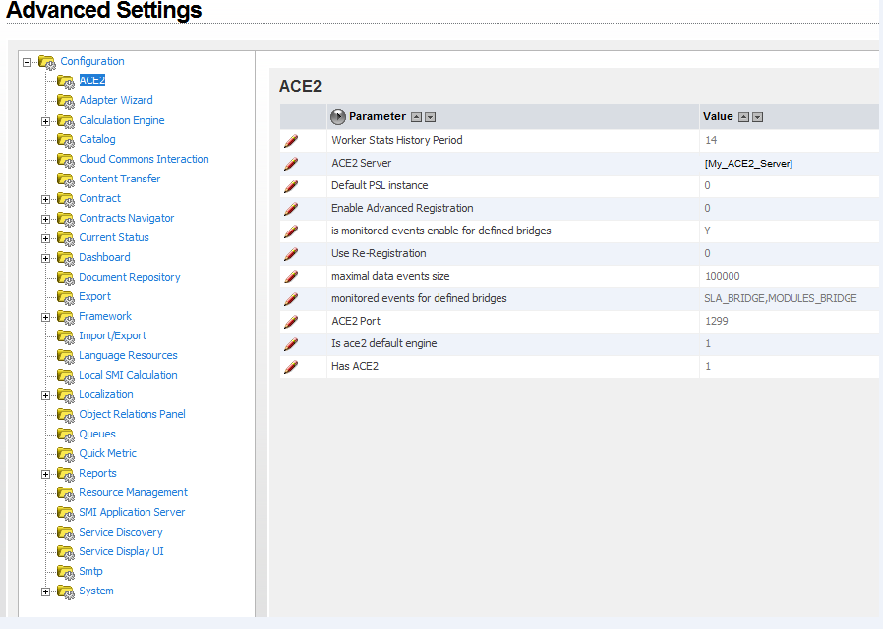
ACE2 Configuration
On three tier environments the ACE2 server locations are not automatically updated with the Application Server Name.
- Update the ACE2 settings manually via Administration, Advanced Settings, ACE2 as shown in the figure below.
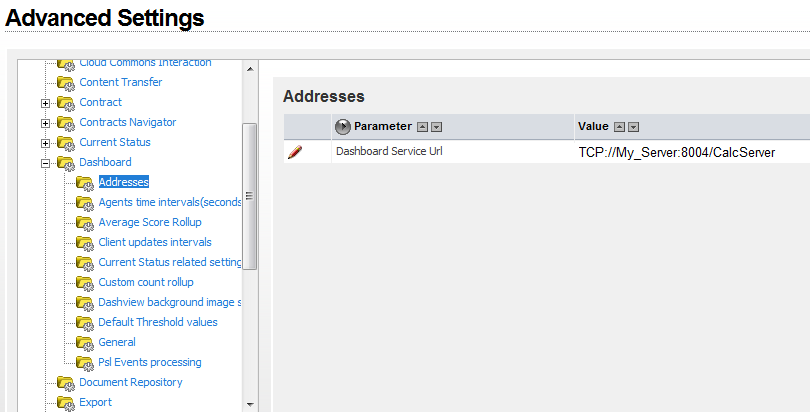
Dashboard: Addresses
On three tier environments, Dashboard Addresses settings are not automatically updated.
- Update the Dashboard, Addresses settings manually via Administration, Advanced Settings, Dashboard, Addresses as shown in the figure below.
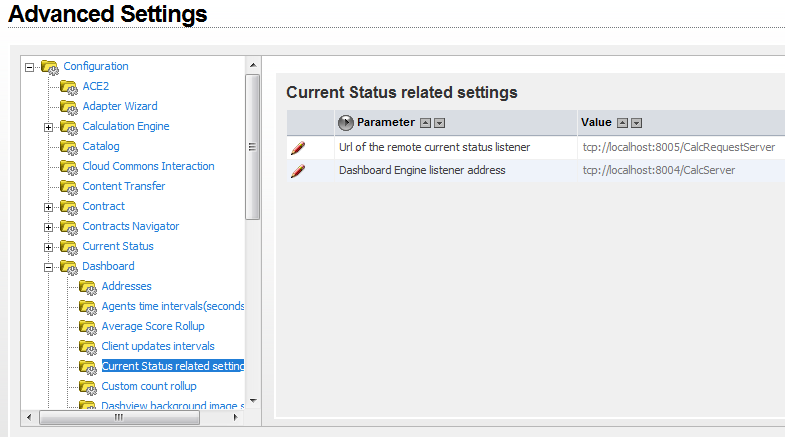
Dashboard: Current Status
On three tier environments Dashboard, Current Status settings are not automatically updated.
- Update the Dashboard, Current Status settings manually via Administration, Advanced Settings, Dashboard, Current Status related settings as shown in the figure below.
Registry Keys
A problem exists when scheduling booklets using the Docx template on 3-tier systems. A workaround for this problem by modification of the registry settings is described here.
Apply this workaround to the CA Business Service Insight App Server.
- Add the following registry key:
[
HKEY_LOCAL_MACHINE\SOFTWARE\Wow6432Node\Oblicore\Install Data\
]
“WWWRootFolderLocation” = “C:\Program Files (x86)\CA\Cloud Insight”
Note: Type = String Value
Note: Must correspond to the “Cloud Insight” folder location
- On the Application Server, create the folder C:\Program Files (x86)\CA\Cloud Insight\ App_Data\Schemas
- On the Web server, copy the folder C:\inetpub\wwwroot\Oblicore\App_Data\Schemas\Contract to the folder created in the previous step.
Select Language
- To select the language of the CA Business Service Insight interface, move the mouse cursor to the Username (Organization) menu item (left of the "logout" menu item).
The Settings menu item displays.
- Click Settings.
The User Preferences dialog displays.
- Select the interface language from the Preferred Language option.
- Click Save.
A message appears and CA Business Service Insight now displays the selected interface language. This continues to be the default language until you change it.
Copyright © 2013 CA.
All rights reserved.
|
|