

Catalyst Connector Guide › Implementation and Configuration › Post Installation and Configuration Activities
Post Installation and Configuration Activities
After installing and configuring the CA Business Service Insight connector, perform the following steps to ensure the connector is working properly.
- Go to <Catalyst_Home>\container\data\log\ and open the BSI-connector.log file. This file contains the CA Business Service Insight specific issues in the connector. Review the file for errors and debug.
- Verify the connector is installed successfully using the Catalyst REST web page.
- Open the Catalyst REST web page (http://<catalyst_host>:8080/ca-rest/browse/type?mdr=all).
- Login with Catalyst admin username and password. If the connector was installed successfully, the following page opens.
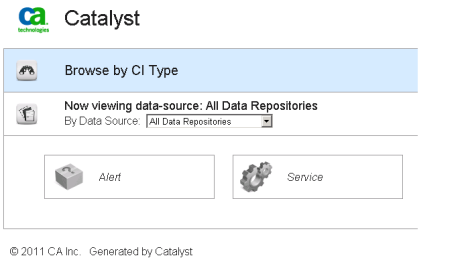
- Select “CA Business Service Insight” from the drop-down list.
- Click the Service icon link. A list of all services (as they configured in CA Business Service Insight) is displayed.
- Click the Alert icon link. A list of all alerts for each service is displayed (summary lines that state “The alert of service <service name> is initialized.”).
Copyright © 2013 CA.
All rights reserved.
|
|