

You can schedule a simple report to be generated and sent automatically at defined times to a defined list of recipients or a folder. Scheduling can be done on a one-time or a recurring basis.
Follow these steps:
The Scheduling page opens.
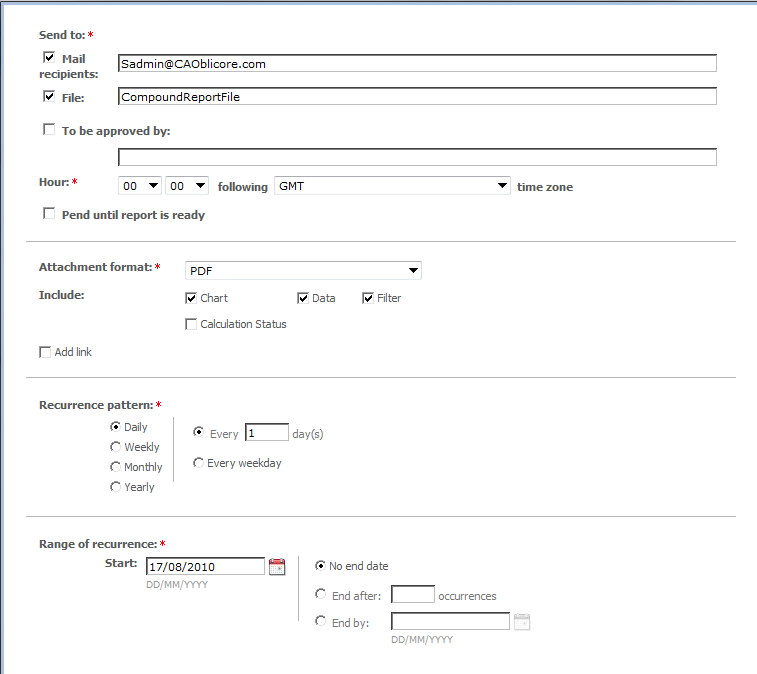
The following table shows the available attachment formats. Penalty reports (when available) have the same formats.
|
Format |
Section Availability |
|
CSV |
Includes Data and Filter (Default). Other options include: Exceptions, Corrections, Raw data, Received Data, Root-Cause Comments and Calculation status. Chart and Only Annotated are disabled and cleared. |
|
CSV (Data Only) |
Includes Data (Default). Other options include: Exceptions, Corrections, Raw data, Received Data and Root-Cause Comments. Chart, Filter, Only Annotated and Calculation status are disabled and cleared. |
|
HTML |
Includes Chart, Data and Filter (Default). Other options include: Exceptions, Corrections, Raw data, Received Data, Root-Cause Comments and Calculation status. Only Annotated is disabled and cleared. |
|
MHT* |
Includes Chart, Data and Filter (Default). Other options include: Exceptions, Corrections, Raw data, Received Data, Root-Cause Comments and Calculation status. Only Annotated is disabled and cleared. |
|
|
Includes Chart, Data and Filter (Default). Other options include: Exceptions, Corrections, Raw data, Received Data, Root-Cause Comments and Calculation status. Only Annotated is disabled and cleared. |
|
Image |
Chart is disabled and included. All other options are disabled and cleared. |
Note: * HTML reports can be sent as .MHT, which embeds all the required files into a single MHTML document. This allows the document to be viewed at a later time its entirety, without broken links.
Note: If an error occurs and the report does not run as scheduled, the system continues to try to run it for several intervals. After a few failed attempts, the schedule is stopped and the report must be rescheduled.
|
Copyright © 2013 CA.
All rights reserved.
|
|